Activation overview
Connect an advertising account, then mirror a segment to an audience list there on a schedule, with consent re-checked on every run.
An audience sync mirrors one segment to a list in a connected advertising account. Each run, Optima works out who is in the segment, keeps only the customers who have given the consent you chose and are not in the global control group, and uploads them as hashed match keys, so raw email addresses and phone numbers never leave Optima. Customers who withdraw consent or are erased drop off the list by themselves.
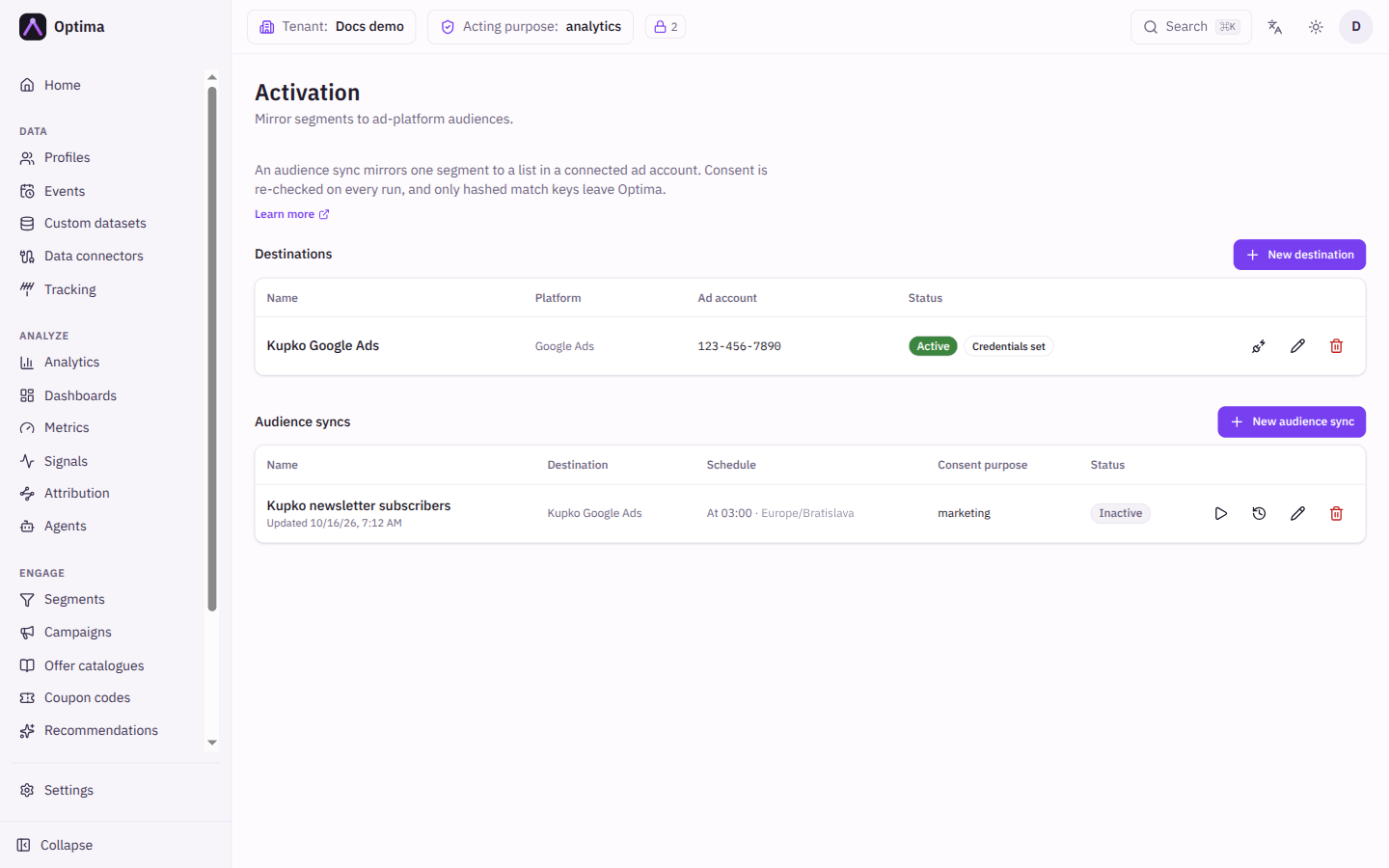
The Activation screen has two parts. Destinations are the connections to your ad accounts. Audience syncs use a destination to send one segment. A sync cannot exist without a destination, so connect an account first. Google Ads is the platform available today.
Who uses it
Campaign managers who run audiences, and integration specialists who connect the ad accounts. Reading destinations, syncs and run history needs campaign_viewer or campaign_editor; creating and changing them, and running a sync, needs activation_editor. campaign_admin can do both. You can also use another role your administrator has given access to this area — see Licences and roles. Activation is a separate package that needs the Campaign package. If your licence does not include it, Activation is not in the navigation.
Fields
Destinations
Each row shows Name, Platform, Ad account, Status (Active or Inactive) and whether Credentials set or No credentials are stored.
New destination and Edit destination have these fields:
| Field | Meaning | Valid values | Default |
|---|---|---|---|
| Name | What you call this connection. | Text | None (required) |
| Platform | The advertising platform. Fixed after creation; to change it, create a new destination. | Google Ads | Google Ads |
| Ad account | The Google Ads customer id. Dashes are fine. | For example 123-456-7890 | None (required) |
| Login customer id | Under Settings. The manager (MCC) account id, when access to the ad account goes through one. | Account id | Empty |
| Api version | Under Settings. The Google Ads API version. | Version, or empty | Empty: the built-in default |
| Developer token, Client id, Client secret, Refresh token | Under Credentials. The Google Ads credentials Optima uses to reach the account. All four are required for a new destination. They are stored encrypted and are never shown again. | Values from your Google Ads and Google Cloud setup | None |
| Active | Whether syncs can use the destination. | On or off | On |
When you edit a destination, the credentials stay hidden and unchanged. Select Replace credentials to enter new ones; you must then fill in all four. If you change the Ad account or the Login customer id, Optima asks for the credentials again, so stored credentials are never used on an account they were not entered for.
Audience syncs
Each row shows Name, the Destination, the Schedule (or Manual only), the Consent purpose and the Status.
New audience sync and Edit audience sync have these fields:
| Field | Meaning | Valid values | Default |
|---|---|---|---|
| Name | What you call the sync. It is also the default name of the list created on the platform. | Text | None (required) |
| Destination | Where the audience is sent. Fixed after creation; to move a sync, create a new one. | A destination | The first destination |
| Segment | The segment whose members are the audience. Membership is re-evaluated on every run. | A segment | None (required) |
| Match keys | Which profile identifiers to match on. Each key has a Key type and an Identifier key. Values are normalised and hashed before upload. Add match key adds a row; at least one is required. | Email or Phone, with the name of the profile identifier, for example email | One row: Email, email |
| Sync mode | Full reconcile re-asserts the whole audience on each run, so customers who withdraw consent or are erased drop off the remote list by themselves. Delta uploads only what changed; it is faster, but removals depend on the stored snapshot staying in step. | Full reconcile, Delta | Full reconcile |
| Schedule | When the sync runs on its own, with a time zone. Manual only means it runs only when you trigger it. | Manual only or a schedule | Manual only |
| Consent purpose | The purpose each customer must have consented to. It is checked live for every profile on every run. A customer without it is skipped, not uploaded. | A purpose | advertising |
| Run on schedule | Off keeps the configuration but skips scheduled runs. You can still run it by hand. | On or off | Off |
Actions
- New destination and New audience sync open the dialogs above. New audience sync is unavailable until there is a destination.
- Test connection (plug icon on a destination) checks the credentials and shows the result under the row.
- Sync now (on a sync) queues a run immediately and confirms with Sync queued.
- Run history (on a sync) opens a table, newest first, that refreshes while a run is in progress. Each run shows its Status (Running, Completed, Failed), Started and these counts: Matched (profiles in the segment), Consented (those who have the sync's consent purpose), Added and Removed (changes made to the list on the platform), Skipped (customers left out for lack of consent, because they have no usable value for any match key, or because they opted out of advertising) and Held out (customers kept out of the audience by the global control group). A message under the run explains a failure, or notes why a completed run sent nothing. When your tenant's outbound mode is
sink, a run completes with a note and nothing is sent: Added and Removed then show how many members would be added or removed, and no snapshot is stored, so the first live run starts from a clean slate. - Edit changes a destination or a sync.
- Delete on a destination asks for confirmation and tells you how many audience syncs and run histories go with it. Delete on a sync removes it and its history. In both cases the lists already on the advertising platform are left untouched.
Examples
Exclude recent buyers from prospecting ads. Create a segment of customers who purchased in the last 14 days. Create a sync Recent buyers to your Google Ads destination with Full reconcile, a daily schedule and the purpose advertising. In Google Ads, use the list as an exclusion audience.
Try it by hand first. Leave Schedule on Manual only and Run on schedule off. Press Sync now and read Run history: if Consented is far below Matched, many customers have not agreed to advertising.
Common problems
- A sync cannot be created. There is no destination yet. Create one first.
- Test connection fails. The message shows the platform's answer. Check the Ad account, the Login customer id if you use a manager account, and that all four credentials were entered correctly. Use Replace credentials to re-enter them.
- Consented is much lower than Matched. Customers without the sync's Consent purpose are skipped by design. See Consent and purposes.
- Fewer people on the platform than in the segment. The platform only accepts customers it can match, and its list grows after the upload.
- A scheduled run did not happen. Check that Run on schedule is on and the destination is Active.
- I cannot change the platform or destination. They are fixed after creation. Create a new destination or sync.