Segments
Browse, organise, inspect and delete the saved audiences that campaigns, journeys and audience syncs are built from.
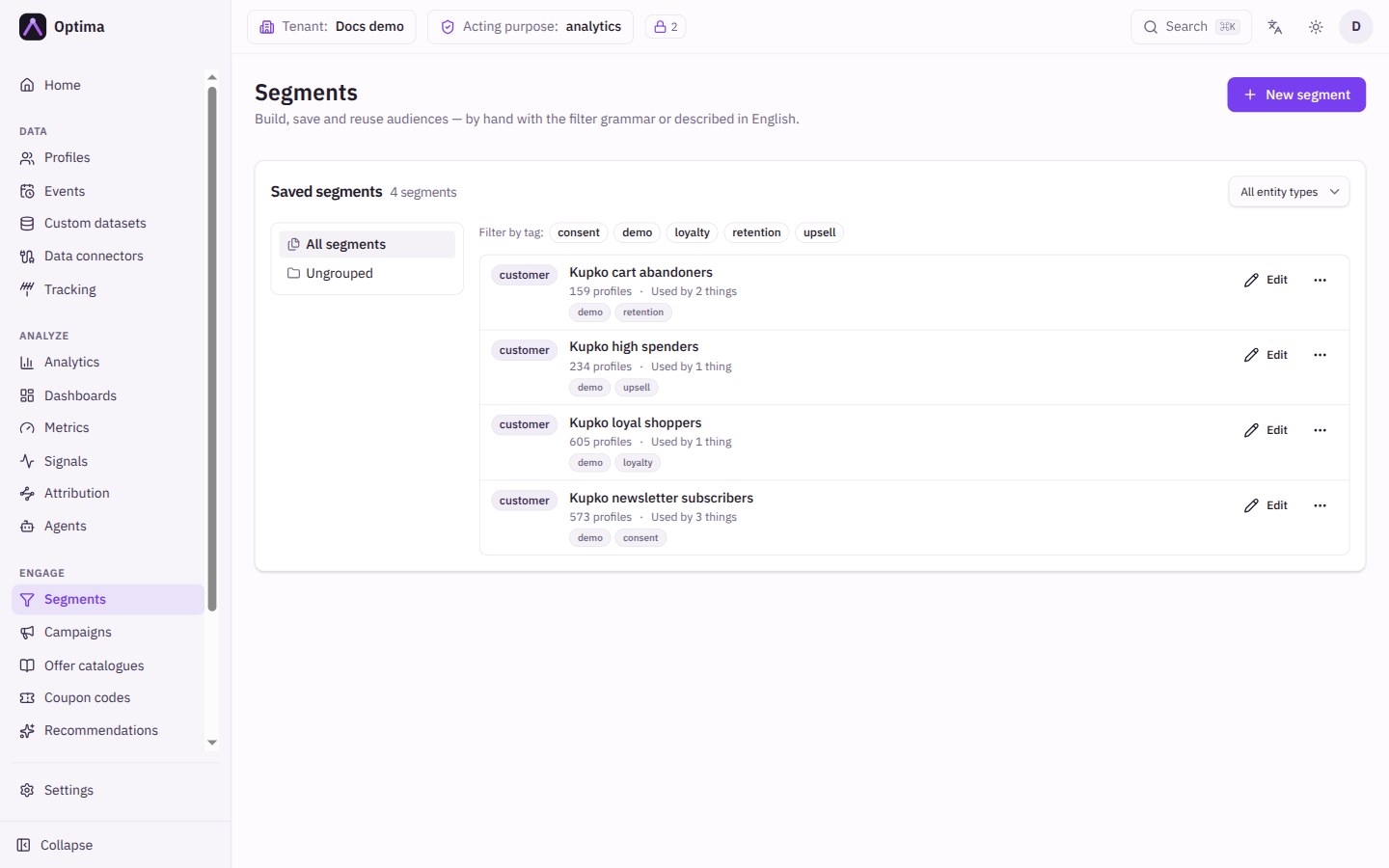
A segment is a saved question about your profiles: "German customers who purchased in the last 30 days". It is a live filter, so its members change as your data changes, and campaigns, journeys and audience syncs all read the same definition. The Segments screen lists every saved segment with its size and where it is used, lets you look at the current members, and opens the segment editor to build or change one.
Who uses it
Campaign managers, who pick segments for campaigns, and anyone who maintains audiences. Reading needs campaign_viewer; creating, editing and deleting segments needs audience_editor or campaign_editor. You can also use another role your administrator has given access to this area — see Licences and roles. Segments are part of every licence.
Fields
Filters
| Field | Meaning | Valid values | Default |
|---|---|---|---|
| Entity type | Shows only segments for one kind of profile. Folders and tags follow it. | All entity types or an entity type from your schema | All entity types |
| Folder tree | Shows one folder and everything inside it. All segments clears it. | A folder | All segments |
| Tags | Shows segments with the selected tags. | Tags used by segments | None |
The list is paged, 20 segments to a page, and the filters are kept in the address of the page so you can bookmark them.
What each row shows
| Item | Meaning |
|---|---|
| Entity type badge | The kind of profile the segment selects. |
| Name | The segment name. Select it to open the editor. An Inactive badge marks a segment switched off. |
| Folder and tags | How the segment is filed. |
| Size | N profiles, counted live when the page loads, or Size unavailable if the filter could not be evaluated. A failed count is not the same as an empty segment. |
| Usage | Used by N things or Not used. Point at it for the breakdown, for example 2 campaigns · 1 offers · 0 audience syncs. |
Members
Members (in the row's More actions menu) opens a panel under the list with Members of the segment. It shows the current member count and the first 25 profiles, each with its identifiers and an Open profile link. Show attributes adds each member's attributes to the list; Hide attributes removes them. Attributes you are not cleared to read are withheld.
Actions
- New segment opens an empty segment editor. It starts in the entity type and folder you were browsing.
- Edit opens the segment in the editor.
- More actions holds Members, History (the segment's change history, where you can restore an earlier version) and Delete.
- Delete asks you to confirm. It permanently deletes the segment, and campaigns and journeys that refer to it stop resolving. Check Used by first.
Examples
Find a segment to reuse. Pick the entity type, open the folder Lifecycle/Winback, and compare sizes: choosing between two segments no longer means opening both.
Check before deleting. A segment reading Used by 3 things is in use. Point at it to see whether the three are campaigns, offers or audience syncs, and change those first. Deleting a segment that is still referenced is refused, and the message gives how many campaigns, offers and audience syncs use it.
Sense-check a segment. Open Members and Show attributes to see whether the profiles look like the people you meant.
Common problems
- Size unavailable. The filter could not be evaluated, often because it refers to an attribute, signal or cohort that has since been removed. Open the segment in the editor and fix the rule.
- A segment has fewer members than I expect. Members are counted by the filter now, not when the segment was saved. Check the rule, and your clearance: values you are not cleared to read can affect what you see.
- I cannot delete a segment. Your roles allow reading only, or the confirmation was cancelled.
- A segment disappeared from the pickers. It is switched off (Inactive). Open it and tick Active.