Campaigns
List, find and create campaigns, and see at a glance which are running and which are waiting for approval.
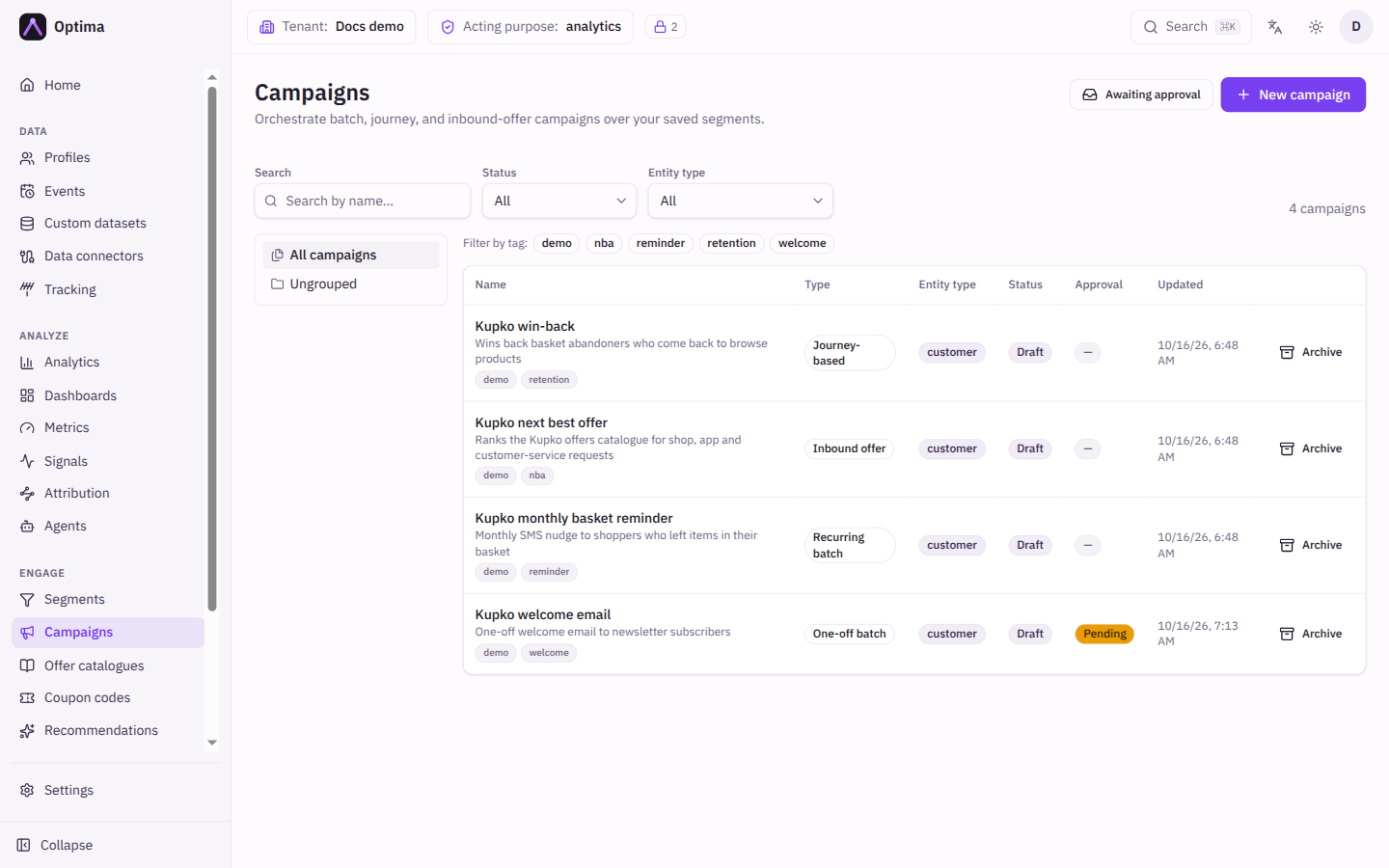
A campaign decides who is contacted, with what, and how often. The Campaigns screen is the board of every campaign in the environment: you filter it by status, entity type, folder and tag, see which are active and which still need sign-off, and create new ones. Opening a campaign takes you to its own page, where you set it up and run it (see Campaign page). The audiences a campaign sends to are saved in Segments.
Who uses it
Campaign managers, who run the board, and campaign creators, who build the campaigns on it. Reading the list needs campaign_viewer; creating, editing and archiving campaigns needs campaign_editor. campaign_approver and campaign_admin can also do everything an editor can, and approve campaigns. You can also use another role your administrator has given access to this area — see Licences and roles. Campaigns belong to the Campaign package: if your licence does not include it, Campaigns is not in the navigation.
Fields
Filters
| Field | Meaning | Valid values | Default |
|---|---|---|---|
| Search | Finds campaigns whose name contains the text. | Any text | Empty |
| Status | Shows only campaigns in one lifecycle status. | All, Draft, Active, Paused, Archived, Completed, Stopped | All |
| Entity type | Shows only campaigns for one kind of profile, such as customers. Folders and tags in the side panel follow the entity type you pick. | All or an entity type from your schema | All |
| Folder tree | Shows one folder and everything inside it. All campaigns removes the folder filter. | A folder in the tree | All campaigns |
| Tags | Shows campaigns carrying the selected tags. Select a selected tag again to remove it. | Tags used by campaigns | None |
The filters are kept in the address of the page, so you can bookmark or share a filtered view.
With Status on All, archived campaigns are left out of the list. Choose Archived to see them.
Table columns
| Column | Meaning |
|---|---|
| Name | The campaign name, with its description, folder and tags underneath. Select the name to open the campaign. |
| Type | One-off batch, Recurring batch, Journey-based or Inbound offer. |
| Entity type | The kind of profile the campaign works on. |
| Status | Draft, Active, Paused, Archived, Completed or Stopped. A completed one-off campaign that has delivery results reads Dispatched with the number of messages delivered (or sent, for channels that do not report delivery). |
| Approval | Approved, Pending, Rejected, or Approved · re-review pending when a campaign keeps running on its standing approval while a new review is requested. Pointing at the badge shows who approved or requested, and when. See Approvals. |
| Updated | When the campaign was last changed. |
New campaign
New campaign opens a dialog with the same six fields for every campaign type. Audience, content and delivery are set up afterwards, on the campaign page.
| Field | Meaning | Valid values | Default |
|---|---|---|---|
| Name | What you call the campaign. | Text, for example summer-upsell | None (required) |
| Type | How the campaign runs. | One-off batch: sends once to a segment when activated. Recurring batch: sends to a segment on a schedule. Journey-based: profiles flow through drag-and-drop journeys. Inbound offer: your site or app asks for the best offer for a profile. | One-off batch |
| Entity type | The kind of profile the campaign contacts. The segment, message template and offers must belong to it. | An entity type from your schema | None (required) |
| Description | A note for your colleagues. | Text | Empty |
| Folder | Where the campaign sits in the folder tree. Use / to nest folders, for example Lifecycle/Winback. | Text | Empty (no folder) |
| Tags | Labels you can filter by. | Free text tags | None |
Actions
- New campaign creates a campaign in the status Draft and opens its page.
- Awaiting approval opens the approvals queue.
- Archive (on a row) takes a draft, paused or completed campaign off the board. Nothing is deleted: its results and history stay, and it no longer appears in pickers. An active campaign has no Archive button, because you pause it first. Restore brings an archived campaign back in the status it had before.
- Select a campaign name to open the campaign page.
Examples
Find everything waiting to be started. Set Status to Draft and read the Approval column. Campaigns marked Pending are waiting for an approver.
Organise by programme. Give campaigns a folder such as Lifecycle/Winback and tags such as retention. The folder tree then shows the programme, and selecting a tag shows every campaign in it.
Bring back an old campaign. Choose Archived under Status, then select Restore on the row.
Common problems
- I do not see Campaigns in the navigation. The Campaign package is not part of your account's licence, or your roles do not include access. Ask your administrator.
- A campaign I archived is gone from the list. Archived campaigns are hidden unless Status is Archived.
- There is no Archive button on a campaign. Only draft, paused and completed campaigns can be archived. Open the active campaign and select Pause first.
- New campaign is missing. Your roles allow reading but not changing campaigns. You need
campaign_editor.