Journeys
Draw a real-time flow that decides who enters, what they receive, when and on which branch, and save it as a versioned journey.
A journey is a flow you draw on a canvas: customers enter, move from step to step, wait, branch, receive messages and leave. Each step is a node: wait two days, check whether a basket is still abandoned, rank the best offer, send an email, wait for a purchase. Journeys belong to Journey-based campaigns, and a campaign can have several. The journey editor is a drag-and-drop canvas with a configuration dialog for every node. Once a journey is running, the runs monitor shows where every profile is.
Who uses it
Campaign creators build journeys; campaign managers review, turn them on and watch them. Reading needs campaign_viewer. Building, saving and turning journeys on and off needs campaign_editor, or another role your administrator has given access to this area — see Licences and roles. Journeys are part of the Campaign package, and a contract can leave them out. The Describe journey button needs the AI assistants package.
Fields
Where journeys live
Open a journey-based campaign: its Setup & delivery tab has a Journeys card listing each journey with its Version, Entry trigger, Live runs and whether it is Active. New journey opens the editor; select a journey's name or Edit to open it, Runs for its monitor. The row's More actions menu has Turn on or Turn off, Run again (see below) and Delete. A journey with live runs cannot be deleted. On an active campaign, adding or changing a journey needs approval rights (campaign_approver or campaign_admin); other editors get a 403 and should pause the campaign or ask an approver.
Journey settings
A collapsed Journey settings card at the top of the editor holds the basics. Open it to edit them.
| Field | Meaning | Valid values | Default |
|---|---|---|---|
| Name | What you call the journey. Required to save. | Text, for example welcome-flow | None |
| Description | A note for colleagues. | Text | Empty |
| Re-entry cooldown | How long after a finished run the same customer may enter again. See Re-entry. | A number and a unit, or empty for never | Empty (never) |
| Active | Whether the journey is on. | On or off | On |
The entry trigger
Every journey starts at its Trigger node, which says who enters and when. Select it to configure it.
| Trigger | Who enters | Fields |
|---|---|---|
| Event | Profiles enter when a matching event arrives. | Event type; an optional Event filter of conditions on the event's attributes (Attribute, an operator such as is, is not, more than, at least, less than, at most, contains, is present, is absent, and Value), where every row must match. |
| Segment entry | Profiles enter when they join the selected segment, on every pass. | Segment and optional Audience conditions, which narrow the segment (a profile must match both). Profiles already in the segment: Only newly added (those in the segment now are recorded and left alone) or Enrol everyone in it now (a one-off backfill, so check the segment size first). |
| Schedule | Enrols its segment on a cron schedule; each run enrols whoever is in the segment then. | Cron (with a time zone; see Schedules), Segment, Audience conditions. |
| API | Profiles enter only when you enter them, through the API or Test enter in the runs monitor. | None |
| Immediate | Enrols its segment once, as soon as the journey is running, and never again. | Segment, Audience conditions. |
| Planned | Enrols its segment once, at a date and time you pick. | Date and time (in your configured time zone), Segment, Audience conditions. |
A planned journey never fires late: the campaign and the journey must already be running when the moment arrives, or it enrols nobody. A journey that missed its moment is marked Missed its moment, and one that has used its single enrolment Enrolled once.
Nodes
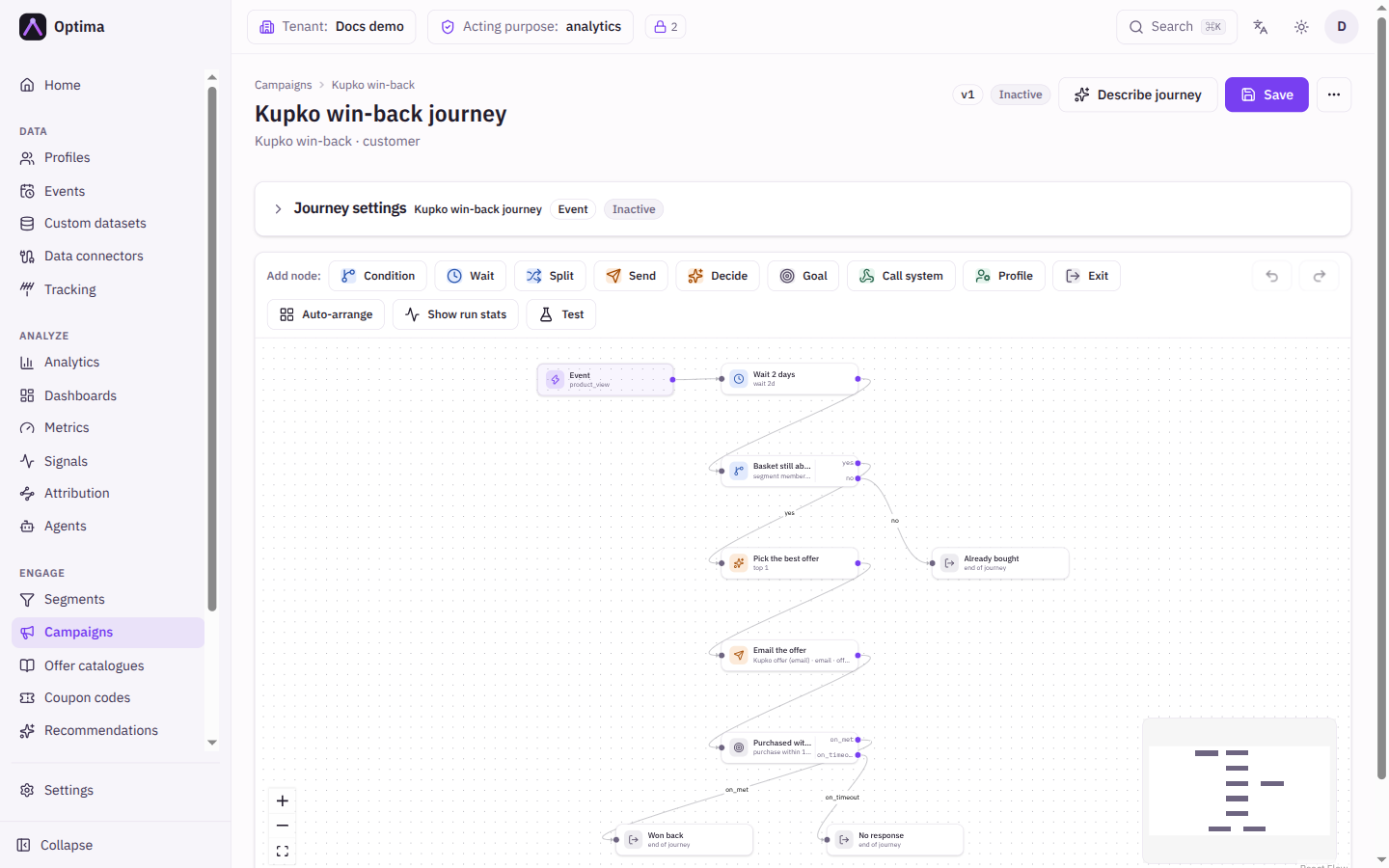
Add nodes from the Add node palette above the canvas; each button adds one.
| Node | What it does | Page |
|---|---|---|
| Condition | Branches on whether the profile matches a segment, conditions, or both. Two exits, labelled yes and no. | |
| Wait | Holds the profile for a fixed time, until their best send time, or for a time read from their data. | Wait node |
| Split | Sends profiles down different arms by percentage, optionally optimising or testing for a winner. | Split node |
| Send | Sends a message through a channel and template, optionally with an offer. On an on-site channel it holds content for the next visit. | On-site hold |
| Decide | Ranks offers for the profile and carries the winner forward. | Decide node |
| Goal | Waits for an event or a profile condition. Two exits, on_met and on_timeout. | |
| Call system | Calls an external HTTP endpoint or a registered system, optionally branching on the outcome. | Webhook node |
| Profile | Writes an event or sets profile attributes. | |
| Exit | Ends the run. Every path must end in one. |
Condition needs a segment, conditions, or both; with both, a profile must match the segment and the conditions to take yes. Goal needs something to wait for (an event, a segment, conditions, or a combination), and a Timeout; with an event it is met the moment the event arrives, and without one it is re-checked periodically against the profile. Profile writes either an event (Record an event, with an Event type, an Event time of Now, Relative to now or Exact time, and Event attributes) or Set profile attributes (only attributes declared in your schema for the campaign's entity type can be written; an undeclared one is flagged on the node when you save). The event type campaign_touch cannot be written here, because it is the record behind frequency caps, fatigue policies and campaign figures.
Send has more fields than the others.
| Field | Meaning |
|---|---|
| Channel | Any channel, or Auto (best channel), picked per profile (see Auto channel). |
| Provider and Provider parameters | Optional delivery provider and values for it. |
| Message template | Only active templates with a variant for the channel are offered. Required. |
| Offer from | A Decide node whose winning offer rides along with the send. If it chose nothing, the send is skipped. |
| Contact attribute | Where the address comes from, for email, SMS and some other channels. It must be declared under Privacy → Contact attributes with the channel's kind, or the step shows an error on save. |
| Extra data | Values merged into the template. Each can be personalized; see Personalization. |
| On fatigue | What happens when a fatigue policy blocks the send: Defer (park and retry hourly until the window clears; the default), Skip (drop this send, continue) or Exit (leave the journey). |
| Silent hours | Inherit the campaign's, Off (for one-time passwords and receipts) or Custom for this step. |
Connecting nodes
Drag from a node's exit dot to the next node to connect them. Some nodes need labelled exits: a condition needs two edges labelled yes and no; a goal needs on_met and on_timeout; a split needs one edge per arm, carrying the arm's label; a call-system node can have one unlabelled edge, or two labelled on_success and on_error. The Trigger must point at every starting node (the ones nothing else leads into) and at nothing else. Every leaf of the graph must be an Exit. A second arrow out of the same exit starts parallel branches: each branch runs at the same time as its own run, they cannot rejoin, and each needs its own exit.
Actions
- Save saves the journey. Every save creates a new version of the journey. Profiles already inside keep running the version they entered on, and a warning tells you how many live runs that is.
- Configure (on a selected node, or by double-clicking a node or pressing Enter) opens that node's dialog. Its Save puts the changes on the canvas; the journey's own Save is what keeps them.
- Describe journey drafts the whole graph from a plain-English description, such as "When a customer places their first order, wait a day, then send a welcome email". Nothing is saved until you select Save; the draft replaces the current canvas after you confirm.
- Undo, Redo and Auto-arrange tidy your work. Delete removes a selected node.
- Show run stats overlays how many runs are at each node, finished and failed.
- Test opens Pre-flight beside the graph: a projection of who enters and what each send node would deliver, and a one-profile simulation. It tests the saved version.
- More actions (in the header) holds Turn on / Turn off, Run again, Runs and History. Run again re-arms an Immediate or Planned journey that has already enrolled once, so it enrols its segment again on the next pass; profiles that already went through are still subject to the re-entry cooldown. History is the journey's change history, where an earlier version can be restored as a new version.
A journey runs only while the journey is Active and its campaign is Active.
Examples
A win-back flow. Trigger: Event product_view. Wait 2 days. Condition: segment Cart abandoners (yes continues, no goes to an Exit). Decide: top 1 from your offers catalogue. Send: email with Offer from the decide node and On fatigue set to Skip. Goal: event purchase, Timeout 14d. Both goal exits lead to Exit.
A scheduled newsletter with a test. Trigger: Schedule, weekly. Split into two arms, short and long, 50 and 50, then a Send on each arm. Use the winner test to commit to the better one; see Split node.
A one-time announcement. Trigger: Planned, at 09:00 next Tuesday, with the announcement segment. Activate the campaign and the journey before then.
Common problems
- Save is refused with a list of issues. The server checks the whole graph. Nodes with a problem are highlighted; select one to read the message. Common causes: a condition without both yes and no edges, a split with fewer than two arms or shares that do not add to 100%, a send without a template, a node that is not connected, or a path that does not end in an Exit.
- A profile node reads attribute is not declared on entity. Declare the attribute on the campaign's entity type under Settings → Workspace → Schema, or choose one that exists. If Optima cannot read the schema when you save, the attribute is accepted unchecked.
- The editor says Connect the trigger to the journey's first node. Drag from the trigger's dot to the first node.
- A send node reads Pick a message template. Choose one; with a channel set, only active templates with a variant for it appear.
- Event type list is empty. Define an event type under Settings → Workspace → Schema first. A trigger on a type that was removed never fires and is flagged.
- A planned journey enrolled nobody. It was not running at its planned time. It cannot fire late; duplicate it with a new date.
- Profiles are not entering. Check that both the campaign and the journey are Active, that the re-entry cooldown is not blocking them, and that a person with a live run does not enter a second time. The runs monitor lists the outcome for profiles you enter by hand.
- New journey is not available. Journeys belong to Journey-based campaigns. Existing journeys on other campaign types still run, but new ones cannot be saved there.