Personalization in journeys
Use values from the profile, its signals, the triggering event and the journey's own state inside a journey node's settings.
Many settings in a journey node can be a fixed value you type, or a personalization value that Optima reads when each profile reaches the node. A wait can last as long as a number on the profile says. A condition can compare an attribute with the order total from the event that started the run. A call to another system can carry the customer's id. Wherever a field supports it, a braces button beside the value switches between the two and opens the same personalization dialog used in message templates.
Who uses it
Campaign creators, while configuring nodes in the journey editor. Using it needs the same role as editing the journey, campaign_editor, or another role your administrator has given access to this area — see Licences and roles.
Fields
Where it works
| Node | Fields that accept a personalization value |
|---|---|
| Condition | The value in each condition of the filter. |
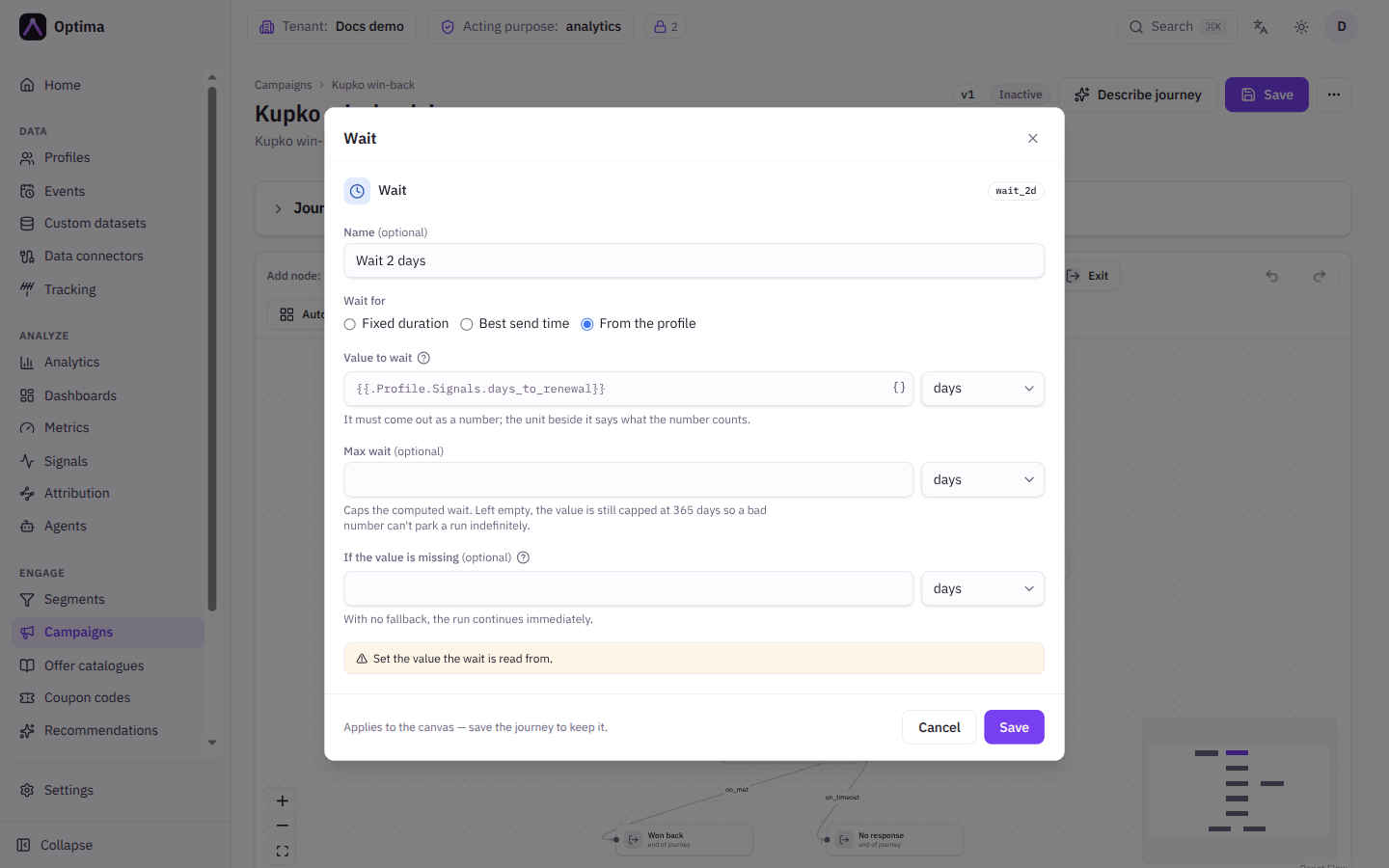
| Wait | Value to wait (when the wait is From the profile). |
| Goal | The value in each profile condition. |
| Call system | URL, header values, Body template, and each of the system's Parameters. |
| Profile | The Event time (an exact time can be a template), event attribute values and profile attribute values. |
| Decide | Decision context values. |
| Send | Extra data values. |
What a tag can read
The journey dialog lists exactly what the field can read under Available fields. In a journey node:
| Tag | Meaning |
|---|---|
.Profile.ID | The profile's id. |
.Profile.Attributes.NAME | An attribute of the profile, including computed attributes. |
.Profile.Signals.NAME | The profile's current value of a signal. |
.Run.State.NAME | A value carried by the journey run. Earlier nodes write to it, for example the winning offer from a decide node, or the mapped fields of a call to another system. |
.Run.State.trigger.attributes.NAME | An attribute of the event that started the journey (for event-triggered journeys). |
The offer (.Offer) is not available in node settings: only the message text sent for an offer can read it.
Tags follow the syntax on Personalization syntax, including conditions and the helpers on Template helpers. A value that comes out as text is used as text; a number field such as Value to wait must come out as a number.
Actions
- Select the braces button beside a field to open the Personalize field dialog, find the tag in Available fields, copy it and paste it into the value.
- In a condition, select the button beside the value to switch between a fixed value and a personalization value.
- In a Profile step, every value is a template, so any of them can be personalized.
Examples
Wait until shortly before renewal. On a Wait node, choose From the profile, set Value to wait to {{.Profile.Signals.days_to_renewal}} and the unit to days. Set If the value is missing to a fallback such as 3 days.
Pass the order to another system. On a Call system node, a parameter order_id with value {{.Run.State.trigger.attributes.order_id}}.
Compare with the triggering event. In a Condition filter, compare an attribute with the value {{.Run.State.trigger.attributes.total}}.
Common problems
- The wait says the value must come out as a number. The tag printed text, or nothing. Check the signal or attribute exists and has a value, and set If the value is missing.
- A tag prints nothing. The profile has no value for it, or the attribute is withheld from campaigns by your data-protection settings. Use a default as described in Template helpers.
- I cannot find a field I need. The dialog only lists what the field can read.
.Offeris not in node settings. - Run state is empty in a test. Supply the keys an earlier node would set, or simulate the walk from entry in Pre-flight.