Campaign page
Set up a campaign's audience, content and delivery, test it, activate it and read its results from one page.
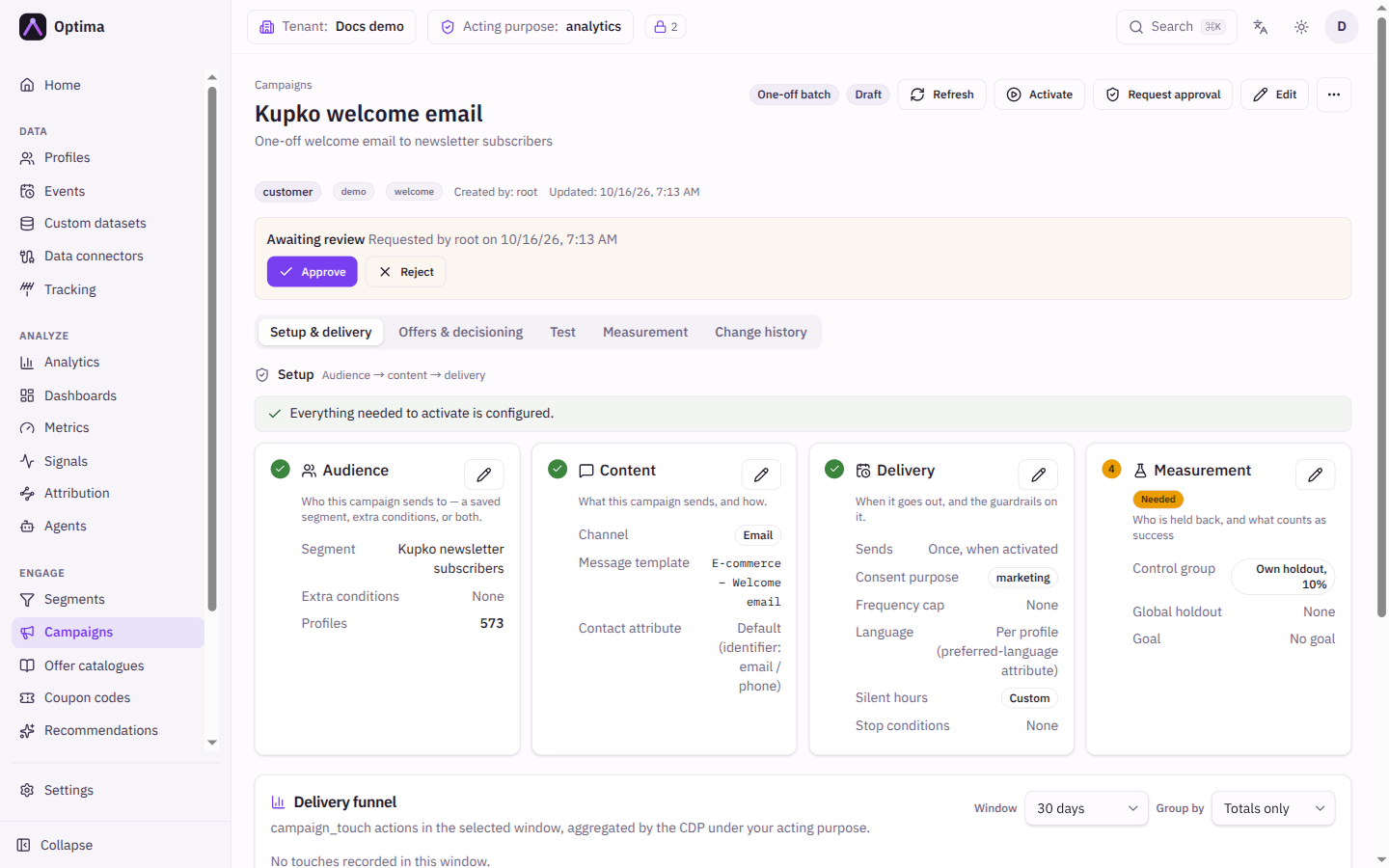
The campaign page is where one campaign is built and run. It opens on Setup & delivery, which walks through Audience, Content, Delivery and Measurement in the same order for every campaign type, and tells you what is still missing before the campaign can be activated. Four more tabs hold the Offers & decisioning (for offers and next-best-action), a Test tab that shows who a campaign would reach before anything is sent, Measurement (results and lift) and the Change history. The buttons in the header move the campaign through its life: activate, pause, ask for approval, reopen, archive. If someone else changed the status first, the button is refused with "campaign changed concurrently" (409): reload the page and try again.
Who uses it
Campaign managers run campaigns; campaign creators set them up. Reading needs campaign_viewer. Changing the setup, requesting approval and turning a campaign on or off needs campaign_editor. Activating a campaign that has not yet been approved needs an approver: campaign_approver or campaign_admin. You can also use another role your administrator has given access to this area — see Licences and roles. The screen belongs to the Campaign package. The AI buttons (Predict performance, Analyze performance) need the AI assistants package.
Fields
Header
The header shows the campaign name and description, a badge for its Type and one for its Status, then the buttons below. Under it, a quiet line shows the entity type, folder, tags, who created the campaign and when it was last updated.
| Status | Meaning |
|---|---|
| Draft | Being built. Nothing is sent. |
| Active | Running. A batch campaign dispatches; a journey campaign enrols profiles; an inbound-offer campaign answers decide calls. |
| Paused | Stopped by you, or a one-off batch whose send could not finish (for example the data store stayed too busy for several tries). It can be activated again, and a batch that was interrupted carries on from where it stopped instead of starting over. |
| Completed | A one-off campaign that has finished its send. It cannot be activated again; duplicate it to send to the audience again. |
| Stopped | Ended by itself because a stop condition was met. It can be reopened. |
| Archived | Taken off the board. Restore it to bring it back; a campaign archived from Stopped returns to Stopped. |
Setup & delivery
The four blocks depend on the campaign type. Each has an Edit button that opens its form; a green tick marks a block that is ready, and Needed marks one that must be filled in before activation.
| Block | One-off and recurring batch | Journey-based | Inbound offer |
|---|---|---|---|
| Audience | Segment and Extra conditions, with the number of Profiles they reach. | Not used. Each journey's entry trigger carries its own segment. | Not used. Each offer decides who qualifies. |
| Content | Channel, Message template, and for some channels a Contact attribute. | Not used. Each send step of a journey picks its own channel and template. Offer source names the offers decide steps rank. | The offers carry the content. Offer source names the offers a decide call ranks. |
| Delivery | Schedule (recurring only), Consent purpose, Language, Frequency cap, silent hours, Stop conditions. | The guardrails applied to every send the journey makes. | The guardrails applied at every decide. |
| Measurement | Control group and Goal. | Same. | Same. |
Until a batch campaign is ready, a line above the blocks reads Still needed before activation: and lists the missing parts (audience, channel, message template, schedule, consent purpose). Activate stays disabled until the list is empty.
Audience
| Field | Meaning | Valid values | Default |
|---|---|---|---|
| Segment | The saved audience to send to. It must belong to the campaign's entity type. Required to activate unless you use conditions instead. | A segment | None |
| Extra conditions | Conditions built in the same filter builder segments use. With a segment they narrow it: a profile must match the segment and these conditions. Without a segment they are the audience. | Filter rules | None |
| Profiles | How many profiles the audience reaches right now. Shown while you edit and on the block. | A count | Calculated |
Content
| Field | Meaning | Valid values | Default |
|---|---|---|---|
| Channel | How the message is sent. Required to activate. Auto (best channel) picks the channel per profile; see Auto channel. | A channel your environment offers, such as Email, SMS, Push, Webhook, Web banner, or Auto (best channel) | None |
| Message template | The template the campaign sends, looked up by name at send time. Only active templates with a variant for the chosen channel are offered. Required to activate. | A message template | None |
| Provider | Which provider delivers the send. With the channel Auto, choosing a provider also fixes the channel. | Channel default or a provider of that channel | Channel default |
| Provider parameters | Values the provider's request reads. They override the template's, and blanks fall back to the template, then the provider default. | Name and value pairs | None |
| Contact attribute | Sends to this attribute's value instead of the profile's email or phone identifier. If it is missing or empty the send fails; there is no fallback. The attribute must be declared under Privacy → Contact attributes with the channel's kind (email or phone), so unsubscribes and erasure also suppress it. | A profile attribute, or the default identifier | Default (identifier: email / phone) |
| Choose the channel by | For the channel Auto: the family of signals that scores the channels. | Channel affinity signals (default) or another family | Channel affinity signals (default) |
Delivery
| Field | Meaning | Valid values | Default |
|---|---|---|---|
| Schedule (cron) | Recurring campaigns only. When the campaign sends, with the time zone it is read in. Required to activate a recurring campaign. | A schedule picked from the cron picker; see Schedules | None |
| Consent purpose | The purpose checked live before every send. Required to activate a batch campaign. See Consent purpose. | A purpose from your catalogue, a channel family such as marketing_{channel}, or No consent gate (explicit opt-out) | None |
| Language | Which language variant of the template every send uses. Shown when your environment has languages. | Per profile (preferred-language attribute) or one language | Per profile (preferred-language attribute) |
| Frequency cap | Limits how often the campaign contacts one profile. See Frequency cap. | Three whole numbers | Empty (no cap) |
| Silent hours | Times when this campaign's messages are held back. | Inherit, Off — send at any hour, or Custom | Inherit |
| Stop conditions | Ends the campaign automatically when a goal figure is reached. See below. | Up to several conditions | None |
Silent hours. Inherit follows the environment's setting (a per-channel entry first, then the general one). Off opts this campaign out entirely. Custom replaces the inherited setting completely for every send of this campaign, and also applies to messages already queued. A journey send step can override the campaign in turn.
Stop conditions. Add a condition to stop the campaign when a figure is reached; any one condition is enough. Each is one of Message count (a number of messages in a given state), Conversion count (conversions of a chosen event within an attribution window in days), Metric value (the last stored value of one of your metrics) or Rate (one kind of message over another, for example clicked over delivered, written as a fraction so that 0.02 means 2%, and ignored until a Minimum sample of the denominator is reached). Every condition has an operator and a Threshold above zero. A count only goes up, so use at-least or more-than; the form warns when an operator can never stop the campaign. When a condition is met the campaign becomes stopped for good: queued messages are not delivered and every profile inside one of its journeys is exited at once. A KPI progress card on the Setup tab shows how close each condition is.
Response rules (on the Offers & decisioning tab) set the campaign default for when to stop offering anything to a customer who has answered often enough: a Response (such as Rejected), At least a number of times, Counted over a rolling number of Days or All time. Rules on an individual offer win over the campaign's.
Measurement
| Field | Meaning | Valid values | Default |
|---|---|---|---|
| Control group | Whether and how a slice of the audience is deliberately left out so you can measure what the campaign caused. | Don't measure this campaign, The global holdout, Its own holdout | Don't measure this campaign |
| Holdout size (%) | For Its own holdout: how much of the audience is held back. 10% is a common start. | 0.01 to 99 | 10 |
| This campaign must reach everyone | For messages nobody may be excluded from. It also releases the campaign from the global holdout, and nothing about it is measured. | On or off | Off |
| Goal | What success looks like for a customer: an event, counted within a window. Only used when a control group is set, because the control group receives nothing. A goal needs a type, and the event type must already exist in the CDP; otherwise saving answers an error ("goal requires type" or "goal event_type does not exist in the CDP yet"). A campaign saved earlier with a goal that has no type reads as having no goal, and saving it again with that goal is refused until you pick an event type or clear the goal. | No goal or an event type | No goal |
| Counts within (days) | How long after the message the goal event still counts, measured from each customer's own message. | Whole number, 1 to 365 | 7 |
| Only count events matching | Optional filter on the goal event, for example a purchase over 50 rather than any purchase. Changing the event clears it. | Filter rules | None |
| Re-draw the holdout | Picks a new set of people for this campaign's own holdout and saves immediately. | Button | n/a |
Don't measure still leaves a customer who is in the global holdout held back; only the comparison is skipped. Re-drawing the holdout makes earlier lift numbers incomparable, so the console asks you to confirm.
Other cards on Setup & delivery
| Card | What it shows |
|---|---|
| Journeys | Journeys of a journey-based campaign, with version, entry trigger, live runs and whether each is on. See Journeys. |
| KPI progress or Stopped automatically | Progress toward each stop condition, or the record of the stop that happened and how many journey runs it exited. |
| Delivery funnel | Counts of Decisioned, Queued, Sent, Delivered, Failed, Bounced, Opened and Clicked, and the customer responses (Presented, Accepted, Postponed, Rejected, Realized), for a Window of 7, 30 or 90 days. Group by Day, Week, Month or Totals only, and see the split By channel and By provider. Profiles held out in a control group are noted and are not in the funnel. The statistics are refreshed at most every ten seconds. Through the API and the assistants, each step also has a rate: Queued, Sent and Failed are shares of Queued (a failed message never left as a sent one), and every later step is a share of Sent, so a campaign that has sent 7 of 2,508 queued messages shows Sent at 0.0028 and Delivered as a share of those 7. Opened and Clicked can pass 1 because repeat opens and clicks count. A warning appears above the counts if a limit truncated the result. |
| On-site deliveries | For on-site channels: the content entitlements this campaign wrote, with channel, State (Active, Delivered, Clicked, Dismissed, Expired), impressions, profile and expiry. |
Offers & decisioning
Offers, Test decide, decide calls to inbound-offer campaigns and shared offer catalogues as an Offer source need the Decision package. Campaigns of any type can carry offers; for inbound-offer campaigns this is where the campaign is configured. New offer opens a form with the offer's name, entity type, an Eligibility segment and Eligibility conditions (checked live at every decide), how it is ranked (Signal value, Formula, or inherited from a shared catalogue) with a Priority that breaks ties, Tags, a Consent purpose that overrides the campaign's, a Payload of JSON (the SKU, copy or discount the caller receives) and Response rules. Send test delivers an offer to one profile you have already decided for; Test decide ranks the offers for one profile and shows why each offer was returned or excluded, with reasons such as Not in eligibility segment, Consent denied, Frequency capped, Already answered or Control group. Test mode makes it a dry run that writes nothing; it is required unless the campaign is active.
Test
The Test tab asks what a campaign would do before it does it. It is described on Pre-flight.
Measurement tab
| Card | What it shows |
|---|---|
| Incremental lift | What the campaign caused, compared with the people deliberately not contacted, for the last 30, 90 or 180 days. Needs a control group and a goal, and at least 100 people in each group before a difference counts. |
| Multi-touch attribution | How credit for a conversion splits across the touches that led to it. See Attribution. |
| Offer responses | What customers answered about each offer: how many were handed out and answered, with a drill-down per response. Report a Response records one by hand. |
| Predicted performance | An AI estimate of the funnel from the setup and comparable history, with a confidence level. |
| Performance insights | An AI reading of how the campaign is really performing and why, with a verdict from Strong to Underperforming. Needs an activated campaign. |
Actions
- Activate and Pause are one control. Activate opens a confirmation that says what will happen for this campaign type and, for batch campaigns, how many profiles currently match. For batch campaigns with an audience cap (
CAMPAIGN_BATCH_MAX_AUDIENCE), the confirmation also warns when that number is above the cap; the send stops at the cap and the campaign pauses, and Activate stays available. A one-off batch dispatches to the whole segment within about a minute, reading the audience 5,000 profiles at a time and sending in pages of 100, and a large audience (up to one million profiles by default) is sent in one run; a recurring batch starts at the next scheduled time; a journey campaign starts enrolling profiles; an inbound-offer campaign becomes available to decide calls and sends nothing by itself. Pause stops an active campaign; you can activate it again. - Request approval asks an approver to review the campaign. It is available at any time except on an archived campaign. See Approvals for who approves and when an edit clears an approval.
- Reopen appears on a Stopped campaign. It returns the campaign to draft, clears any approval and refuses activation while a stop condition is still met. Journeys with a fire-once trigger that already fired must be run again. Reopen & activate goes on to the activation confirmation.
- Edit changes the name, type, entity type, description, folder and tags. Changing the entity type clears the segment, message template and offer source, because they belong to the old one.
- Refresh reloads the live counters.
- More actions holds Duplicate (copies the campaign and opens the copy), Archive (only draft, paused, stopped or completed campaigns; nothing is deleted) and Delete (permanently deletes the campaign and all its offers; an active campaign cannot be deleted, so pause it first). An archived campaign shows Restore in the header instead.
Examples
A one-off welcome email. Create a One-off batch for the customer entity. Under Audience, pick the segment of newsletter subscribers. Under Content, choose Email and the welcome template. Under Delivery, choose the consent purpose marketing and add a frequency cap of Max touches per profile 1 per 7 days as a re-send guard. Under Measurement, choose Its own holdout at 10% and the goal event purchase counted within 14 days. Request approval, or activate if you are an approver.
A monthly SMS reminder. A Recurring batch with the channel SMS, a template with an SMS variant and a Schedule (cron) of the first of the month at 18:00 in your time zone. Add silent hours under Delivery so messages never arrive overnight.
A safety stop. Add a Rate stop condition with Numerator clicked, Denominator delivered, the operator less-than, Threshold 0.005 (a rate is a fraction, so 0.005 is 0.5%) and Minimum sample 2000. This ends a campaign that is clearly failing, and the minimum sample keeps a few early sends from looking catastrophic.
Common problems
- Activate is greyed out. The list above the blocks says what is missing: a segment or conditions, a channel, a template, a schedule (recurring only) or a consent purpose.
- Activation says the campaign needs approval. You are not an approver and no approval is standing. Select Request approval in the banner or header. See Approvals.
- Activation says a stop condition is already met. Stop conditions count over the campaign's lifetime. Change or remove the condition first.
- The template is rejected on activation. It must be active and have a variant for the channel. With Auto, it must cover at least one channel that has an active default provider.
- A one-off batch is Paused although you did not pause it. The send could not finish and stopped at the last full page it had sent. The campaign page shows the reason in a banner under the header: the error of the last run and how far it got. The same error is in the run history (
GET /campaigns/{id}/batch-runs), and the body of thecampaign.run_failedevent if you have subscribed a notification to it (no template is seeded for it). Fix the cause and select Activate to continue from where it stopped. One limit applies to the part sent before the stop: the page the send stopped in (at most 100 profiles) can be sent a second time. - You paused a batch campaign while it was sending. The send stops before its next page of 100 profiles and the campaign stays Paused; the run history shows the run as failed with "interrupted: campaign paused". Select Activate to continue from where it stopped, with the same limit as above.
- Saving says the contact attribute is not declared. Declare the attribute under Privacy → Contact attributes with the channel's kind (email for Email, phone for SMS and the other phone channels), or ask your privacy officer to. With Auto, either kind is enough.
- A completed campaign has no Activate button. A one-off campaign that has sent cannot be reactivated. Use Duplicate from More actions.
- There is no Archive entry for an active campaign. Pause it first.
- Lift says Not enough data yet. Each group needs at least 100 people. Wait for the campaign to reach more profiles.
- Lift says Nothing to compare against. No control group is set. Open Measurement on the Setup tab and choose one.