Segment editor
Build or change a saved audience with the filter builder or by describing it in plain English, preview who matches, and save it.
The segment editor defines who is in a segment. You choose the kind of profile, then either build the rule with the filter builder or describe the audience in English and let Optima draft the rule for you to review. A preview shows a sample of the matching profiles before you save. A saved segment is a live filter: it is evaluated each time it is used.
Who uses it
Campaign managers and audience builders. Building and saving needs audience_editor or campaign_editor, or another role your administrator has given access to this area — see Licences and roles. With read-only access you can open a segment and preview it, but the Save button and the English prompt are not available. The English prompt (Describe in English) needs the AI assistants package.
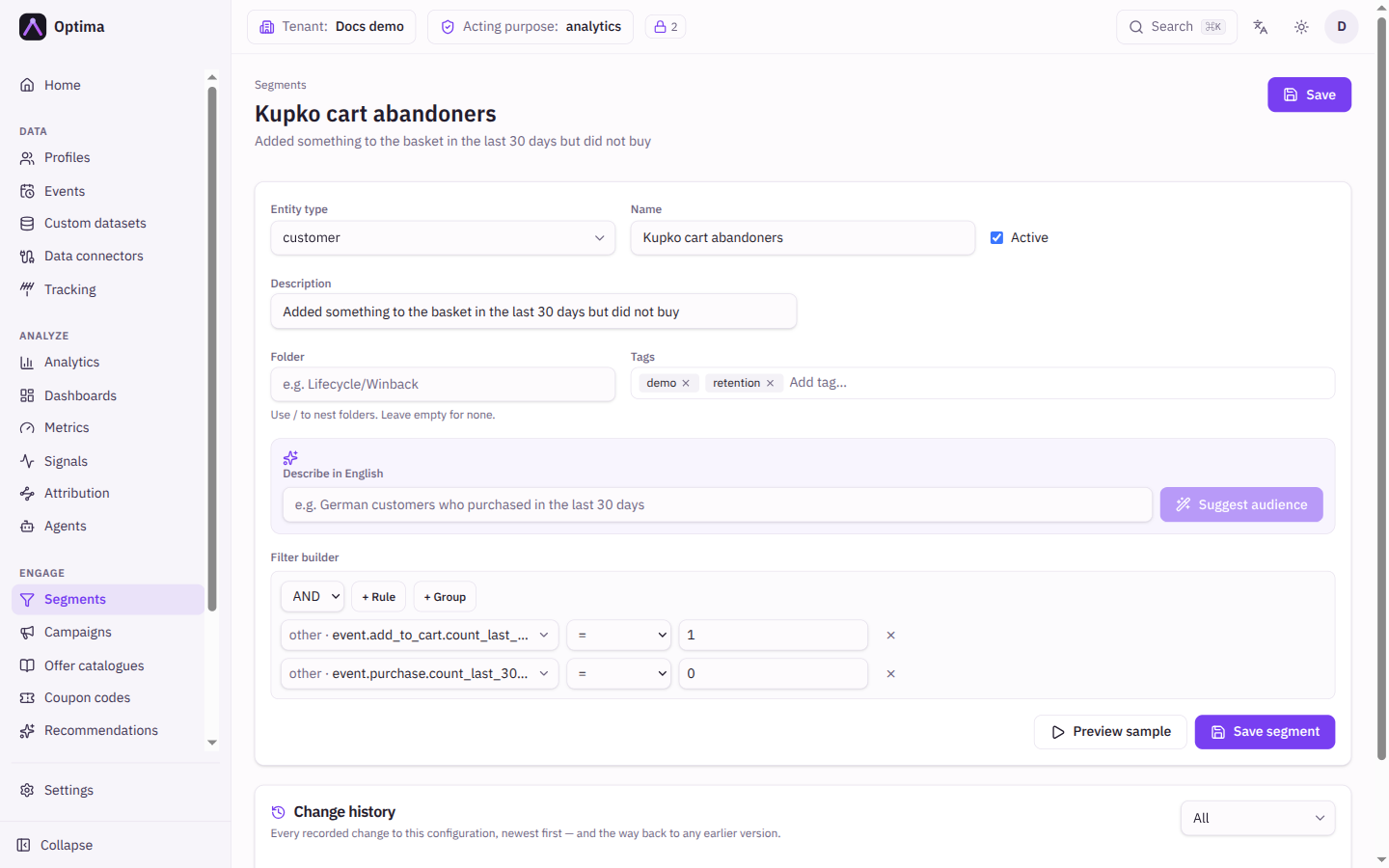
Fields
| Field | Meaning | Valid values | Default |
|---|---|---|---|
| Entity type | The kind of profile the segment selects, for example customers. Required. Nothing else appears until you choose one. | An entity type from your schema | None (or the type you were browsing) |
| Name | What you call the segment. Required. | Text, for example High-Value Customers | None |
| Active | Whether the segment can be used. An inactive segment is hidden from the pickers. | On or off | On |
| Description | A note about who the segment is. | Text | Empty |
| Folder | Where it sits in the folder tree. Use / to nest folders, for example Lifecycle/Winback. | Text; existing folders are suggested | Empty (or the folder you were browsing) |
| Tags | Labels you can filter by. | Free text tags | None |
| Describe in English | A sentence describing the audience, for example "German customers who purchased in the last 30 days". Suggest audience turns it into a filter, a name and a description, and shows how many profiles match. | Text | Empty |
| Filter builder | The rule itself: conditions on attributes, identifiers, computed attributes, signals, cohorts, consent, events and linked profiles, combined with and/or. | Filter rules | Empty |
The filter builder
A condition is a field, an operator and a value. Group conditions with and and or, and nest groups. The full list of fields and operators is on Query filters.
To select the members of a cohort, open the cohorts group in the field picker, pick the cohort and tick the box. The rule reads cohort.NAME = true. There is no separate cohort field on the segment itself: cohort membership is just another condition. See Segments, signals and cohorts.
A filter can only use fields you are cleared to see. A condition on a field above your clearance is refused with a message that names the field; see Query filters.
Preview
Preview sample runs the filter you have on screen, unsaved, and shows Sample preview with the number of matches (for example 12 matches or No matches) and up to 25 matching profiles, each with its identifiers and an Open profile link. If the list is long, Sample capped — showing the first matches only. appears. Changing the rule does not refresh the preview by itself; select Preview sample again.
Actions
- Suggest audience drafts the rule from your sentence. It fills in the filter and, if they are empty, the name and description. Audience drafted — review the filter before saving. Nothing is saved until you select Save segment. If the drafting assistant is unavailable, the screen says natural-language translation is unavailable.
- Preview sample shows who matches the rule right now.
- Create (new) or Save (existing), at the top, and Save segment, below the builder, save the segment. A new segment opens at its own address once saved. The button stays off until an entity type and a name are set.
- A Change history card on a saved segment lists its earlier versions and lets you restore one; see Change history.
Saving a segment that campaigns use changes who those campaigns reach, and it clears the standing approval of campaigns that target it; see Approvals.
Examples
Lapsed buyers. Entity type customer. Under event: purchase, choose aggregate… with count of events in 90d = 0, then add a condition from the consent group with marketing ticked. Preview to check the size, name it Lapsed marketing-consented buyers, and file it under Lifecycle/Winback.
From a sentence. Type "customers in Slovakia who bought outdoor gear in the last 30 days", select Suggest audience, then read the drafted rule. Change a value if it guessed wrong, preview, and save.
A cohort. Pick cohorts, choose high_value, and tick the box. Combine it with country = SK using and.
Common problems
- Nothing appears below the name. Choose an Entity type first. The builder needs it to know which fields exist.
- Save is disabled. The entity type or name is missing.
- The filter could not be validated. A condition refers to a field that does not exist for the entity type, or has a value of the wrong type. Fix the highlighted condition.
- Natural-language translation is unavailable. The AI assistants package is not on your licence, or no language model is enabled for your environment. Build the rule with the builder.
- Suggest audience guessed wrong. Treat it as a draft. Edit the rule, then preview.
- The preview shows fewer people than the saved size. The preview is a capped sample.