Digital content
Publish the banners, personalised blocks, consent banner and recommendations that your website and apps fetch from Optima.
Digital content is what your site and apps ask Optima for when a visitor arrives: a hero banner, a notice, a block of recommended products, the consent banner. Each item belongs to a slot, a name your page or app uses to say where the content goes. You write it here, publish it, and every visitor holding the SDK key sees it. Targeted, per-profile content is different: it is delivered through campaigns using the on-site channels, and is monitored on the campaign.
Who uses it
Campaign creators. Reading needs content_viewer and creating, editing and publishing needs content_editor, or another role your administrator has given access to this area — see Licences and roles. It needs the content feature of the Digital package; consent banner items need the banners feature. The screen is under On-site in the navigation.
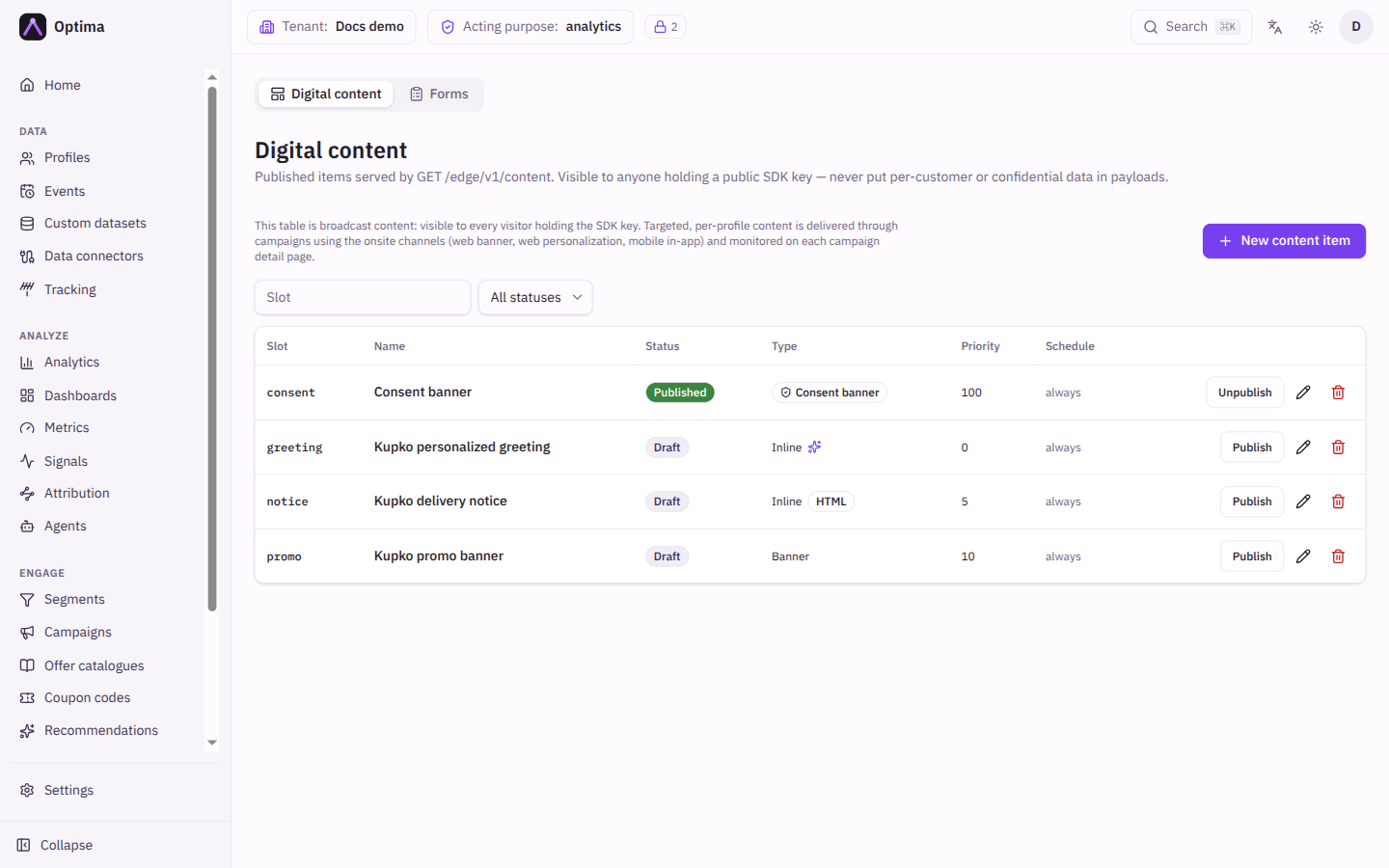
The list
Filter by Slot (type to search) or by status (All statuses, Draft, Published, Archived). Columns: Slot, Name, Status, Type, Priority and Schedule (always when there is no window). Beside Type, badges show HTML for unstructured items and Personalized for personalised ones; a consent banner is badged Consent banner.
On each row: Publish or Unpublish, the pencil (edit) and the trash can (delete). Only published items inside their schedule are served. Select a name to edit.
The editor
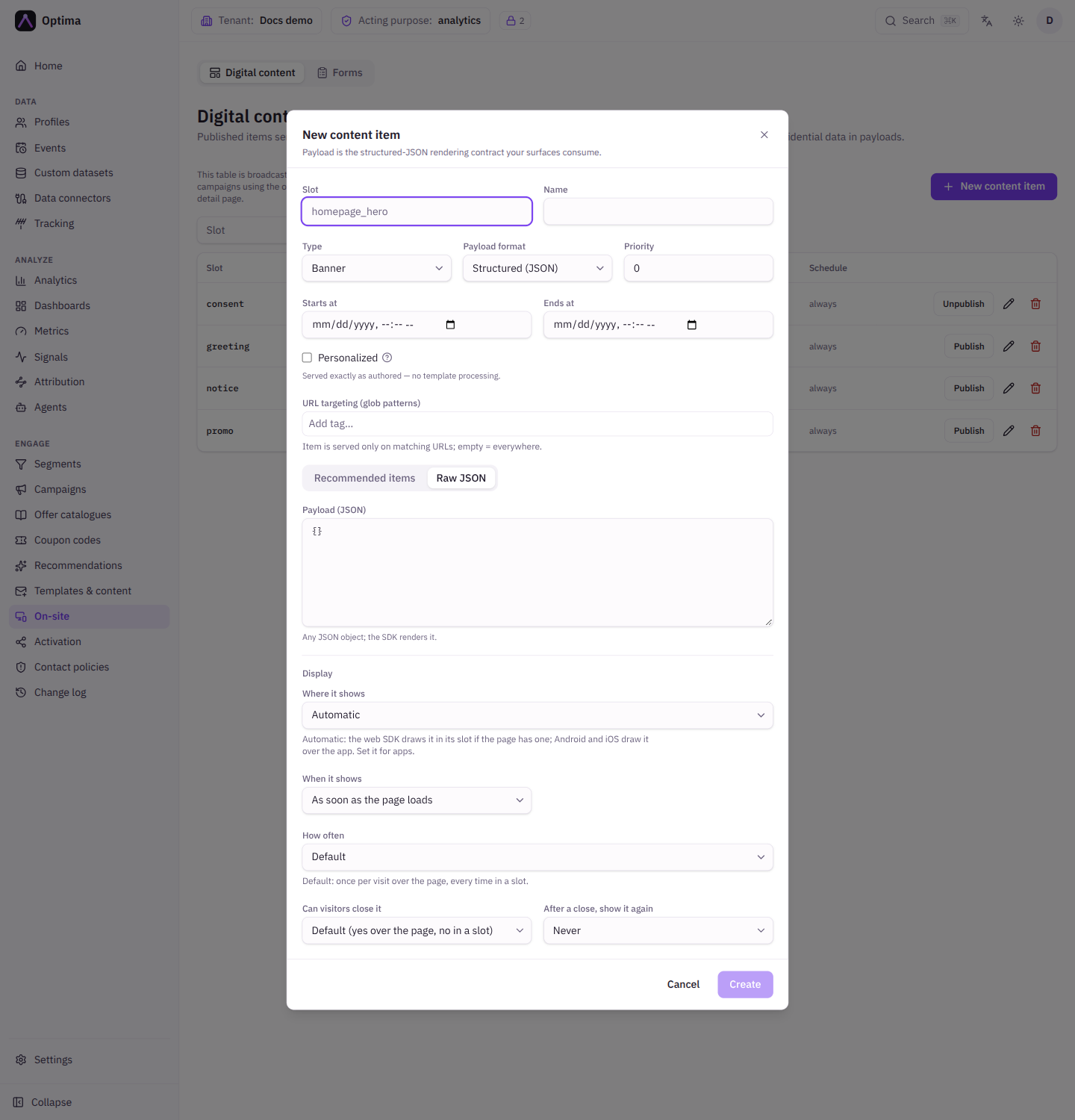
New content item opens the dialog.
| Field | Meaning | Valid values | Default |
|---|---|---|---|
| Slot | The place the content is for. Your page or app asks for a slot by name. | Text, for example homepage_hero | None (required) |
| Name | A label for you. | Text | None (required) |
| Type | What kind of content. | Banner, Inline, Custom, Consent banner | Banner |
| Payload format | Structured data your page renders, or a ready HTML document. | Structured (JSON), Unstructured (HTML/CSS/JS) | Structured (JSON) |
| Priority | When several items fit a slot, higher numbers go first. | A whole number | 0 |
| Starts at, Ends at | The schedule window, in your local time. | Date and time, or empty for always | Empty |
| Personalized | Fill the item in from the visitor's profile; see Web personalization. | On or off | Off |
| URL targeting (glob patterns) | Serve the item only on matching pages. | Patterns; empty means everywhere | Empty |
| Payload (JSON) | For structured items under Raw JSON: any JSON object your surface renders. | A JSON object. Display rules go in Display, not in the JSON. | {} |
| HTML / CSS / JS | For unstructured items: one self-contained document, served as is. Inline your CSS and JS. | Up to 256 KB | Empty |
A structured item has two ways to write its payload, as tabs: Recommended items (see Recommended items) and Raw JSON. An unstructured item shows Live preview, a sandboxed frame where scripts run but the network and the parent page are blocked.
Display
Banner, inline and custom items have a Display section controlling how the SDK shows them. A consent banner has its own layout settings instead; see Consent banner and CMP.
| Field | Meaning | Valid values | Default |
|---|---|---|---|
| Where it shows | Placement. The web SDK draws Automatic content in its slot if the page has one; Android and iOS draw it over the app, so set it for apps. | Automatic, In its slot on the page, Over the page | Automatic |
| Position | Where over the page. | Default (bottom), Bottom, Top, Center, Bottom left, Bottom right | Default (bottom) |
| Look | The shape. | Default (card), Card, Full-width bar, Dialog that dims the page | Default (card) |
| When it shows | The trigger. | As soon as the page loads, After a delay, After the visitor scrolls, When the visitor is about to leave (web only), When your code raises an event | Page load |
| Delay in seconds / How far down the page (%) / Event name | The detail for the chosen trigger. The event is one your site or app raises; on the web, an event dispatched on the window. | A number above 0; a whole number from 1 to 100; text | Empty |
| How often | How often the same visitor sees it. | Default (once per visit over the page, every time in a slot), Every time, Once per visit, Only once, ever, Once every few days | Default |
| Every how many days | For Once every few days. | A whole number above 0 | Empty |
| Can visitors close it | Close button. | Default (yes over the page, no in a slot), Yes, with a close button, No | Default |
| After a close, show it again | Whether a closed item returns. | Never, After a number of days | Never |
| Days until it shows again | For After a number of days. | A whole number above 0 | Empty |
Actions
- Create or Save stores the item as a draft. Publish makes it live within about 30 seconds; Unpublish takes it down.
- Delete removes the item for good. This cannot be undone.
- Changing the schedule is the safe way to take something down at a given time.
Examples
A spring banner. Slot homepage_hero, Type Banner, Structured (JSON), Raw JSON {"title": "Spring sale", "cta": "Shop now"}, Starts at 1 March, Ends at 31 March, How often Once per visit. Publish.
A product block. Slot product_sidebar, Recommended items, Catalogue products, Strategy Trending. See Recommended items.
A cookie notice. Type Consent banner; see Consent banner and CMP.
Common problems
- The item is not served. It is a draft, outside its schedule, or its URL targeting does not match the page. Check the status and window in the list.
- The page shows nothing in a slot. The slot name must match exactly what your page or app requests.
- The payload is refused. Not valid JSON., Payload must be a JSON object., or "Set display rules in the Display section below, not in the JSON."
- Personalised content looks empty. The visitor is unknown; add a fallback. See Web personalization.
- A banner shows to everyone. Digital content is broadcast. Use a campaign on an on-site channel to target a segment.