Forms
Build sign-up and preference forms that write straight to a visitor's profile, hosted on their own page or embedded in your site.
Forms are public capture forms: a newsletter sign-up, a preference form, a competition entry. Each form is a list of fields, and each field writes to a profile attribute, an identifier (such as an email address) or a consent purpose. Optima hosts the form on its own page with an address you can link to, and the SDK can also draw it inside your site. A visitor who comes back is asked only what Optima does not yet know, which is called progressive profiling. Submissions follow the same allowlist and consent rules as the rest of Tracking.
Who uses it
Campaign creators build forms; privacy officers check the consent purposes and policy. Reading needs content_viewer and creating, editing and publishing needs content_editor, or another role your administrator has given access to this area — see Licences and roles. Forms need the landing pages feature of the Digital package and sit under On-site in the navigation.
You also need a web or mobile tracking entity and a public base URL on Tracking, and an event type named form_submitted with a text attribute form_id, which Optima fills on every submission.
Fields
The list
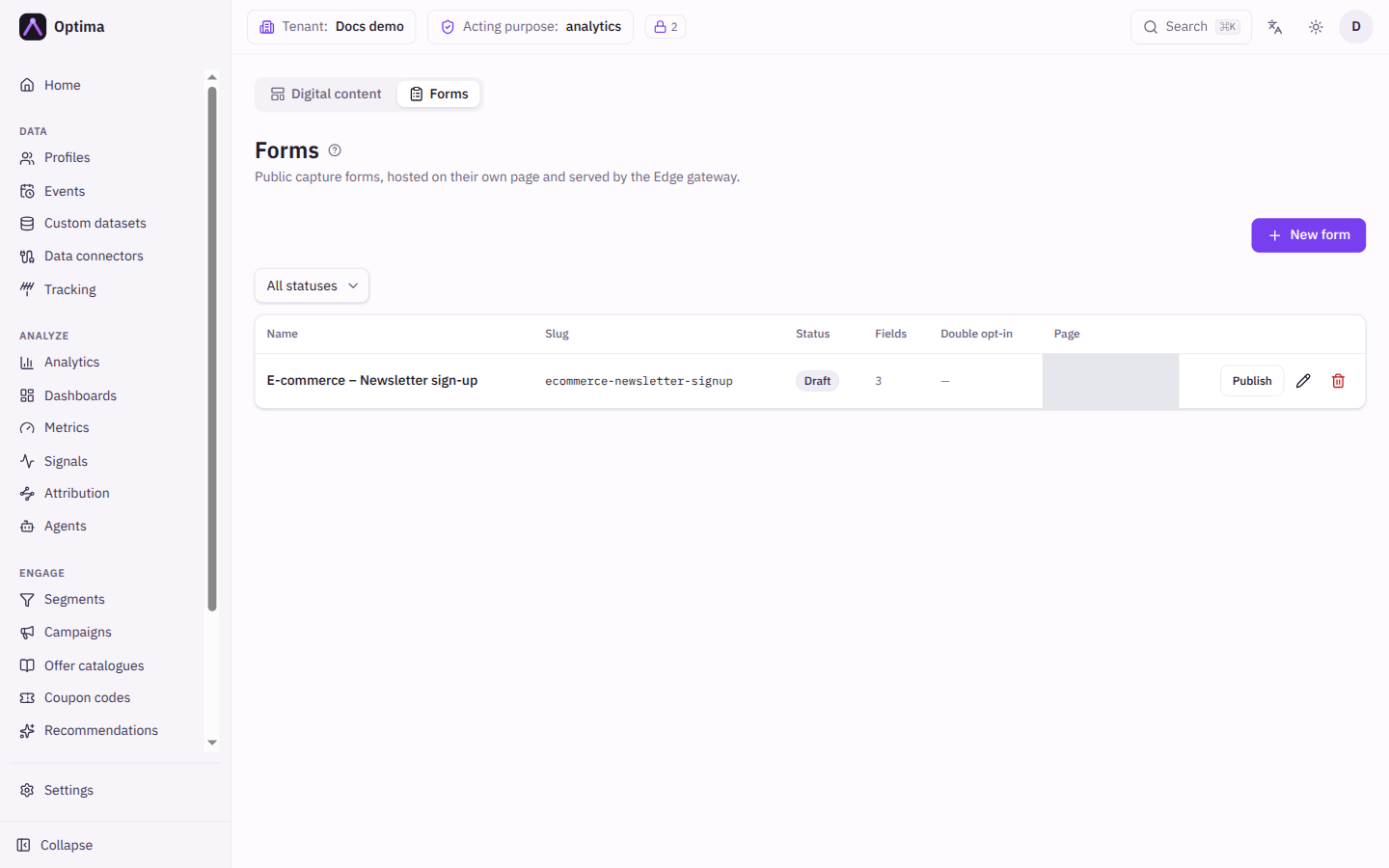
Filter by status (All statuses, Draft, Published, Archived). Columns: Name, Slug, Status, Fields (count), Double opt-in and Page. Open page opens the hosted page; Not published yet is shown until a form is published and the page address exists. Each row has Publish or Unpublish, the pencil (edit) and the trash can (delete).
The editor
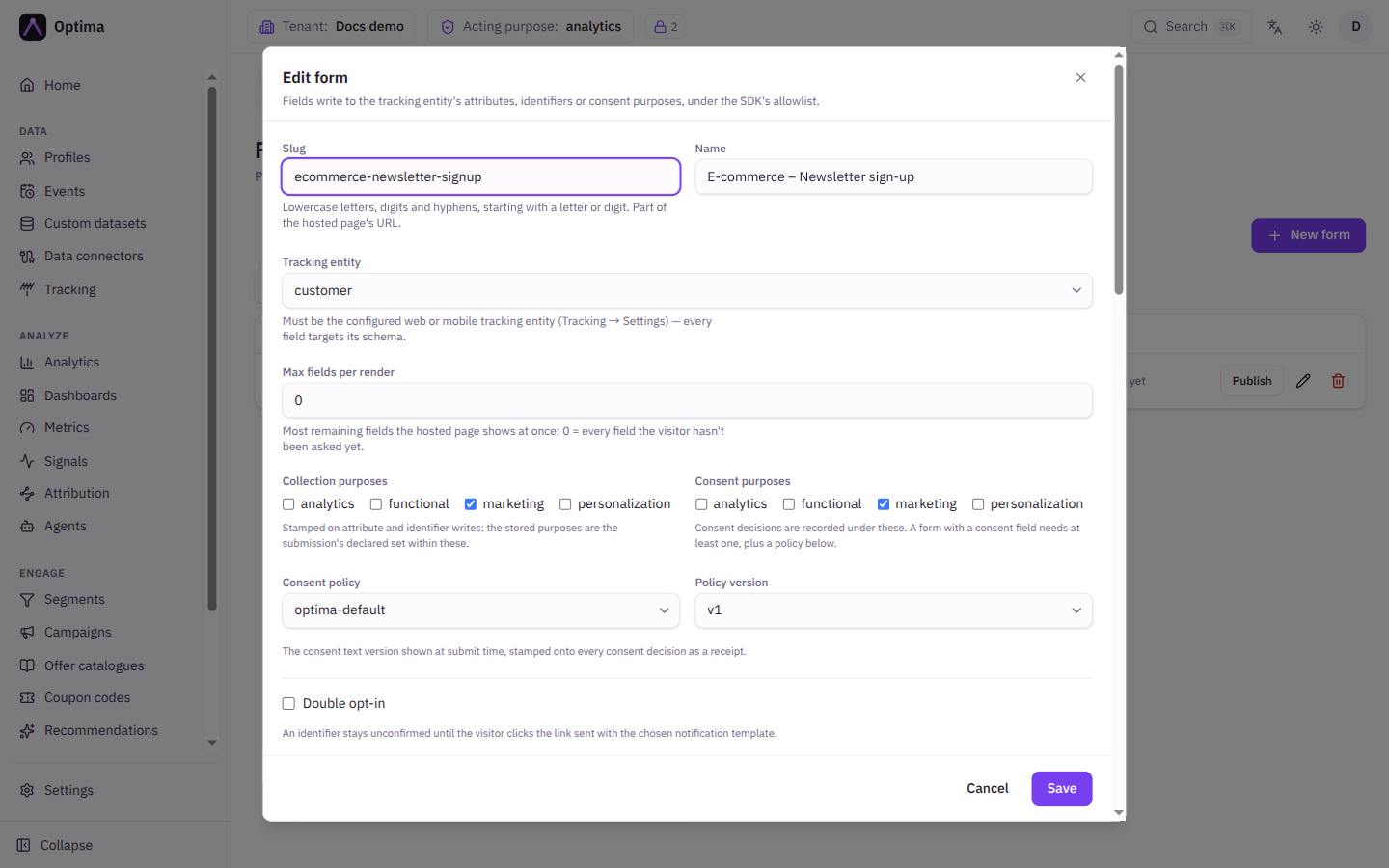
New form opens the dialog.
| Field | Meaning | Valid values | Default |
|---|---|---|---|
| Name | A label for you. | Text | None (required) |
| Slug | Part of the hosted page's address. Must be unique. | Lowercase letters, digits and hyphens, starting with a letter or digit | None (required) |
| Tracking entity | The profile type the form writes to. Every field targets its schema. | The web or mobile tracking entity from Tracking → Settings | None (required) |
| Max fields per render | Most remaining fields the page shows at once; the rest follow on the next visit. | A whole number; 0 shows every field not yet asked | 0 |
| Collection purposes | Stamped on attribute and identifier writes: the stored purposes are the submission's declared set within these. | Active purposes | None |
| Consent purposes | Consent decisions are recorded under these. A form with a consent field needs at least one, plus a policy. | Active purposes | None |
| Consent policy, Policy version | The consent text version shown at submit time, recorded on every consent decision as a receipt. Shown once a consent purpose is chosen. | A policy and one of its versions | None |
| Double opt-in | An identifier stays unconfirmed until the visitor clicks the link sent with the chosen template. | On or off | Off |
| Confirmation identifier | The identifier the link is sent to. Shown with double opt-in. | An identifier of the entity, such as email | First available |
| Confirmation template | The notification template for the confirmation message. | An existing notification template; saving or publishing is refused if the name matches none. Create it first under Settings → Workspace → Notifications; see Notifications | None |
| Minimum submit interval (seconds) | Anti-abuse floor between the page being drawn and the submit arriving. Faster submissions are treated as bots. | 0 to 3600 | Empty (default) |
| Page | The hosted page's address, built from the public base URL and an active web SDK key. Read-only; empty until both exist. | n/a | n/a |
| Page title | The title of the hosted page. | Text | Empty |
| Page body (HTML) | The markup around the generated field list. | HTML, at most 192 KiB | Empty |
| Personalized (Go-template rendered server-side) | The page body may use tokens over the visitor's attributes, consents and linked profiles; see Web personalization. | On or off | Off |
| Success message | Shown after a successful submit. | Text | Empty |
| Success redirect URL | Send the visitor here after submit instead. | A full address | Empty |
Form fields
Add field adds a field; the arrows Move field up and Move field down reorder; Remove field deletes. A form needs at least one field.
| Field | Meaning | Valid values | Default |
|---|---|---|---|
| Target kind | What the field writes to. | Attribute, Identifier, Consent | Attribute |
| Target | The attribute, identifier or consent purpose. | Options come from the tracking entity's schema or the Consent purposes above. Payment-card-like attribute names are refused. | None (required) |
| Input type | The control. | Text, Email, Phone, Number, Checkbox, Select, Textarea, Hidden | Text |
| Label | What the visitor reads. | Text | None (required) |
| Placeholder | Hint text inside the control. | Text | Empty |
| Required | The visitor must fill it in. An empty answer is rejected, and a required checkbox or consent must be ticked. | On or off | Off |
| Ask once | Omit the field once the profile already holds a value: progressive profiling. | On or off | Off |
| Validation regex (optional) | A pattern the value must match. | A regular expression | Empty |
| Options | For Select: pairs of Value and Label; Add option. | At least one | None |
If your environment has languages configured, Field language lets you translate the labels: choose a language to see the default label as a placeholder, and an empty translation serves the default. Add, reorder and configure fields in the default language.
The Live preview draws the form as a visitor sees it. Simulate returning visitor hides fields marked Ask once, and a count shows how many fields are visible.
Actions
- Create or Save stores the form as a draft. Publish makes the page and the SDK form live; Unpublish takes them down.
- Saving can be refused with a message that forms need the event type
form_submittedwith aform_idattribute. The message links to the event type settings. A slug already in use is reported at the field. - Delete removes the form. This cannot be undone.
Examples
Newsletter sign-up with double opt-in. Slug newsletter, Tracking entity visitor, one Identifier field email of type Email (Required), one Consent field newsletter as a Checkbox. Consent purposes newsletter, Consent policy privacy-policy, Double opt-in on with Confirmation identifier email and a confirmation template. The email address stays unconfirmed until the visitor clicks the link, and consent is only granted then.
Preference form that never asks twice. Three Attribute fields (favourite_category, birth_year, postcode) with Ask once on and Max fields per render 1. Each visit adds one answer.
Common problems
- The form cannot be saved: it needs an event type. Add
form_submittedwith a text attributeform_id, then save again. - Page shows "Not published yet". Publish the form, set the public base URL under Tracking → Settings, and make sure an active web SDK key exists.
- No targets to choose. Choose the tracking entity first, or add consent purposes above for Consent fields.
- Submissions are rejected. The submit came back too fast (see Minimum submit interval), a bot field was filled, or the field is outside the allowlist.
- A confirmation email never arrives. Check the Confirmation template and that the template's channel is configured.