Consent banner and CMP
Ask visitors for consent with an Optima consent banner, or read the answer from the consent platform you already use.
Optima records consent per visitor and per purpose, and the SDK only collects or runs what the visitor has agreed to. There are two ways to get the visitor's answer. You can show an Optima consent banner, which you author as a piece of Digital content. Or you can keep the consent platform (CMP) you already have, and let Optima read its signal on the Consent & CMP tab of Tracking. You can use both; the tab also shows how much of your traffic already carries a signal.
Who uses it
Privacy officers decide the wording, purposes and policy; app developers connect the signal. The Consent & CMP tab needs integration_viewer to read and integration_editor to change. Consent banner items live on Digital content and need content_viewer to read and content_editor to change, plus the consent banner licence feature of the Digital package, or another role your administrator has given access to this area — see Licences and roles.
The consent banner
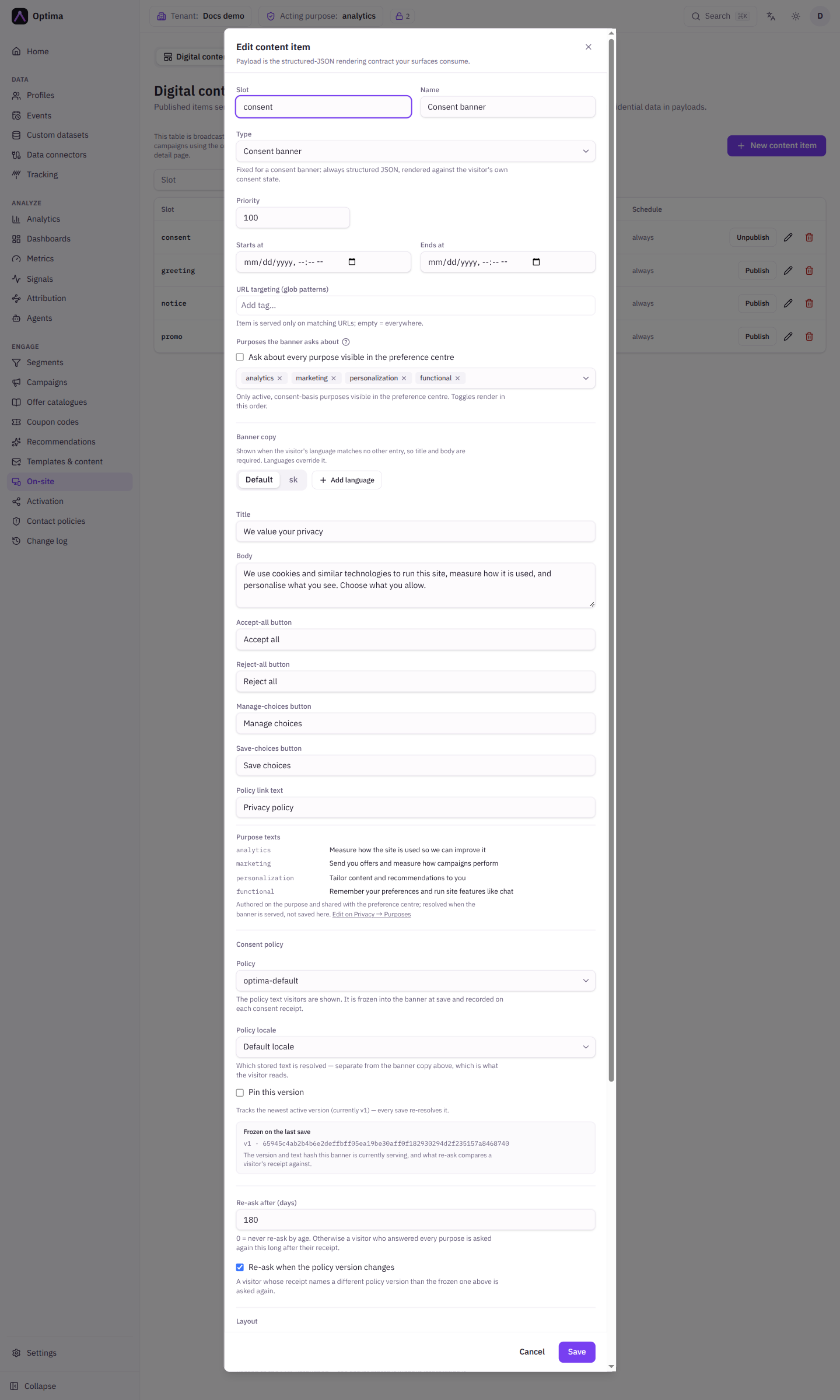
In Digital content, choose New content item and set Type to Consent banner. The usual content fields apply: Slot, Name, Priority, Starts at, Ends at and URL targeting; see Digital content. For a consent banner the payload is always structured and is shown against the visitor's own consent state, so the Payload format and Personalized controls disappear.
| Field | Meaning | Valid values | Default |
|---|---|---|---|
| Purposes the banner asks about | The consent purposes shown as toggles, in this order. Only purposes that are active, visible in the preference centre and consent-based can be asked about. | Those purposes | None |
| Ask about every purpose visible in the preference centre | Resolve the list when the banner is served, so purposes made visible later appear without saving again and retired or hidden ones drop out. | On or off | On |
| Banner copy | One tab per language, starting with Default. The default is used when the visitor's language matches no other tab. Add a language with the tab strip. | Title and Body required for the default | Empty |
| Copy fields | Title, Body, Accept-all button, Reject-all button, Manage-choices button, Save-choices button, Policy link text | Text | Empty |
| Purpose texts | The description of each purpose, written on the purpose itself and shared with the preference centre. Shown here for reference, with Edit on Privacy → Purposes to change them. | n/a | n/a |
| Policy | The consent policy whose text visitors are shown. It is frozen into the banner when you save and recorded on every consent receipt. | A policy with an active version | None (required) |
| Policy locale | Which stored text of the policy is used. Separate from the banner copy. | A locale or Default locale | Default locale |
| Pin this version and Version | Pin a specific policy version. Newer policy text changes nothing until you save again. Leave unpinned to use the newest version at save. | A whole number of 1 or more | Unpinned |
| Frozen on the last save | The policy version and text the banner is serving now. This is what a visitor's earlier receipt is compared against. | Read-only | n/a |
| Re-ask after (days) | Ask again this long after the visitor answered every purpose. | A whole number of 0 or more; 0 means never by age | 0 |
| Re-ask when the policy version changes | Ask again a visitor whose receipt names a different policy version than the frozen one. | On or off | On |
| Position | Where the banner sits. | Bottom, Top, Modal | Bottom |
| Theme | Light or dark. | Light, Dark, Follow the device | Follow the device |
| Policy link URL | Where Policy link text points. The link shows only when both are set. | An http or https address | Empty |
| Custom CSS | Your own style rules for the banner. | See below | Empty |
If the policy has no active version for the chosen locale, the save is refused until you activate one or pick another policy.
Custom CSS
Selectors must start with .optima-consent, .optima-overlay or #optima-overlay, and url() needs https: or data:. @media, @supports, @font-face and @keyframes are allowed. Comments are kept in what you save and left out of what visitors download. A counter shows the size against the limit. If a rule is refused, the message names the line. Your administrator can turn custom CSS off for the environment; the stored style is then shown but cannot be changed.
The Consent & CMP tab
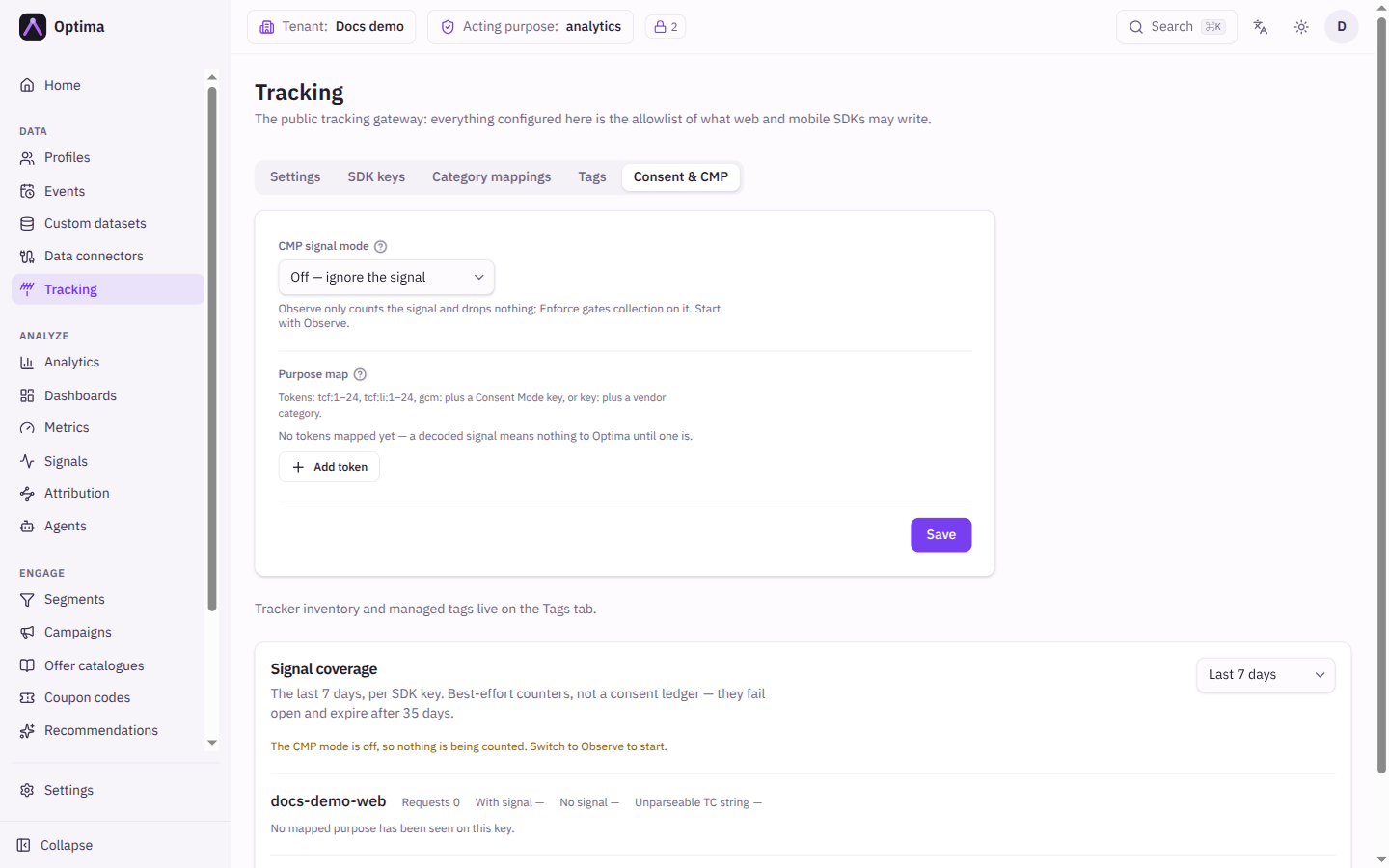
This tab is for sites that already use a consent platform. It tells Optima how to read that platform's answer.
| Field | Meaning | Valid values | Default |
|---|---|---|---|
| CMP signal mode | What Optima does with the signal. | Off: ignore it. Observe: decode and count only, drop nothing. Enforce: gate collection on it. | Off |
| Purpose map | Translates the platform's tokens into Optima purposes. See CMP mapping. | Rows of CMP token and Optima purposes | Empty |
Add token adds a row; the trash can removes it. Save stores the mode and the map. Enforce needs at least one mapped token, otherwise every signal would grant nothing, and the save is blocked with a reason.
Signal coverage
Below the form, Signal coverage shows the last 7, 14 or 30 days (Coverage window), per SDK key: Requests, With signal, No signal, and Unparseable TC string (a damaged IAB TCF string, usually a site integration bug). For each mapped purpose a bar shows Granted and Denied against all requests; the gap is traffic that decided nothing. The figures are best-effort counters, not a consent ledger, and expire after 35 days. With the mode Off, nothing is counted: switch to Observe to start.
Start with Observe, watch the coverage until nearly all traffic carries a signal, then switch to Enforce.
Examples
Optima banner for a small shop. Type Consent banner, purposes analytics and marketing, default copy "We value your privacy" with Accept-all button "Accept all" and Reject-all button "Reject all", Policy privacy-policy, Position Bottom, Re-ask after (days) 365.
Existing CMP, gradual rollout. Set CMP signal mode to Observe, map tcf:1 to analytics and tcf:3 to marketing, save, and check Signal coverage for a week. When the key shows few requests without a signal, switch to Enforce.
Common problems
- The banner never appears. The item is not published, outside its schedule, or its URL targeting does not match. Also check the slot name matches what your site expects.
- Save is refused: no active version. The chosen policy has no active version in that locale.
- A purpose cannot be picked. It must be active, consent-based and visible in the preference centre. Change it under Settings → Privacy → Purposes.
- Enforce blocks everything. The signal is missing or the map is incomplete. Return to Observe and read the coverage.