Tags
Run third-party scripts and pixels on your website only after the visitor has granted the purpose you tied them to.
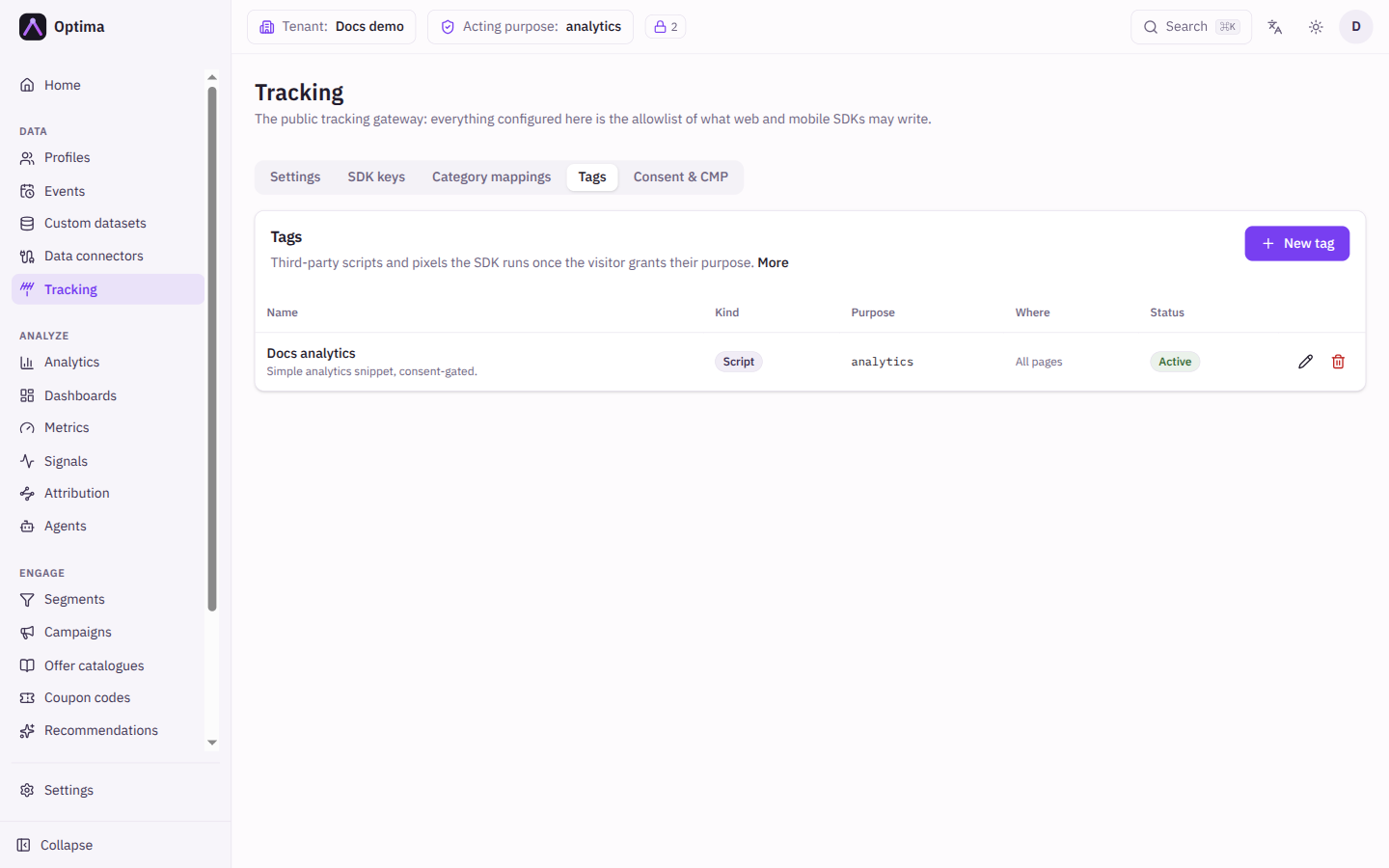
A tag is a third-party script or pixel on your website, such as an analytics script or an advertising pixel. Optima's web SDK runs a tag only once the visitor has granted the consent purpose you tied it to. Before that, nothing runs. This is the Tags tab of Tracking. It lists the tags (Name, Kind, Purpose, Where, Status), and New tag opens the dialog. Select a tag or the pencil to edit it; the trash can deletes it.
Who uses it
App developers add and change tags; privacy officers review which purpose gates which tag. Reading needs integration_viewer and changing needs integration_editor, or another role your administrator has given access to this area — see Licences and roles. Tags are part of the Core package.
Fields
| Field | Meaning | Valid values | Default |
|---|---|---|---|
| Name | A label for the tag, usually the vendor product. Names are unique. | Text, for example Google Analytics 4 | None (required) |
| Purpose | The consent purpose that gates the tag. Nothing runs before it is granted. | An active purpose in your consent catalogue | None (required) |
| Description | Shown to visitors by a consent banner that lists your tags, so plain language beats the vendor's. | Text | Empty |
| Active | Whether the tag runs at all. | On or off | On |
| Kind | How the tag reaches the page. See below. | Page placeholder, Script, Pixel, Raw HTML | Page placeholder |
| Script URL / Pixel URL | The address to load. | A full https:// address | Empty |
| async, defer | How the script element loads (script only). | On or off | async on, defer off |
| Attributes | Extra attributes on the script element (script only): data-*, id, crossorigin, referrerpolicy, integrity. | Up to 16 pairs of Attribute and Value | None |
| HTML fragment | The markup to add (raw HTML only). Only code inside a script tag runs, in order; bare code is inserted as text. For one external script, use a Script tag. | Markup | Empty |
| URL patterns | The pages the tag runs on, one pattern per line, matched against the full page address. * never crosses a /. | Glob patterns; empty means every page | Empty |
Kinds
- Page placeholder: your site keeps the tag in its own HTML as a script of type
text/plain. The dialog shows the line to paste. The SDK activates it once the purpose is granted. - Script: the SDK adds a script element with your URL to the page head, once per page load.
- Pixel: the SDK requests the image once per page view. In the URL,
{{ts}}becomes a cache-busting number and{{url}}the encoded page address. - Raw HTML: the SDK adds a markup fragment to the page body, with full access to the page. Your administrator can turn this kind off for the whole environment, and saving is then refused.
Managed tags (script, pixel, raw HTML) can be added without changing your website. Page placeholders need a one-time change to your pages.
Actions
- New tag and Save create or update a tag. A tag takes effect within about 30 seconds.
- Delete removes the tag. The SDK stops running it once it picks up the change; a tag already loaded on an open page keeps running until the page reloads. This cannot be undone.
Examples
Analytics script after consent. Name Google Analytics 4, Purpose analytics, Kind Script, Script URL https://www.googletagmanager.com/gtag/js?id=G-XXXX, URL patterns empty. It loads on every page after the visitor grants analytics.
Advertising pixel on the checkout confirmation only. Kind Pixel, Pixel URL https://ads.example.com/p.gif?ts={{ts}}&u={{url}}, Purpose marketing, URL patterns https://shop.example.com/checkout/done*.
Common problems
- The tag never runs. The visitor has not granted the purpose, the tag is Inactive, or the page does not match URL patterns. Test with the purpose granted.
- Save is refused for Raw HTML. Your administrator has turned that kind off. Use Script or Pixel.
- Save is refused for a duplicate name. Tag names are unique; pick another.
- The purpose is missing from the list. Only active purposes are offered. Create or reactivate it under Settings → Privacy → Purposes.