Identify signing
Let your backend prove that a signed-in visitor owns an identifier, so their device is linked to the right customer at once.
When a visitor signs in on your site, the SDK can tell Optima their email address or customer number with an identify call. Anyone can send such a claim from a browser, so by default Optima trusts it only when it creates a new identifier. If the identifier already belongs to another profile, it is recorded as an unverified claim and the device is not linked to that customer. Identify signing fixes this: your backend signs a short-lived assertion with a secret only it knows, and Optima links the device to the existing customer straight away.
Without a signed assertion, returning customers on new devices are linked only by your identity rules or by a double opt-in confirmation.
Who uses it
App developers, working with whoever runs the backend of the site. Reading the status needs integration_viewer; generating, rotating or removing a secret needs integration_editor, or another role your administrator has given access to this area — see Licences and roles.
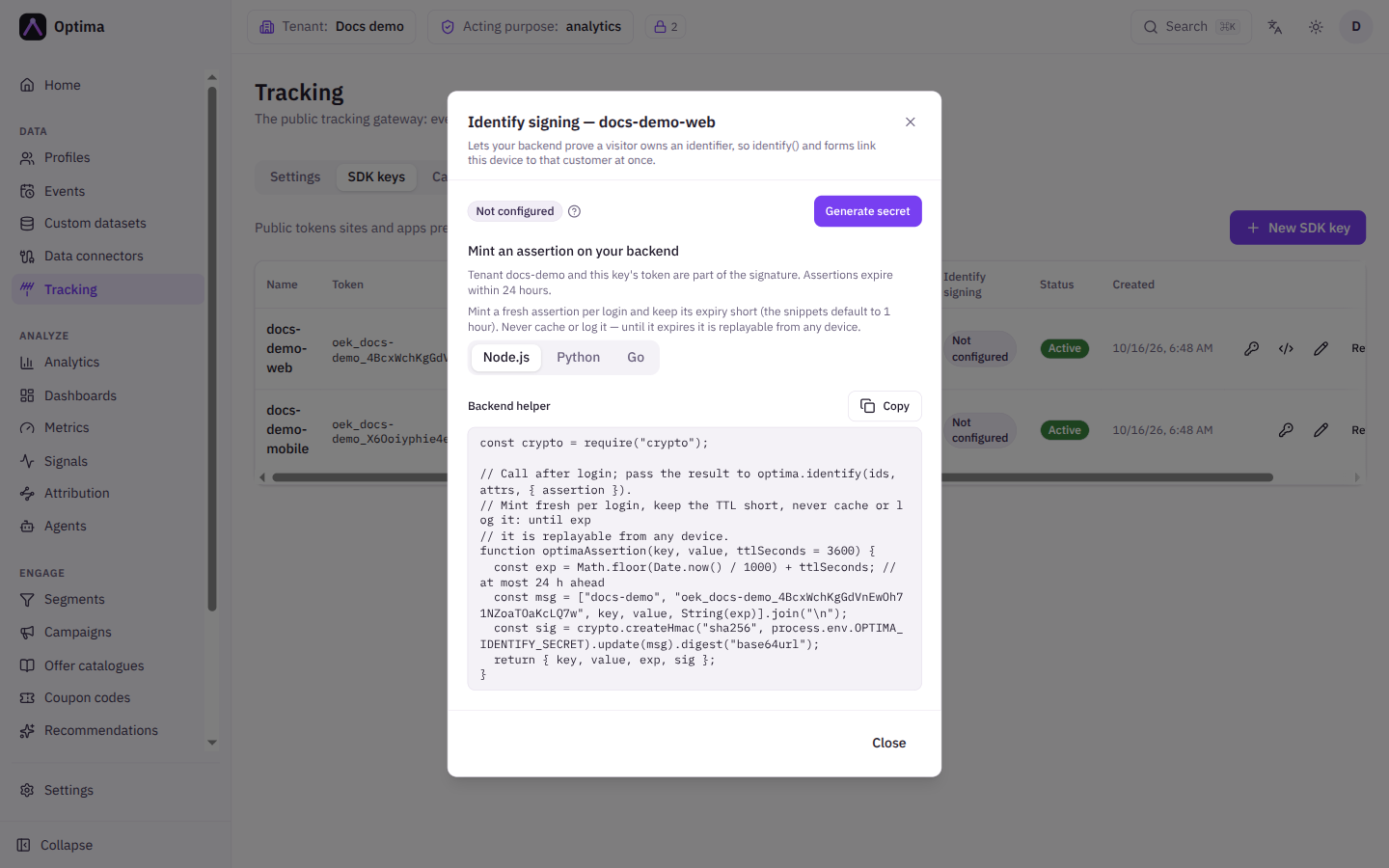
The dialog
Open it from the key icon (Identify signing secret) in a key's row on the SDK keys tab. The Identify signing column shows Configured or Not configured for each key.
| Control | What it does |
|---|---|
| Status badge | Not configured, Configured, or Configured with the date it was set. |
| Generate secret | Creates the first secret for this key. Shown only when none exists. |
| Rotate secret | Replaces the current secret. Assertions signed with the old secret stop verifying within about 30 seconds, so deploy the new secret to your backend first. |
| Remove secret | Deletes the secret. Assertions for this key are then ignored. |
| Secret — shown once | The new secret, with a copy button. It is never shown again. |
| Backend helper | Ready-made code in Node.js, Python or Go that creates an assertion, with your environment and key already filled in. |
Copy the new secret into your backend's configuration immediately. It is shown only once and must never reach a browser or app.
How to use it
- Generate a secret for the key and store it in your backend's secrets, for example as an environment variable of your choice (the example below uses
OPTIMA_IDENTIFY_SIGNER; the helper in the dialog names its own). - After the visitor signs in, your backend creates an assertion for the identifier it knows to be theirs. The helper in the dialog does this. The assertion contains the identifier name and value, an expiry (at most 24 hours ahead) and a signature.
- Your page passes the assertion to the SDK:
optima.identify({ email: user.email }, undefined, { assertion });The helper in the dialog is the exact recipe for your key. For Node.js it looks like this, with your own values in place of the examples:
const crypto = require("crypto");

function optimaAssertion(key, value, ttlSeconds = 3600) {
  const exp = Math.floor(Date.now() / 1000) + ttlSeconds; // at most 24 h ahead
  const msg = ["kupko", "oek_kupko_abc123", key, value, String(exp)].join("\n");
  const sig = crypto.createHmac("sha256", process.env.OPTIMA_IDENTIFY_SIGNER).update(msg).digest("base64url");
  return { key, value, exp, sig };
}
Create a fresh assertion for each sign-in and keep its lifetime short (the helpers default to one hour). Never cache or log it: until it expires it can be replayed from any device. The environment name and the key's token are part of the signature, so an assertion made for one key does not work for another.
Examples
Rolling out. Generate the secret, deploy it and the helper to the backend, release the site with assertion passed to identify, and only then rely on automatic linking. Returning customers on a new browser are linked at sign-in.
Rotating after a leak. Rotate, copy the new secret, and deploy it at once. Sign-ins fail to link for the short window between rotation and deployment.
Common problems
- Linking still does not happen. The key shows Not configured, the assertion has expired, it was made for a different key, or the identifier is not in the Identifier keys identify may attach list under Tracking.
- Everything stopped linking after a rotation. The backend still has the old secret. Deploy the new one.
- The secret was lost. It cannot be shown again. Rotate to get a new one.