Documents
Design PDF documents such as statements, vouchers or contracts that are filled in for each recipient and attached to or linked from a message.
A document template produces a PDF for each recipient. It is made of a branded frame, your own artwork with a few fixed fields such as a name and a date, around one region where the content flows from top to bottom and continues on new pages as needed. Every text in it can use personalization, so each customer gets their own statement or voucher. A message template then attaches the document to an email, or sends a download link on channels that cannot carry files.
Who uses it
Campaign creators. Reading needs content_viewer; creating, changing and deleting needs content_editor, or another role your administrator has given access to this area — see Licences and roles. Documents belong to the Campaign package. The screen is the second tab of Templates & content.
Fields
The list
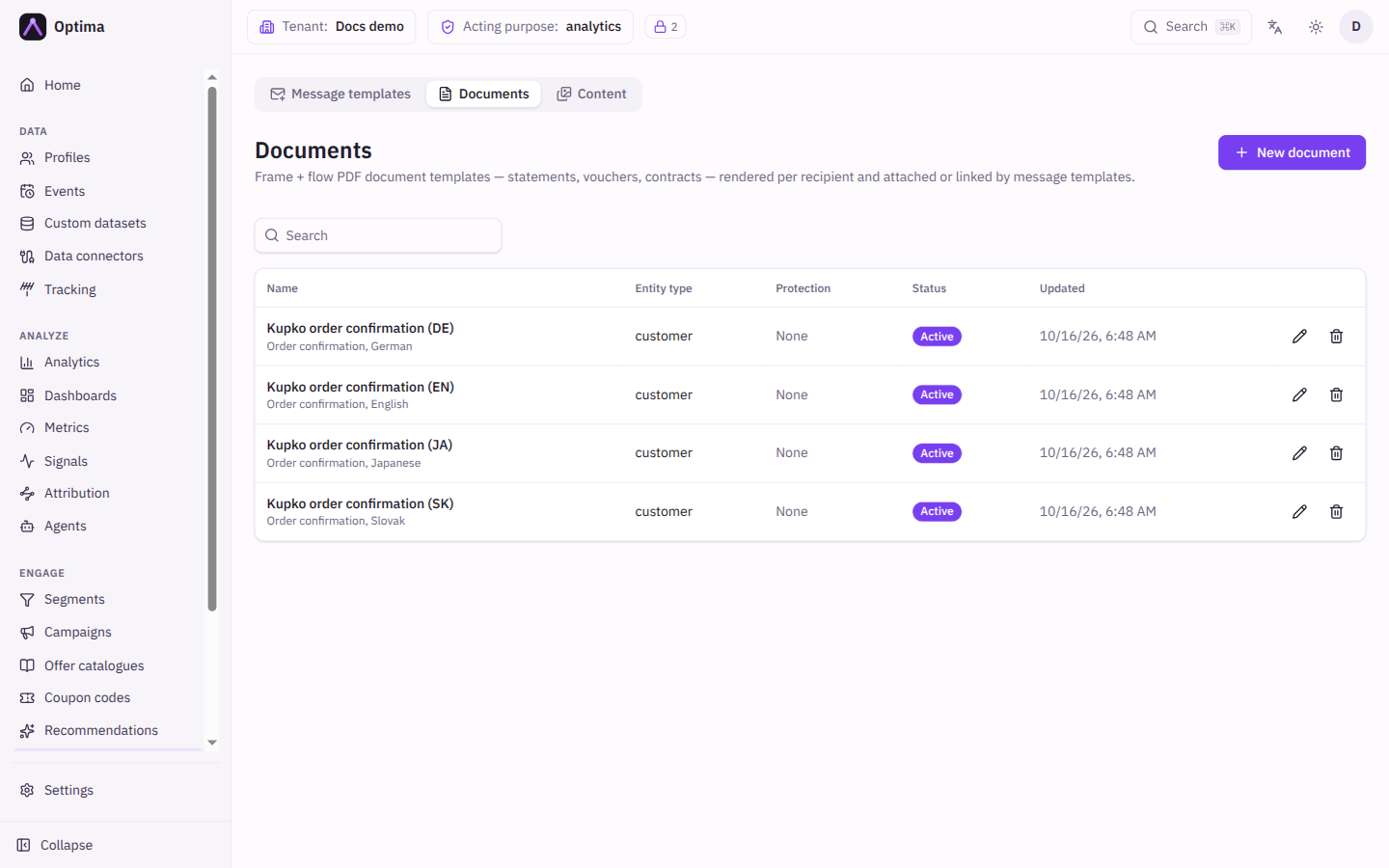
Search by name. The table shows Name, Entity type, Protection (Password or None), Status (Active or Inactive) and Updated. The pencil edits a document and the trash can deletes it. Templates that attach a deleted document fail their sends. New document opens an empty editor.
The editor
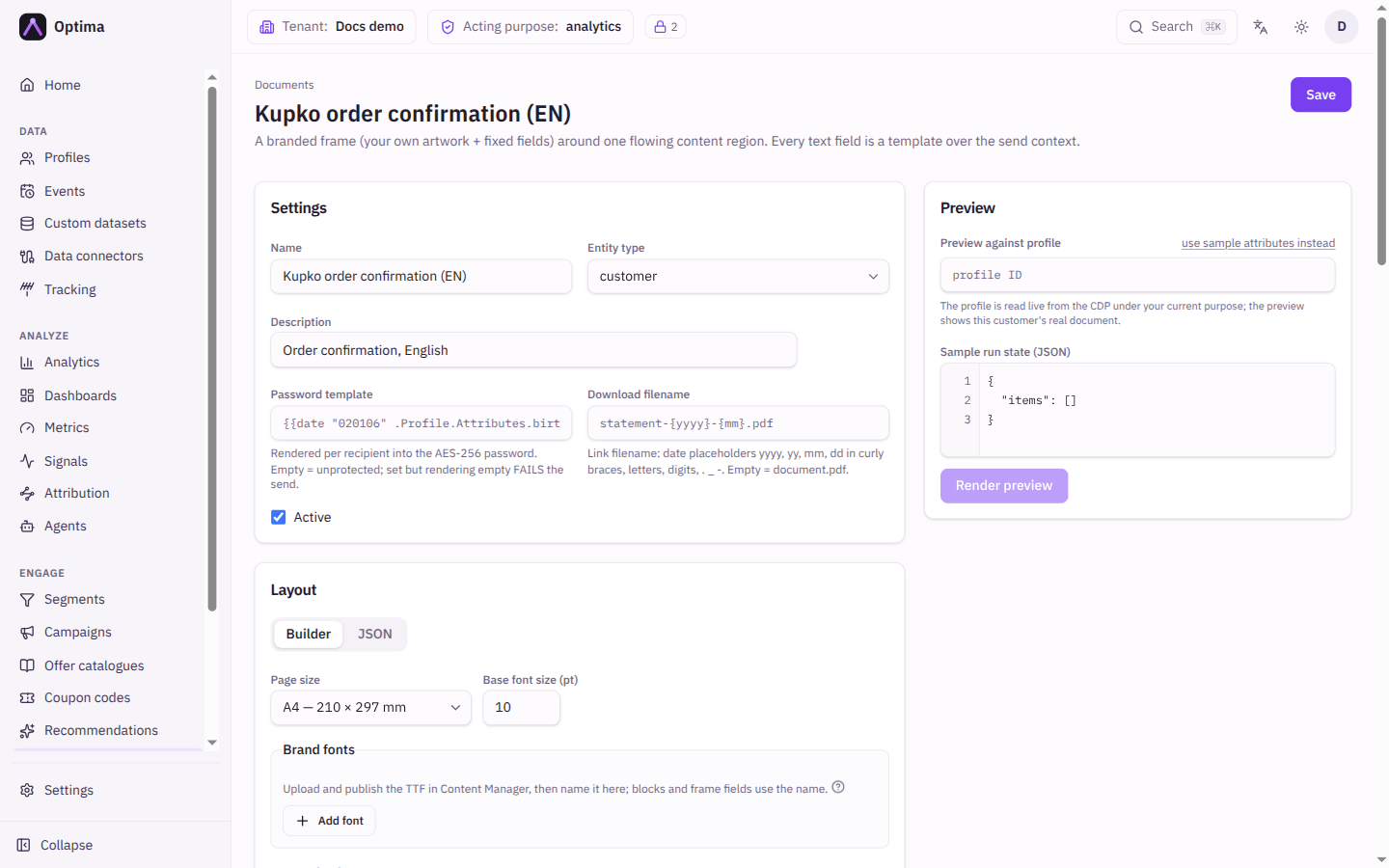
Settings
| Field | Meaning | Valid values | Default |
|---|---|---|---|
| Name | What message templates call the document. | Text, for example monthly-statement | None (required) |
| Entity type | The kind of profile the document is for. | An entity type from your schema | None (required) |
| Description | A note for colleagues. | Text | Empty |
| Password template | A text, personalization allowed, that becomes the password of the PDF for each recipient. | Text. Empty means the PDF is not protected. | Empty |
| Download filename | The file name that download links show. | The placeholders yyyy, yy, mm and dd in curly braces for the date, plus letters, digits, ., _ and - | Empty (document.pdf) |
| Active | Only active documents can be attached to a template. | On or off | On |
If a password template is set but renders empty for a recipient, that send fails. A document is never silently sent unprotected.
Layout
The layout has two tabs. Builder covers the common shape with forms. JSON shows the raw layout, which you need for the details the builder does not cover, such as the palette and the brand fonts.
| Field | Meaning | Valid values | Default |
|---|---|---|---|
| Page size | The paper. | A4 (210 × 297 mm), Letter | A4 |
| Base font size (pt) | The text size where a field or block does not set its own. | A number | 10 |
| Content box | The rectangle, measured in millimetres from the top-left corner (X, Y, W, H), in which the flowing content lives. When it overflows, the page breaks and the frame is stamped again. | Numbers; the box must fit on the page | On A4: X 20, Y 45, W 170, H 230 mm |
| First-page frame | The artwork and fixed fields of page one. | See below | Empty |
| Different frame on continuation pages (letterhead pattern) | Use another frame for pages two onwards, for example a full letterhead on page one and a thin header after. | On or off | Off |
A frame has a Background artwork, a published item from the content library: a designed PDF page, which is used as it is, or a PNG or JPEG stamped over the full page. Your artwork carries the brand. Clear background removes it. It also has Fixed fields (mm): each is placed by X, Y, W, H, contains a text, and has Size (pt), Align (Left, Center, Right), Bold, a Font and a Colour. Add field adds one.
Content blocks
Blocks are rendered top to bottom inside the content box. Use Add block and pick a Block type; Move up, Move down and Remove rearrange them.
| Block type | What it does |
|---|---|
| Heading, Paragraph | Text with its own Size (pt), Bold, Align, Font and Colour. |
| Label / value rows | Pairs of a Label and a Value, one per Add row. |
| Data table | A table with a Header per column. Rows from names a list on the data, for example the order lines in the run state, and the table repeats one row for each entry. Table headers repeat on every page. |
| Image | A published library item and rendition, with a Width (mm) (60 by default). |
| Spacer | Empty space of a Height (mm) (6 by default). |
| Divider | A horizontal line. |
| Columns | Several side-by-side columns, each holding its own blocks. Gap between columns (mm) (5 by default) and a Width (mm) per column; a width of 0 shares the leftover space evenly with the other 0-width columns. |
Brand fonts and colours
- Brand fonts: upload the font file to the content library, publish it, then add a named font here with Add font and point it at the item, for Regular or Bold. The name is what blocks and frame fields refer to. Without a declared font, documents use a built-in font that covers accented characters.
- Brand colours: named colours (Name, Hex) that fields and blocks can use. Changing a colour changes everything that uses it. The editor shows how many fields use each colour, and removing a used colour makes those fields keep its current value as a fixed colour. Names use lowercase letters, digits,
-and_, up to 32 characters, and must be unique. A colour that is neither a brand colour nor a hex value such as#0055aablocks the save.
Preview
Preview renders the PDF with sample data. Provide Preview against profile with a profile ID to see what that customer's document would contain, or use use sample attributes instead and fill Sample profile attributes (JSON). Sample run state (JSON) supplies values that a journey would pass in. Render preview produces the PDF and Open the PDF shows it. For a password-protected document, your browser asks for the rendered password.
Actions
- Create or Save stores the document.
- Delete removes it after you confirm.
- A message template attaches a document under Attachments (email) by choosing Generated document; see the template editor.
Examples
A monthly statement. Name monthly-statement. Choose A4, upload the letterhead as a PDF page into the library and publish it, and set it as the first-page Background artwork. Add a fixed field for the customer's name at the top. Add a Heading, a Label / value rows block for the account number and period, and a Data table with Rows from the transactions list. Preview it against a real profile before attaching it.
A protected contract. Set Password template to a value only the customer knows, for example their date of birth attribute. Preview and enter that password to open the PDF.
Common problems
- The save is rejected because the box runs off the page. The editor shows This box runs off the A4 page; reduce the content box so it fits.
- A colour is not accepted. Use a name from Brand colours or a hex value.
- A message cannot attach the document. The document is inactive, or it was deleted.
- A send fails for a protected document. The password template rendered empty for that recipient. Give it a fallback with the
defaulthelper from Template helpers. - The font looks wrong. The font item is not published, or the name in the block does not match the name under Brand fonts.
Related
Email tracking
Count opens and clicks on an email template, and decide whether the template follows your Optima instance's default or sets its own.
Content library
Store images and files, send them through approval, and give approved ones a stable public address that messages, documents and websites can use.