Content library
Store images and files, send them through approval, and give approved ones a stable public address that messages, documents and websites can use.
The content library is the shop window of files your messages and documents draw on: images for emails, fonts and artwork for documents, PDFs customers can download. Each file is kept as an item with one or more renditions (the same asset in different sizes or formats), goes through approval before it is published, and keeps its history. A published item that you mark as public gets a stable address anyone can load, which is what the personalization file helper and the visual email builder use.
Who uses it
Campaign creators work in the library. Reading needs content_viewer; creating, uploading and requesting publication needs content_editor; approving or rejecting needs content_approver. Or another role your administrator has given access to this area — see Licences and roles. The library is part of the core product and needs no extra package. It is the third tab of Templates & content.
Fields
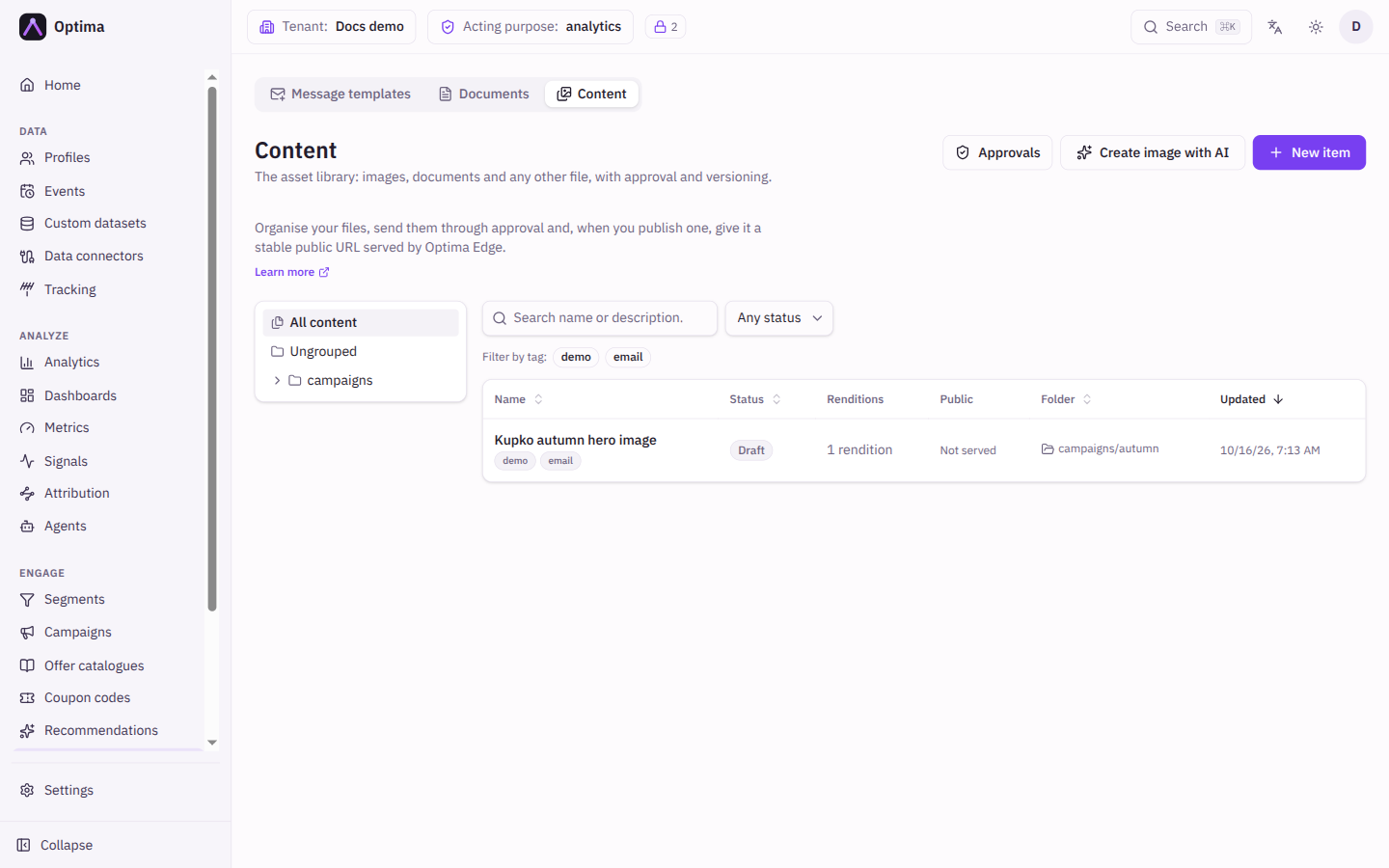
The list
| Field | Meaning | Valid values | Default |
|---|---|---|---|
| Folder tree | Shows the items filed under one folder. A folder exists because something is filed under it. | All content or a folder | All content |
| Tags | Shows items that carry the tags you select. | Existing tags | None |
| Search name or description… | Finds items by text. | Any text | Empty |
| Filter by status | Shows one status. | Any status, Draft, In review, Published, Rejected, Archived | Any status |
The table shows Name (with its tags), Status, Renditions (the count), Public (Live when the item is served, Not served, or PII and a level), Folder and Updated. Name, status, folder and updated can be sorted. Select a name to open the item.
An item
The item page has these cards.
Details and creating an item
New item and Edit open the same dialog. It holds the metadata only, so saving it can never put anything on the air.
| Field | Meaning | Valid values | Default |
|---|---|---|---|
| Name | What the item is called. Two items in the same folder cannot share a name, and capital letters do not make a name different: Logo and logo clash. The same name in another folder is fine. | Text | None (required) |
| Description | A note. | Text | Empty |
| Folder | Where it is filed. | A path such as campaigns/summer-2026 | Empty |
| Tags | Labels for filtering. | Text | None |
| Serve publicly | Once approved, the item gets a stable address anyone can load. Nothing is served until a reviewer approves it. | On or off | Off |
| PII level | How sensitive the file is. 0 means anyone who can open the library can download it. Above 0, a caller needs at least this level of personal data access. | A whole number from 0 | 0 |
| Download filename | The file name that public and download links show. | The placeholders yyyy, yy, mm and dd in curly braces, plus letters, digits, ., _ and - | Empty (the uploaded file's name) |
A file with a PII level above 0 can never be public: set the level back to 0 or turn off Serve publicly. Create the item first, then upload its renditions.
Renditions
Each rendition is a file you upload under a label, the role a visitor's device asks for, such as original, thumb or pdf. Upload accepts several files at once and suggests a label for each from its filename; pick another or type your own. A label uses 1 to 64 characters of a-z, 0-9, _ or -, starting with a letter or digit. Uploading over an existing label replaces that rendition. Files up to 100 MB are accepted by default; larger ones are refused.
Per rendition you can Download, Rename (only the label changes, not the file), Replace and Remove. A rendition not yet covered by an approval is badged not yet approved. Renaming does not update references by label: a template attachment or a document layout pinned to the old label keeps working until the item is approved again, and stops afterwards.
An item needs a rendition called original before it can be published. It is what the public address falls back to when a device asks for a size that was never uploaded.
Workflow
| Status | Meaning |
|---|---|
| Draft | Nothing here is public until a reviewer approves it. |
| In review | Waiting for a reviewer. Editing the item takes it back out of the queue. |
| Published | Approved and serving. Editing it drops it back to draft, but the approved version stays on the air. |
| Rejected | Sent back by a reviewer, with a note. Fix it and request publication again. |
| Archived | Off the air. Unarchive to work on it again. |
Buttons: Request publication (Publish new version for a published item), Unpublish, Archive and Unarchive. The public address serves the renditions that were frozen at approval, not the list as you see it now. Publishing and unpublishing reach the public address within about 30 seconds. When another person approves your request, the card shows who and when; root and admin users may approve their own requests, and the card then says so.
Public URL
For a public, approved item the card shows the Serving revision with its approval date, a copyable address and, when the full address cannot be built, its path token. An item marked public but not yet approved says so; an item with a PII level says it can never be served publicly.
History
Every change is listed with its revision, action, the fields that changed, who and when. Filter by action or actor. Restore brings the item's details and rendition list back to how they were at that revision. What the public address serves does not change, because restoring only moves the draft. Deleting an item removes its renditions and stored files, but its history is kept.
Approvals
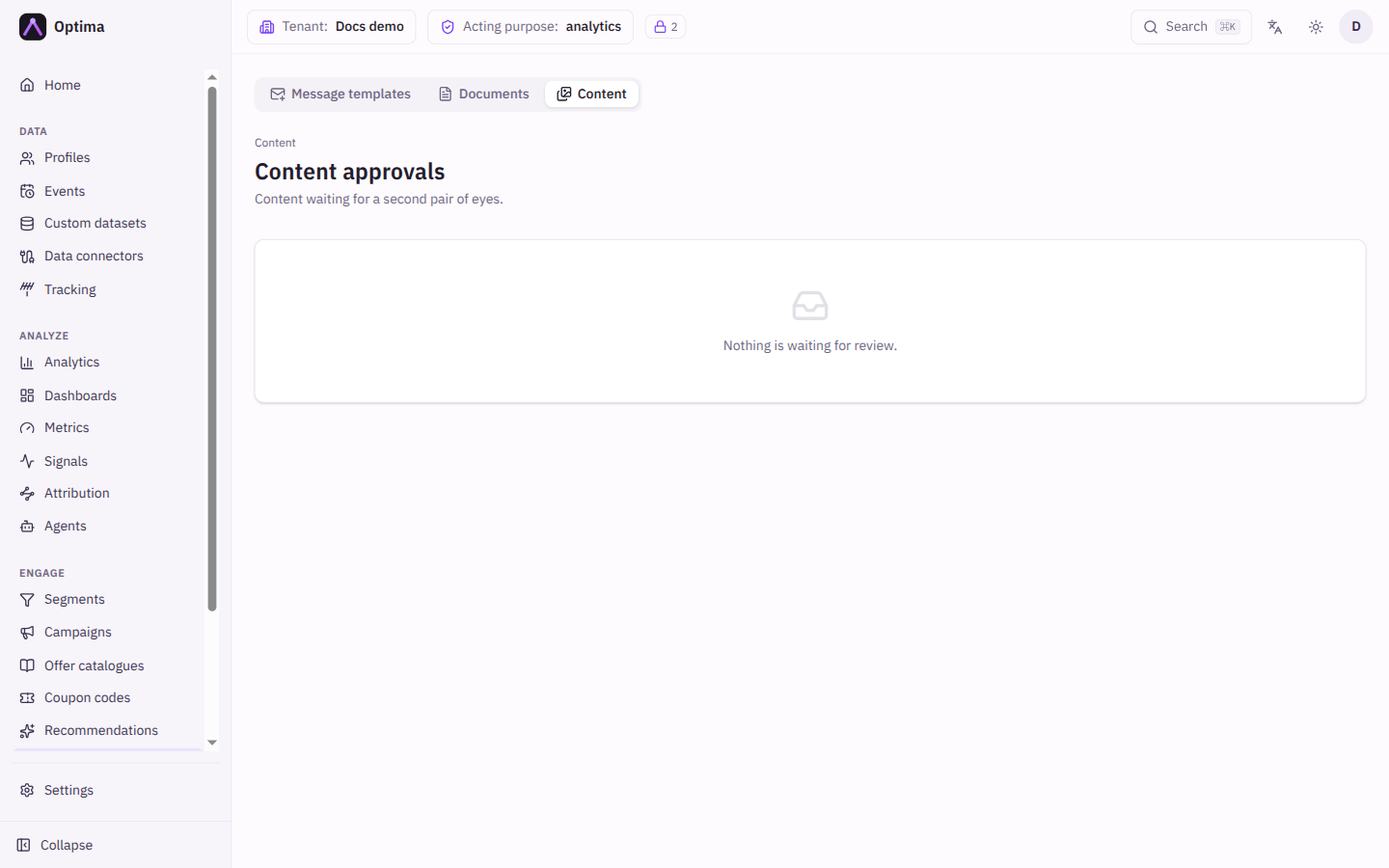
Approvals (a button on the library) lists content waiting for a second pair of eyes: item name, who requested it and when, the number of renditions and whether it will be public. Approve publishes it. Reject asks for a Reason, which is required, because a rejection the author cannot act on is not a review; the author sees it on the item. If nothing waits, the screen says Nothing is waiting for review. Without content_approver you see You do not have permission to review content.
Create image with AI
Create image with AI (on the library) generates pictures from a description. Enter a Prompt, choose how many Variants (up to 4 by default) and select Generate; it can take up to a minute. Each result can be **Save…**d to the library as a new item (the dialog asks for a name) or discarded with Toss round. Regenerate tries again. Results are held for a day so you can save the ones you like.
Every generated image counts against your workspace's daily AI image budget as soon as it is produced, whether or not you keep it. The dialog shows how many remain today. The budget resets at midnight UTC.
The button needs an image generation provider set up for your workspace by an administrator.
Actions
- New item creates an item; Edit changes its details; Delete removes it after you confirm.
- Upload, Rename, Replace and Remove manage renditions.
- Request publication, Unpublish, Archive and Unarchive move an item through its workflow.
- Approve and Reject (on Approvals) decide a request.
- Create image with AI adds generated pictures as new items.
Examples
An image for a campaign email. New item, name spring-hero, folder campaigns/spring. Upload hero.jpg as original. Request publication. After a content approver approves it, pick it in the email builder with Choose image….
A downloadable guide. Create an item with Serve publicly on and PII level 0. Upload guide.pdf as pdf, request publication, and after approval use the file helper in a template: {{file "ITEM_ID" "pdf"}}. See Template helpers.
Common problems
- Request publication is unavailable. The item has no
originalrendition, is already in review, or is archived. - The public address returns nothing. The item is not approved yet, or it was unpublished; wait up to 30 seconds after a change.
- Serve publicly is refused. The PII level is above 0.
- A template cannot use my image. Only approved, published items are offered in pickers.
- Image generation says the budget is spent. It resets at midnight UTC.