Template editor
Write a message template channel by channel, with translations, attachments, a rendered preview and AI-drafted copy.
The template editor is where one message is written for every channel it should go out on. A template has a name and a profile type, then a body of copy for each channel you fill in. Channels you leave empty are not saved. The editor opens from New template or by selecting a template's name on Message templates.
Who uses it
Campaign creators. Opening a template needs content_viewer; saving needs content_editor, or another role your administrator has given access to this area — see Licences and roles. Without the change role, Create and Save are unavailable. The On-site channels need the Digital package.
Fields
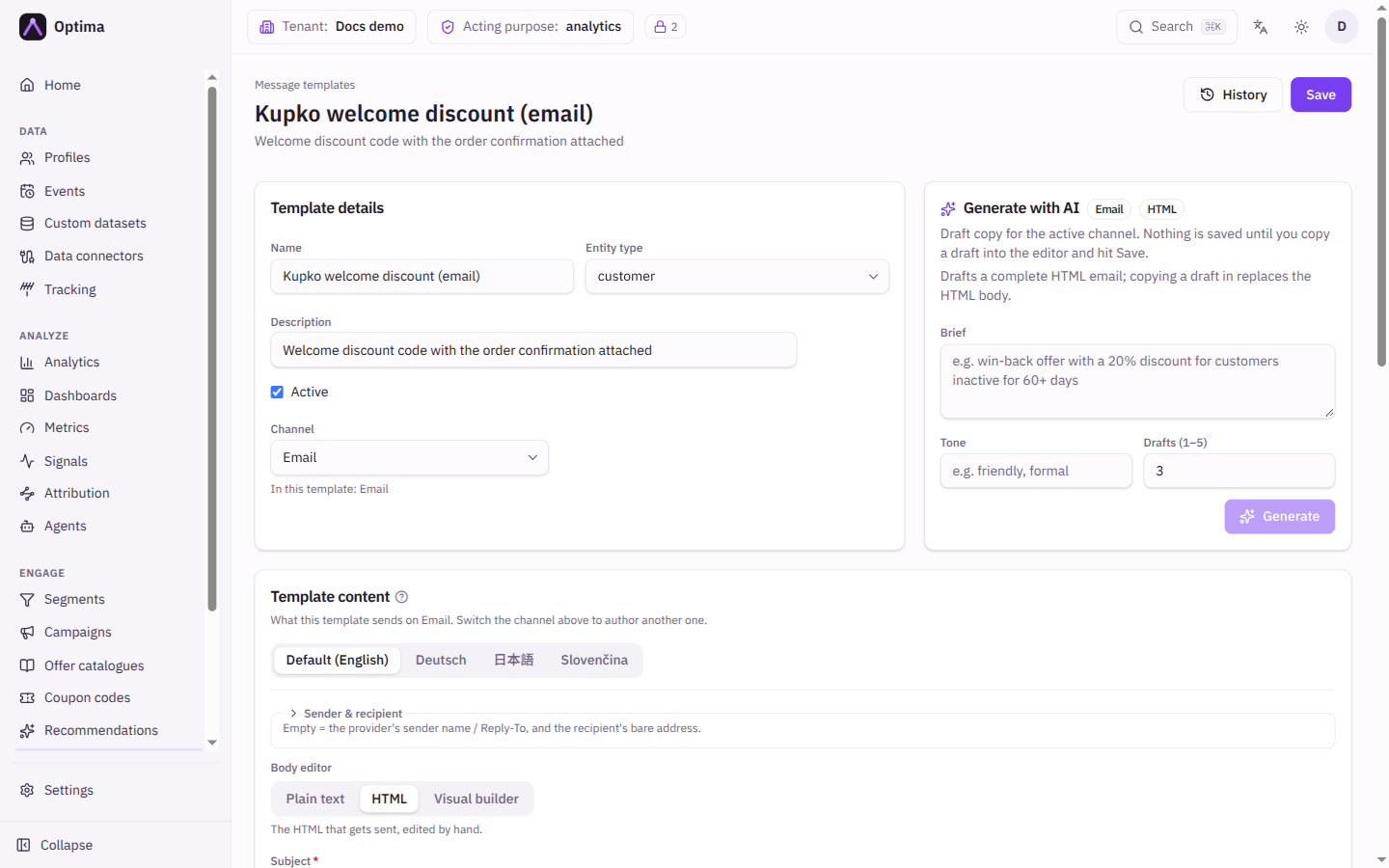
Template details
| Field | Meaning | Valid values | Default |
|---|---|---|---|
| Name | The name campaigns and journeys use to pick this template. | Text, for example summer-upsell | None (required) |
| Entity type | The kind of profile the template is written for. It decides which attributes the personalization dialog offers. | An entity type from your schema | None (required) |
| Description | A note for your colleagues, shown under the name in the list. | Text | Empty |
| Active | Whether the template is in use. | On or off | On |
| Channel | Which channel's copy you are editing. Switching it does not discard what you wrote on another channel. | Delivery channels: Email, SMS, RCS, WhatsApp, Viber, Push, Webhook. On-site channels: Web banner, Web personalization, Mobile in-app. Custom channels your organisation has defined. |
Under the picker, In this template lists the channels that already have content. A channel becomes part of the template once any of its fields has content. Create and Save stay unavailable until Name and Entity type are set, and a template with no content on any channel cannot be saved.
Every text field accepts personalization: select the personalization button beside a field to insert profile values, conditions, file links, short links, coupon codes or recommended items. Helper functions are on Template helpers. A template is checked when you save, so a mistake in a tag is reported in the editor rather than when a message is sent.
Each channel shows a one-line reminder of what it needs. Email needs a Subject and at least one body, HTML body or Text body. Select the Email requirements help beside the reminder for the detail: the HTML body is sent as-is, and the text body is the fallback for clients that block HTML. If the rendered subject contains a line break, the preview and the campaign editor warn you, because delivery refuses such a message.
| Field | Meaning | Valid values | Default |
|---|---|---|---|
| Sender name | Overrides the name the email provider sends from. | Text without an email address in it | Empty (the provider's own name) |
| Reply-To address | Where replies go. | One email address, for example support@example.com | Empty (the provider's Reply-To) |
| Reply-To name | The name shown for the Reply-To address. Needs a Reply-To address. | Text without an email address in it | Empty |
| Recipient name | The name in the To line, for example first plus last name. | Text, personalization allowed | Empty (the bare address) |
| Subject | The subject line. | Text, personalization allowed | None (required) |
| Body editor | How you write the body. | Plain text, HTML, Visual builder | HTML for a new template. A template saved with a visual design reopens in Visual builder. |
The sender block is collapsed under Sender & recipient; a summary line says which of its fields are set. A sender name or Reply-To name that contains an email address is refused, because inboxes treat it as spoofing.
The three body modes:
- Plain text is the text part for mail programs that do not show HTML. The HTML part is kept and still sent.
- HTML is the HTML you write by hand.
- Visual builder is a drag-and-drop canvas. Optima builds Outlook-safe HTML from it when you save. You can insert merge tags (the Insert merge tag button is in the text editor's toolbar), change the HTML of a single block with Edit HTML, and pick images from the content library with Choose image…. In the picker you can search the library, choose a Rendition, Upload a new image, or paste an External image URL. An image you upload waits for approval and can be used once it is published.
Existing HTML cannot be imported into the builder. To switch an HTML template to the builder you choose Reopen the saved design, Blank canvas or Single-column starter, and the builder replaces the HTML when you save. To go the other way, Edit as HTML keeps the compiled HTML and deletes the visual design when you save. If the HTML was changed without the design (for example by an API edit or by AI copy), the editor says The visual design no longer matches the HTML and asks which to keep: Keep the HTML or Reopen the design.
Below the body, Attachments (email) adds files, and Email tracking controls click and open counting. Both are described further down.
SMS
One Body. A counter shows the characters, the number of SMS parts and the alphabet. A single character outside the basic GSM-7 alphabet, such as an emoji, a curly quote or some accented letters, switches the message to UCS-2. A GSM-7 message holds 160 characters (153 per part once it is split), a UCS-2 message only 70 (67 per part). Both the part count and the alphabet decide what a send costs. Because personalization produces a different length for each recipient, the count is an estimate based on the text as you wrote it.
Push
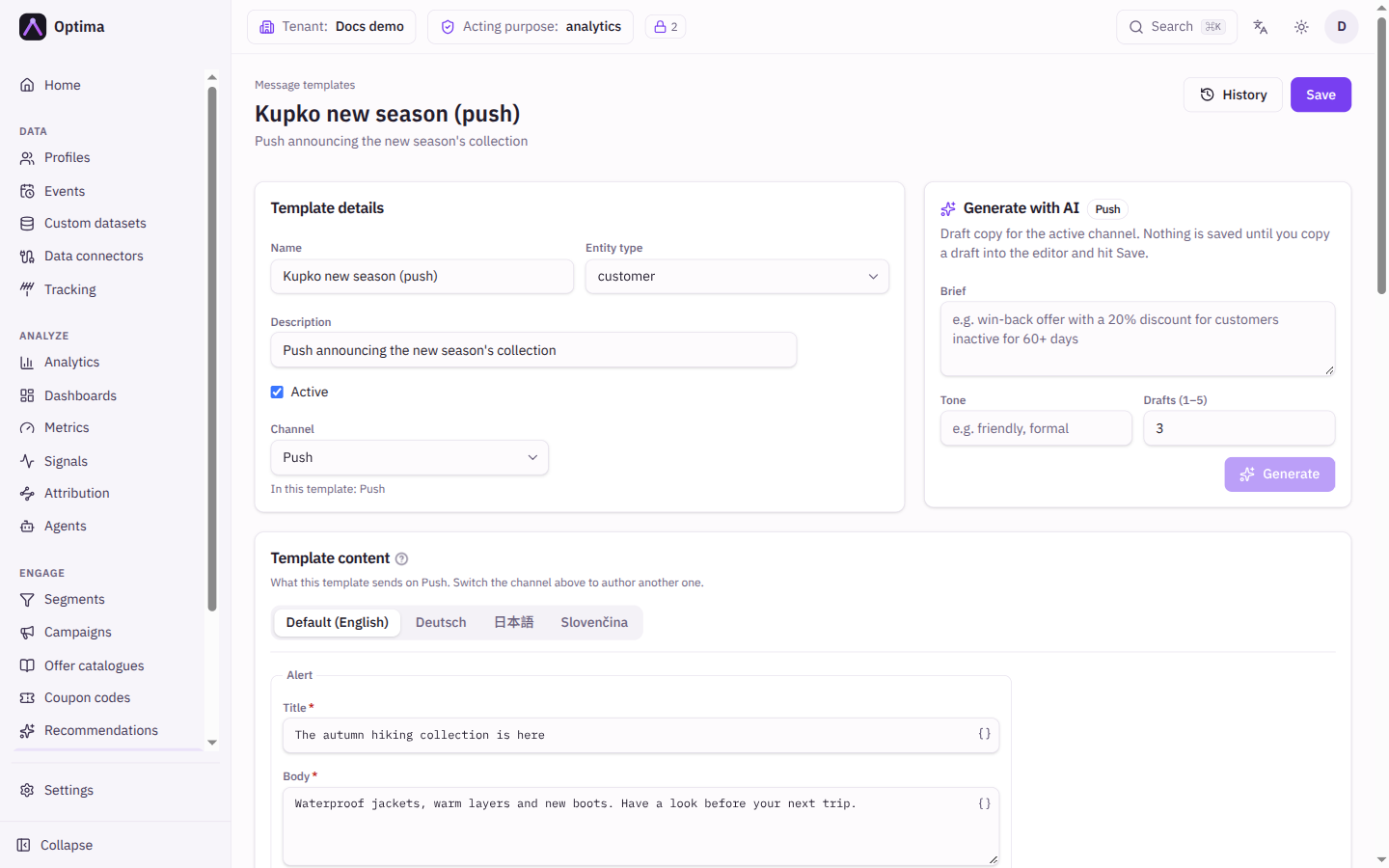
Title and Body are the alert; everything else is optional.
| Group | Field | Meaning |
|---|---|---|
| Alert | Title, Body | The visible notification. |
| Rich content | Image URL | An absolute http or https address. Android shows it directly; on iOS your app needs a notification extension to show it. |
| Deep link | The address your app opens when the notification is tapped. Your app routes it; the phone does not open it by itself. | |
| Actions | Action buttons | Up to 4 buttons, each with an Action id, a Label and an optional Deep link. iOS shows 4 and Android 3. |
| iOS category | The id of a notification category registered in your iOS app, which puts action buttons on an iPhone. The app supplies their labels. | |
| App payload | Custom data | Key and value pairs passed to your app with the alert. Values are sent as text. |
| Delivery | Sound | A sound file name, or default. Empty plays the platform default. |
| Badge count | The number on the app icon. 0 clears it; empty leaves it as it is. | |
| Validity (hours) | How long the platform may keep trying to deliver. Empty uses the provider's default. | |
| Priority | Provider default, High — wake the device now, Normal — may be batched. | |
| Collapse key | Pushes with the same key replace each other on the device, so only the newest shows. Up to 64 bytes. | |
| Thread ID (iOS) | Pushes with the same value are stacked together on iOS. |
RCS, WhatsApp and Viber
| Channel | Fields |
|---|---|
| RCS | Body is sent as a text message. Adding a Card title or Media URL (with Card description) makes it a rich card where the provider supports one. |
Two ways to send. Under Approved template (business-initiated), fill Template name (the name from Meta, or the Twilio Content SID that starts with HX if your provider is Twilio), Template language (for example en_US) and Template parameters, the numbered variables of the approved template, in order. Under Free-form message (24-hour service window), write a Body, which can only be sent within 24 hours of the customer's last message. Media URL adds a header image to a template send, or a standalone image with the body as its caption. Template language and parameters mean nothing without a template name. | |
| Viber | Body and an optional Image URL (an image message with the body as its caption), and one caption button: Button label and Button URL. A button label needs a URL. |
Webhook and custom channels
On a Webhook or a channel your organisation defined, the request itself (address, method, authentication, headers and body) is set up on the channel's provider under Settings → Integrations → Channels. A template then holds no copy, only Provider parameters: name and value pairs, personalization allowed, that fill the provider's request. Fill in names from… copies the parameter names that one of the channel's providers declares. A campaign or a send step can override any parameter, and the provider's own defaults fill the rest. A template with no copy on any channel needs at least one parameter to be saved. The same applies to any other channel whose provider builds the whole request itself. On a built-in channel (SMS, for example) served by a provider that owns the payload this way, What actually gets sent shows "Wrapped by the provider" with the provider's name and its payload template, so you can see which parameters it reads. It shows no warning there, because the template has no copy for the provider to drop. Webhook and custom channels do not show this note.
On other channels served through an HTTP gateway, What actually gets sent names the provider that wraps your copy, and warns when its payload template does not use the copy you wrote, because that copy would be discarded.
On-site channels
On-site templates are shown to a visitor who is already on your site or in your app, so they have no sender and no timing rules. See Web personalization for the web SDK side.
| Channel | What you fill in |
|---|---|
| Web banner | Slot, the content slot your page requests, for example homepage_hero. Then exactly one of Structured payload (JSON), which your page renders itself, or Raw HTML, a document served into the slot as it is. URL patterns limit the pages it may appear on (empty means every page). The How often group has Max impressions, Stop after click, Dismissible and Validity (hours) (168 by default). |
| Web personalization | Exactly one of Modifications or Raw HTML. A modification names a CSS selector, an Operation (Replace text, Replace HTML, Set attribute with an Attribute name, or Hide element) and a Value. Changes are applied in order on every page that matches URL patterns. |
| Mobile in-app | Form or HTML, not both. See below. |
Use the Configured as switch to choose between the two forms of a web banner or web personalization. If the other form still has content, the editor shows it with a Remove button, because a template may carry only one of the two and the save is refused until it is empty.
For Mobile in-app, the Form mode has a title, body, image, a call to action (a CTA label needs a CTA URL) and Custom data for your app. Your app draws it in its own style. The HTML mode is your own HTML, CSS and script. Mark the closing element data-actiontype="close" and link openers data-link="…". Start from offers Dialog, Bottom sheet and Top bar starters for HTML. Placement:
| Field | Meaning | Valid values |
|---|---|---|
| Where it shows | Over the app floats above whatever screen is open. In a slot sits inside your app's layout where the app placed a slot. | Over the app, In a slot |
| Slot | The name your app gave its slot. Suggestions come from slots your digital content already uses. Required for In a slot. | Text |
| Position | Where over the app. A bar sits at the top or bottom edge, and a dialog is always centred. The save is refused for a dialog at the top or bottom, or a bar in the centre. | Top, Centre, Bottom |
| Style | The shape. For a form, a bar spans the full width on Android only; iOS draws it as a card. | Card, Bar, Dialog |
| Screen patterns | Screens it may appear on. Empty means every screen. | Patterns such as product/* |
An on-site preview shows a best-effort rendering with sample values; real values come from the visiting profile.
Translations
Next to the channel's content is a row of language tabs. Default is the copy everyone gets. Add language… lists the languages your workspace has enabled and adds a mutation: a translated copy of the channel for that language. A profile whose language matches a mutation gets that copy; everyone else, and any channel without a mutation, gets the default copy.
- Translate from default drafts the mutation by machine translation of the default copy. Personalization tags are checked to survive unchanged, with automatic repair rounds. Nothing is saved until you review it and save the template. Save the template first, because translation reads the stored default.
- Remove deletes the language's copy for every channel, and its visual design, after you confirm. It takes effect when you save.
- A language that has been removed from your workspace shows a warning; sends fall back to the default copy until it is added back.
- For SMS, translations often leave GSM-7 (one accented character is enough) and halve the per-part budget, so watch the counter.
Attachments
On the default tab of any delivery channel, the attachments card adds files to the message.
| Field | Meaning | Valid values |
|---|---|---|
| Attachment kind | Content file is a published item and rendition from the content library. Generated document is a document filled in for each recipient. | Content file, Generated document |
| Filename override | The name the recipient sees. | Text, optional |
Email attaches every file. Other delivery channels cannot carry files: the card is then called Linked document, only the first document is used, and it is sent as a download link. Put the link in your copy with the Document.URL tag. Files come only from approved library items, and only active documents can be attached.
Generate with AI
Generate with AI drafts copy for the channel you are editing. Enter a Brief, optionally a Tone, choose how many Drafts (1 to 5) and select Generate. For email you also choose HTML or MJML. Copy into editor places a draft into the field; nothing is saved until you select Save. The feature needs an AI model set up for your workspace, otherwise it reports Copy generation failed (LLM unavailable).
Render preview
Render preview shows what a saved template produces for one channel. Enter a Profile ID to render for that real profile, which is read under your acting purpose, or leave it empty and fill the sample JSON boxes (Sample attributes (JSON), Sample signals (JSON), Offer payload (JSON), Run state (JSON)). Save the template first, because the preview renders what is stored. When a language tab is open and has no copy for the channel, the preview shows the default copy, exactly as a real send would. The preview names the language it used, or says it used the default copy. With a Profile ID and no language tab chosen, the preview uses that profile's preferred language, as a send would; open a language tab to preview a specific translation. Recommended items cannot be previewed, because they are chosen for a real recipient at send time; use a test send.
Actions
- Create saves a new template and opens it. Save stores your changes.
- History opens the change history of a saved template, where you can read earlier versions and restore one. See Change history.
- Generate, Render and Translate into work on the stored or draft copy as described above and never save by themselves.
Examples
A welcome email with a coupon. Name welcome-discount, Entity type customer. On Email: Subject {{.Profile.Attributes.first_name}}, 10% off your next order, HTML body with {{coupon "SHOP-WELCOME"}}. Under Attachments (email) add a Generated document. Add a Slovak mutation for Slovak-speaking customers.
A push with a button. On Push: Title and Body, a Deep link into your app, and one Action button whose id your app understands.
Common problems
- Saving is refused with a message about the variants. A channel is missing a required field, for example an email with no subject, or an on-site template with both forms filled. The message names the channel.
- Saving shows a warning about an attribute. The template reads a profile attribute that its entity type does not declare, so the field renders empty. The warning names where:
email.subjectfor the default copy,de:email.subjectfor a language version. The template is still saved; add the attribute to the entity or fix the name. - The preview warns about the subject. The rendered subject contains a line break. Remove it, because email subjects must be a single line.
- A mutation-only channel cannot be saved. The default copy has no variant for that channel. Write the default copy first.
- The visual design does not compile. Nothing was saved. Fix the block the message points to or switch to HTML.
- Your sender name is rejected. Remove the email address from the name.
- A provider ignores your copy. The note What actually gets sent says so when the provider's payload template does not use your copy (it is not shown where the provider builds the request from parameters); edit the provider's template.
- The SMS needs more parts than expected. The counter shows the alphabet. Remove the non-GSM character.