Recommendations
Set up product catalogues and ranking rules for item recommendations, and test what a profile would be shown.
Recommendations choose which items to show each customer: products, articles or offers from a catalogue you keep as a custom dataset. A catalogue here pins a ranking strategy to that dataset. It says which fields hold the title, image and price, which events count as interest, and which items to pin, boost, require or exclude. Messages, digital content and journeys then ask for items from the catalogue by name. The Recommendations screen has two tabs: Catalogues, where you build them, and Preview by profile, where you test them.
Who uses it
Campaign managers. Reading the catalogue list needs campaign_viewer; creating, changing and deleting catalogues, and Run preview, need campaign_admin, or another role your administrator has given access to this area — see Licences and roles. Recommendations belong to the Decision package, which needs the Campaign package. Without it the screen is missing from the navigation, and a direct visit shows Recommendations is not on this account's licence with a note to ask your account owner. It is in the Engage group.
Fields
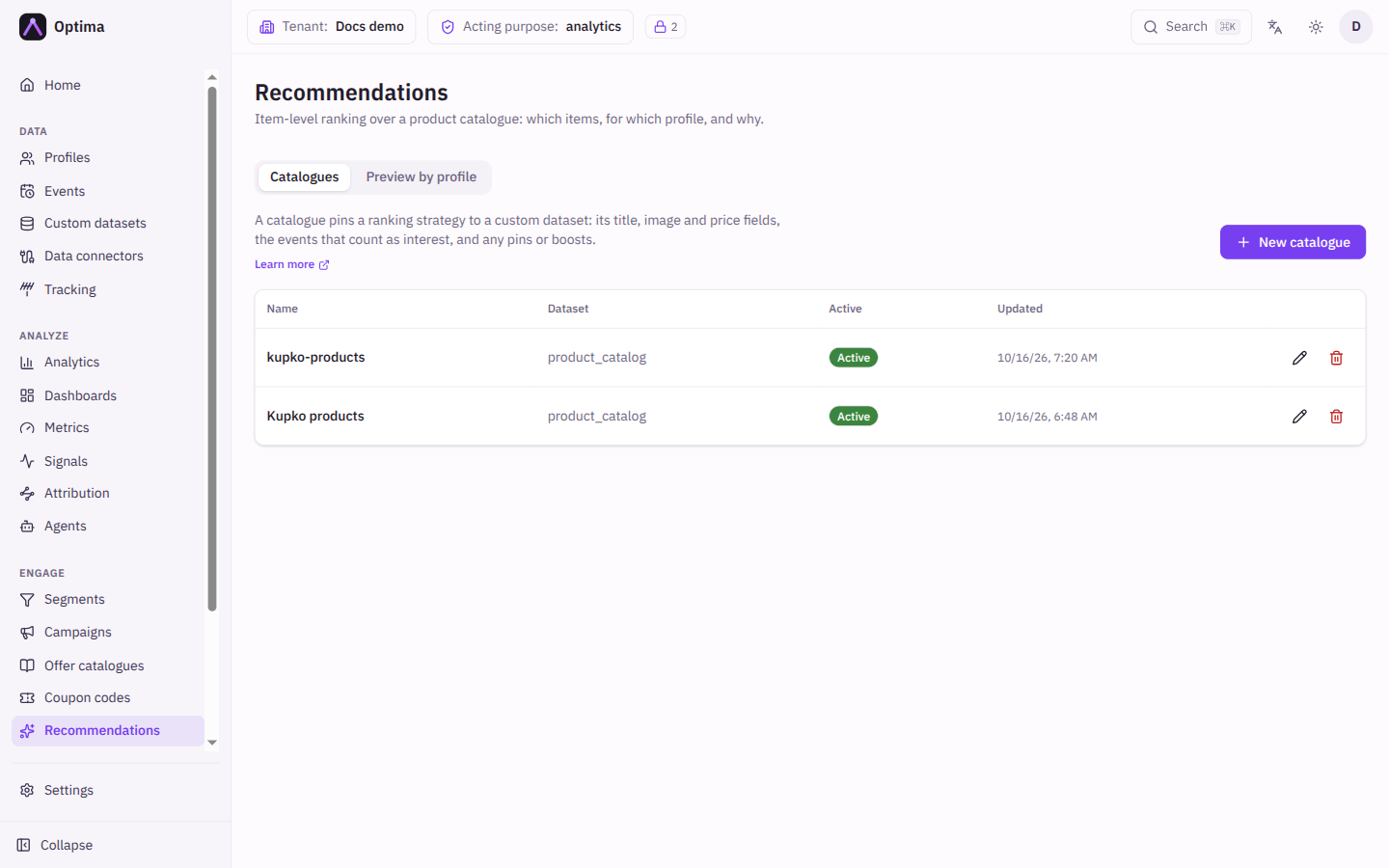
The Catalogues tab
The table shows Name, Dataset, Active and Updated. The pencil edits a catalogue and the trash can deletes it. If something still uses the catalogue, a rename or delete stops and lists what uses it (on-site content, journeys, message templates, document templates). You can then go ahead anyway with Rename anyway or Delete anyway; anything left behind gets an empty result. New catalogue opens the dialog.
The catalogue dialog
| Field | Meaning | Valid values | Default |
|---|---|---|---|
| Name | What messages, content and journeys use to address the catalogue. | Text | None (required) |
| Dataset | The custom dataset that holds your items. Every field picker below is limited to its fields. | A custom dataset | None (required) |
| Active | Whether the catalogue is in use. | On or off | On |
If you rename or delete a catalogue anyway, it breaks everything that addresses it by the old name: items "name" tags in saved message templates, on-site content, and pinned catalogues in journey decision steps.
Field roles say which dataset fields describe a ranked item: Title (required), Image, URL, Price and Availability.
Affinity fields score dataset fields against a profile's affinity signals, for the Affinity and Blend strategies. Each row has a Field, a Signal (by default affinity_ plus the field name) and a Weight. Up to 8.
Interaction events are the events that count as interest. Trending uses every action, weighted, over the last 7 days. Recently viewed uses only the View rows, newest first. Affinity does not use them: it reads the profile's affinity signals (see Affinity fields). Each row has an Event type, an Action (View, Cart, Purchase), the Item attribute of the event that carries the item's key, an optional Session attribute and a Weight. The default weights are 1 for a view, 3 for a cart and 5 for a purchase. Rows set to Purchase are also what the purchased-item exclusion looks at (see Exclude items purchased in the lookback window below). With no rows, trending and recently-viewed have nothing to rank on.
Pins force an item into a fixed place. Each has an Item key, a Slot and optional Starts at and Ends at for a scheduled window. A pinned item shows a score of 0 when it was never ranked on its own, which is expected.
Boosts multiply an item's score by a Factor, for one Item key or for every item whose Field equals a Value. Set one or the other, not both.
Require keeps only items that match every rule here. Exclude drops items that match any rule, whatever their rank. Rules compare a Field with a value using an operator: is, is not, is less than, is at most, is more than, is at least.
The Preview by profile tab
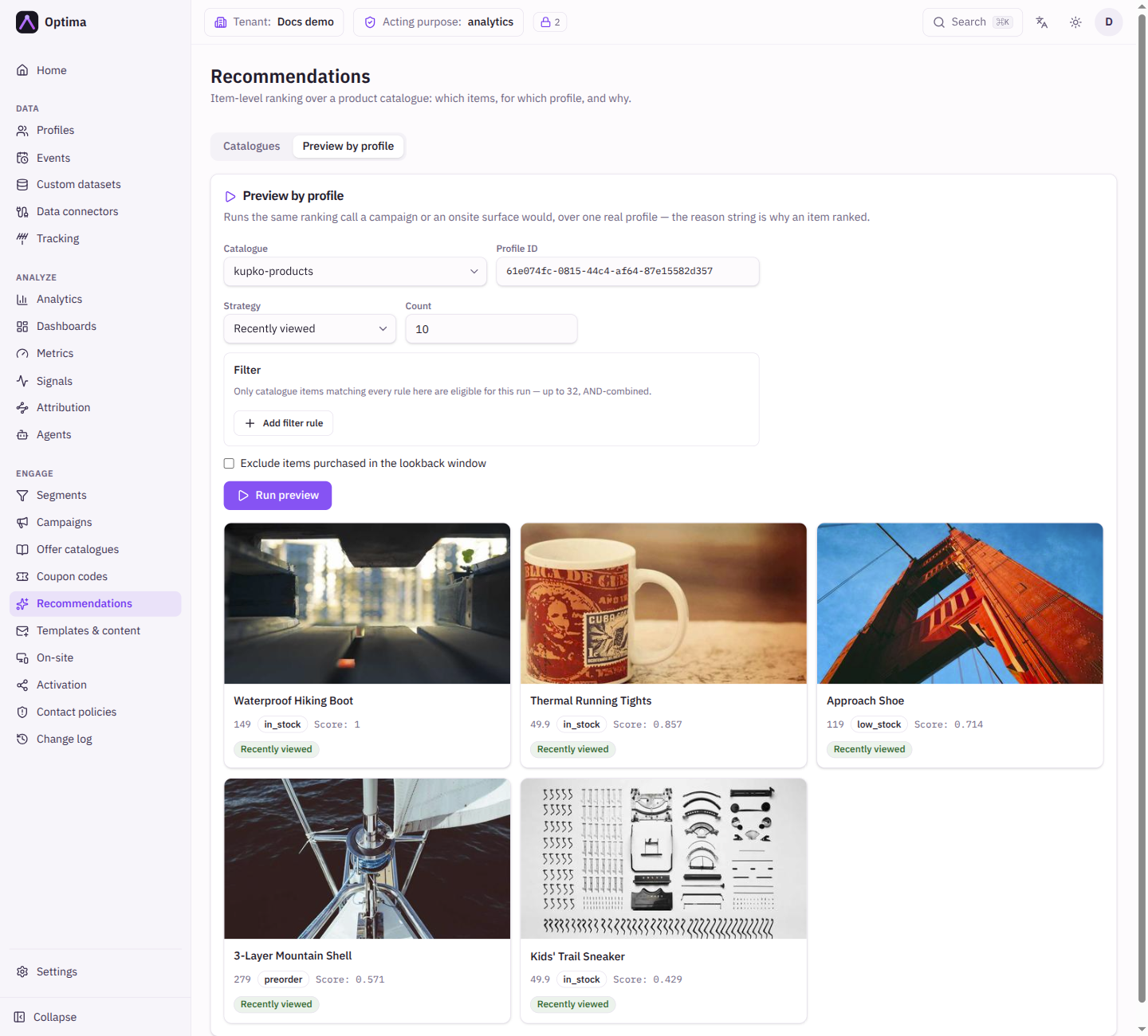
Runs the same ranking a campaign or an on-site surface would, for one real profile, so you can see why an item ranked. The Reason says why.
| Field | Meaning | Valid values | Default |
|---|---|---|---|
| Catalogue | Which catalogue to rank. | A catalogue | None |
| Profile ID | The customer to rank for. | A profile ID | None |
| Strategy | How to rank. | Trending, Recently viewed, Similar to, Affinity, Blend | Trending |
| Count | How many items. | A whole number from 1 | 10 |
| Seed item | The item to find similar ones to. Required for Similar to. | An item key | Empty |
| Blend | For Blend, 1 to 4 parts, each with its own strategy and Weight and an optional Max. A Similar to part uses the shared seed item. | Parts | One Trending part |
| Filter | Only catalogue items that match every rule are eligible for this run. Up to 32 rules. | Rules | None |
| Exclude items purchased in the lookback window | Leave out what the customer already bought, in this preview. The lookback is a fixed 365 days and counts only events set to Purchase in the catalogue. Messages and journey decisions always leave out purchased items, whatever this setting says; on-site content never does. Turn it on to make the preview match a message. | On or off | Off |
Run preview (which needs campaign_admin) shows each item with its Score and a Reason, a short phrase in the console language such as Trending, Recently viewed, Often bought with SKU-123, Matches your brand Kupko or Pinned. Behind the phrase the API also returns a stable reason_code (trending, recently_viewed, co_occurrence, affinity, pinned) and reason_params (seed, or field and value) for integrations that translate it. In a blend, an item shows the reason of the part that scored it best. An empty result is a normal answer, not an error.
Strategies
- Trending ranks by how much all customers interacted with the item over the last 7 days, weighted by action.
- Recently viewed lists what this customer viewed, newest first.
- Similar to finds items that other customers interact with together with the seed item. It is based on co-occurrence, not on similar attributes.
- Affinity matches items to the customer's affinity signals.
- Blend combines up to four of these. Part weights are normalised to add up to 1, each part ranks its own items (capped by its Max), and an item that several parts return keeps its best score.
Actions
- New catalogue, the pencil and the trash can create, change and delete catalogues.
- Run preview ranks items for one profile without sending anything.
Using a catalogue
- In a message template, insert recommended items from the personalization dialog or write
items "CATALOGUE" "trending" 3. The count is 1 up to your Optima instance's maximum (50 by default; ask the provider of your Optima instance); the dialog offers 1 to 20. See Template helpers. - On a website or in an app, see Recommended items.
- In a journey, pin a catalogue in a decision step.
Examples
A product catalogue. Name products, Dataset product_catalog. Field roles: Title title, Image image_url, URL url, Price price, Availability availability. Interaction events: product_view as View, add_to_cart as Cart, each with the item attribute product_id. Exclude: availability is out_of_stock.
A merchandised slot. Add a Pin for item SKU-123 in slot 1 for the week of a promotion, and a Boost of 1.5 on every item whose brand is Kupko.
Common problems
- The preview is empty. The profile has no interactions yet, the filter or exclude rules remove every item, or no interaction events are set.
- Preview shows "A seed item is required for similar_to". Enter an item key.
- Items disappear after a forced rename. Messages still ask for the old name; update them.
- Item keys do not match. The Item attribute on the event must carry the same value as the item's key in the dataset.