Events
Search every event Optima has received, inspect one event with its change history, and add, correct, export or delete events.
Events is the explorer for everything that happened: purchases, page views, logins, emails opened. You narrow the whole stream by event type, profile, source, time range and attribute values, open one event to read its attributes and history, and, with the right role, add, correct or remove events. Use it to check that a source is sending what you expect and that attributes arrive with the right values.
Who uses it
Integration specialists, mainly while setting up and troubleshooting data flows. Searching and reading needs data_viewer, or another role your administrator has given access to this area — see Licences and roles; adding, editing and deleting events needs data_editor. Attribute values you are not cleared to read are shown as withheld, depending on your acting purpose and PII level.
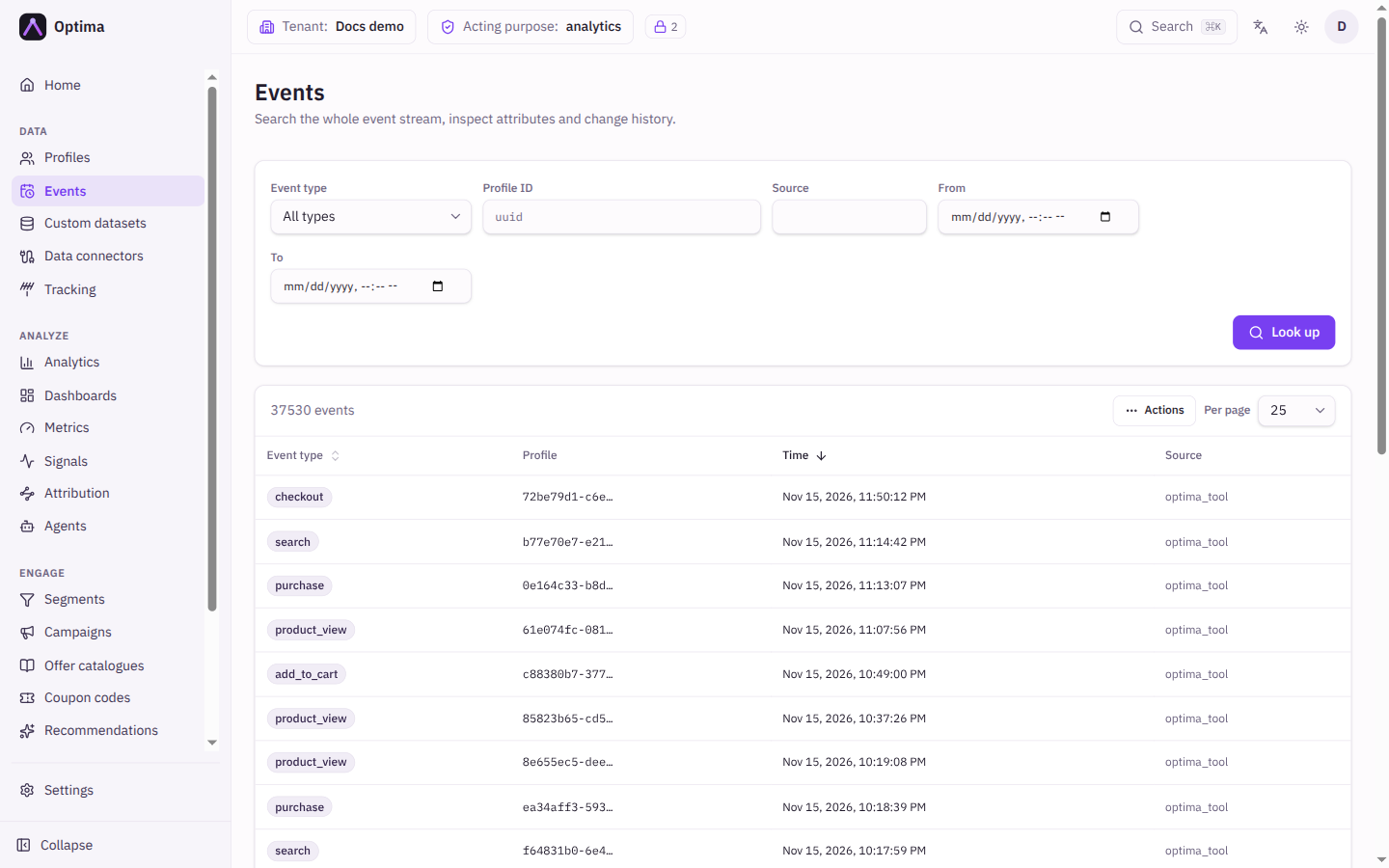
Fields
Filters
| Field | Meaning | Valid values | Default |
|---|---|---|---|
| Event type | Only events of this type. Choosing a type also shows attribute conditions. | All types or any event type in your schema | All types |
| Profile ID | Only events of one profile. | A profile ID (UUID) | Empty |
| Source | Only events from one source, for example web. | Text | Empty |
| From / To | Time range. | Date and time | Empty |
| Add attribute condition | Narrow by the event type's attributes. Each condition is an attribute, an operator and a value; all conditions must match. | See below | None |
The operators depend on the attribute's type:
| Attribute type | Operators |
|---|---|
| Number (integer, decimal) | =, !=, <, <=, >, >=, is set, is not set |
| Text | =, !=, contains, begins with, ends with, is set, is not set |
| Boolean | =, !=, is set, is not set |
| Date and time | =, <, <=, >, >=, is set, is not set |
Attributes holding structured data (JSON) or lists cannot be filtered here. Look up runs the search. Without any filter you see all events, newest first.
Results table
| Column | Shows |
|---|---|
| Event type | The type, as a badge. Select it to open the event. Sortable. |
| Profile | The start of the profile ID. Select it to open the profile; hover for a preview. |
| Time | When the event happened. Sortable, newest first by default. |
| Source | Where it came from. |
Below the table: Previous, Next and Per page (10, 25, 50 or 100). The header shows the number of matching events.
Event detail
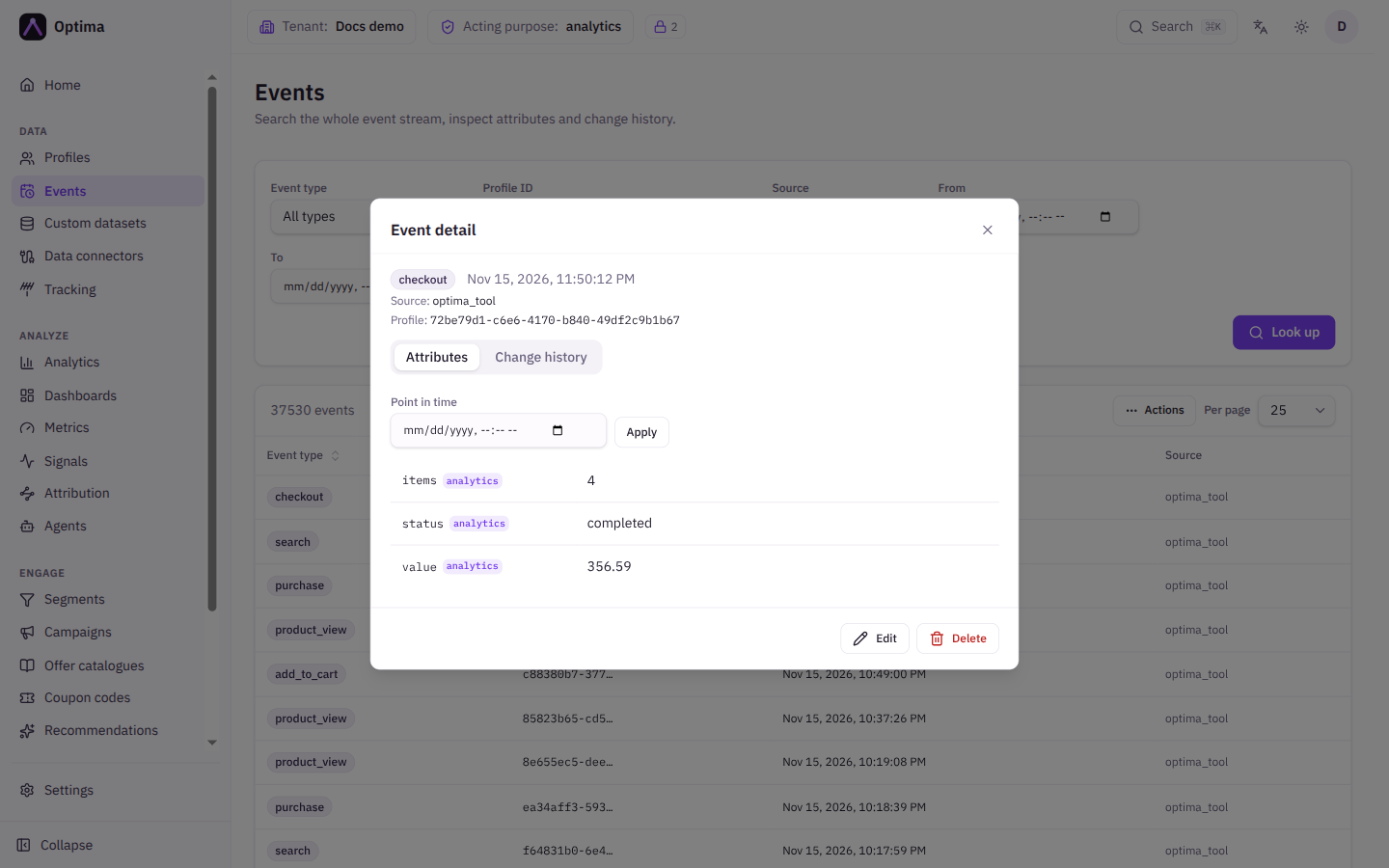
Selecting an event opens Event detail. At the top you see the event type, its Source and its Profile. Two tabs follow:
- Attributes: the event's values. Under Point in time, choose a date and time and Apply to see the values as they were then; Live (now) returns to the current values. If you can edit, a pencil beside a value opens Edit purposes to change the consent purposes it was collected under.
- Change history: columns When, Scope, Action (Added, Changed, Removed), Key, Old value and New value, with paging.
Edit and Delete are at the bottom of the dialog. Edit lets you change the Source and the attributes: set a value to add or update it, clear a field to remove it.
Actions
The Actions menu above the table offers:
- Add event…: records a new event. Choose the Event type and the Profile ID, optionally set the Timestamp (leave empty to use the current time), then fill the attributes the event type defines. The event appears after a moment because writes are processed in the background.
- Download CSV: exports the events matching the current filters. The event ID, profile ID, event type, timestamp and source are always included. Pick an event type in the filter to export its attributes as extra columns.
- Delete filtered…: deletes every event matching the current filters. It needs at least one filter applied ("Apply a filter first"). You must type the number of events to confirm. The deletion runs in a few minutes and can be cancelled until then, under Privacy, Deletions tab.
The filters are kept in the page address, so you can bookmark or share a search.
Examples
Check that purchases arrive. Set Event type to purchase, Source to web, From to the start of today and select Look up. The header should show a count and the newest rows should be minutes old.
Find large orders. Choose Event type purchase, select Add attribute condition, pick order_value, the operator >= and the value 500, then Look up.
Trace one customer's activity. Paste the profile's ID into Profile ID. Or open the profile and use its events panel.
Remove test events. Filter by Source test-import, select Actions → Delete filtered… and type the number shown.
Common problems
- No events match the current filters. Loosen the time range, check the event type spelling, and remember attribute conditions need an event type selected.
- I cannot find an attribute to filter on. JSON and list attributes are not filterable. Export with Download CSV or inspect single events.
- Delete filtered… is disabled. Apply a filter first and check you have the
data_editorrole. - A new event is missing. Writes are processed in the background. Look up again after a short wait.
- An event arrived with the wrong values. Open it, check Change history to see whether it was changed, and use Edit to correct it. Corrections are recorded.