Profiles
Search for customers by identifier or by filter, choose the columns you see, and export or bulk-delete a result.
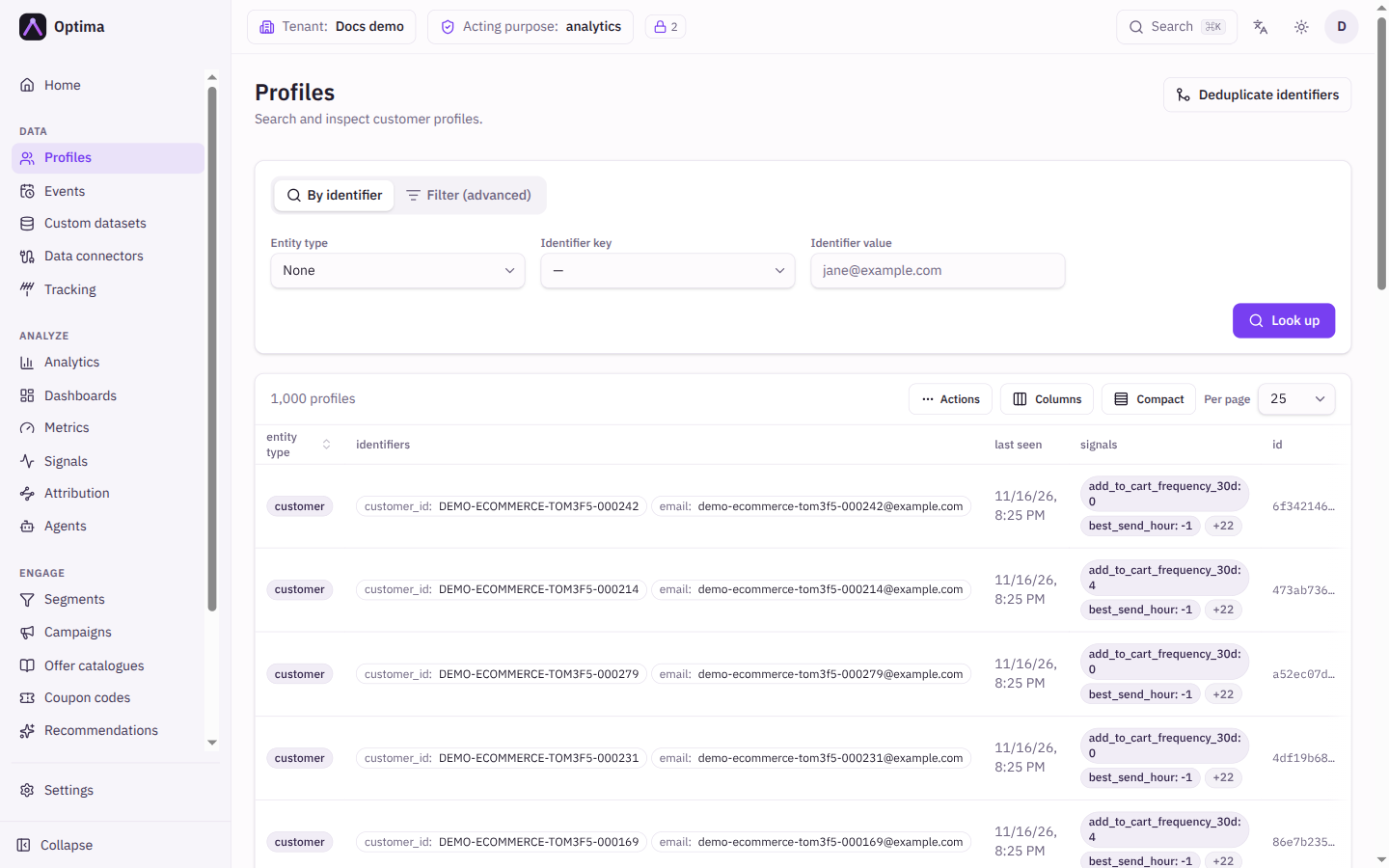
Profiles is where you find a person, household, device or any other subject Optima holds, and open their record. You search in one of two ways: look up one profile by an identifier such as an email address, or build a filter over attributes, signals and computed attributes to get a list. The result is a table you can arrange, export and, with care, delete from.
Who uses it
Integration specialists check that data arrived correctly; campaign managers look up a customer to see what they have received or what Optima knows. Opening the screen needs data_viewer, or another role your administrator has given access to this area — see Licences and roles. Adding a profile, and deleting filtered profiles, need data_editor. Without it those actions show View only. Some attribute values may be hidden from you depending on your acting purpose and PII level; see consent and purposes.
Fields
Search
Two modes, chosen with the toggle above the form.
| Field | Meaning | Valid values | Default |
|---|---|---|---|
| By identifier / Filter (advanced) | Search mode. | One of the two | By identifier |
| Entity type | Restricts the search to one entity type. Required for a filter. | None (all) or any entity type in your schema | None |
| Identifier key | Which identifier to look up, for example email. Lists the identifiers of the chosen entity type. | An identifier of the entity type | Empty |
| Identifier value | The value to find, for example jane@example.com. | Text | Empty |
| Filter (advanced) | A condition builder over the entity's attributes, signals and computed attributes. See query filters. | Any valid filter | Empty |
With nothing entered, the screen lists every profile, newest first. Pick only an Entity type to list that type.
Look up (identifier mode) and Run filter (filter mode) run the search. Look up stays disabled while only one identifier field is filled in, and shows "Enter a value for email" (with the key you chose) or "Pick an identifier key first". Run filter stays disabled until you choose an entity type, and shows "Pick an entity type first". Leave both identifier fields empty to list profiles without a filter. The search is kept in the address, so you can bookmark or share a result list. Opening a profile and using the breadcrumb to go back returns you to the list with the search you had, kept for this browser session. Identifier values and filter conditions are deliberately not stored in the link; if you open a shared link it asks you to enter them again.
Results table
The result count and the page controls (Previous, Next, Per page: 10, 25, 50 or 100) sit around the table. The default columns are:
| Column | Shows |
|---|---|
| Entity | The entity type. |
| Identifiers | The first three identifiers as key: value, and "+N" for the rest. |
| Last seen | When the profile last had activity. |
| Signals | The first two signals with their values, and "+N" for the rest. |
| Profile ID | The first eight characters of the ID and a copy button. Hover for a preview card. |
Select a row to open the profile. Only the Entity and Created at columns can be sorted, by selecting the column header (Created at appears once you add it with Columns). The default order is newest first. A value you are not cleared to see appears as a withheld marker rather than an empty cell.
Actions
- Columns: opens Configure columns. Pick columns from the groups general (entity type, profile ID, created at, updated at, last seen), identifiers (all identifiers or a single one), signals (all signals or a single one), computed attributes and attributes; reorder with Move up and Move down; Reset to default restores the five default columns. The set is saved to your user and is kept per entity type when you have an entity type chosen, otherwise for all entity types.
- Compact / Comfortable: switches the row density.
- Deduplicate identifiers: a link at the top right, shown if you have access. Opens the deduplication tool.
- Actions menu:
- Add profile…: creates a profile. Choose an Entity type, enter at least one identifier (Identifiers (at least one), Add identifier), optionally fill attributes and add Links to other profiles (Add link: whether the other profile is Parent or Child, its profile ID, and a relation). Saving checks that no other profile of that entity already uses the identifier; if one does, you see "Identifier email: … is already used by another profile". The profile appears after a moment, because writes are processed in the background.
- Download CSV: exports the profiles matching the current search. Needs an entity type. The profile ID, entity type and created-at are always included; choose extra columns from Identifiers, Attributes, Signals, Computed attributes and Consents.
- Delete filtered…: deletes every profile matching the applied filter, including their identifiers, attributes and event links. Needs an applied filter ("Apply a filter first"). You must type the number of profiles to confirm. The deletion runs in a few minutes and can be cancelled until then, under Privacy in the Deletions tab. This is a technical delete; for a right-to-be-forgotten request use erasure on the profile instead.
Examples
Find a customer by email. Leave By identifier selected, set Entity type to customer, Identifier key to email, Identifier value to jane@example.com and select Look up.
List customers who spent a lot. Select Filter (advanced), set Entity type to customer, add a condition on a computed attribute such as lifetime value greater than 500, and select Run filter. Use Columns to add that computed attribute as a column and Download CSV to export the list.
Add a test profile. Actions → Add profile…, entity type customer, key email, value test@example.com, then Add.
Common problems
- "Enter an identifier or build a filter to find profiles." Appears when a search expects input. Run the search with at least one condition, or clear all fields to list everything.
- "This search's values aren't stored in links — enter them and run it again." You opened a shared search link. Re-enter the value.
- No profiles found, but the customer exists. Check Identifier key matches how the value was stored, and that Entity type is right. Identifiers are matched exactly.
- A column is empty for some profiles. Either the profile has no value, or the value is withheld from you. A withheld marker means your acting purpose or PII level does not clear you to read it.
- Download CSV is disabled. Choose an Entity type first.
- Delete filtered… is disabled. Apply a filter first, and check you have the
data_editorrole.