Data connectors
Create and monitor the connectors that import data into Optima or export it to files, streams and databases.
A connector is a saved connection between Optima and an outside system, together with what to move over it. Import connectors pull files, messages or query results into Optima as profiles, events, consents, links, custom dataset records or signal values. Export connectors send Optima data out. The screen lists every connector with its health, and has two more tabs: scheduled SQL transforms and a run history across all connectors.
Who uses it
Integration specialists create and maintain connectors. IT architects read the list to see which systems are connected, over which protocol and how often they run. Reading needs the integration_viewer role and changing needs integration_editor, or another role your administrator has given access to this area — see Licences and roles. The screen is part of the Connect licence feature. Without write access the buttons that change a connector are disabled.
Fields
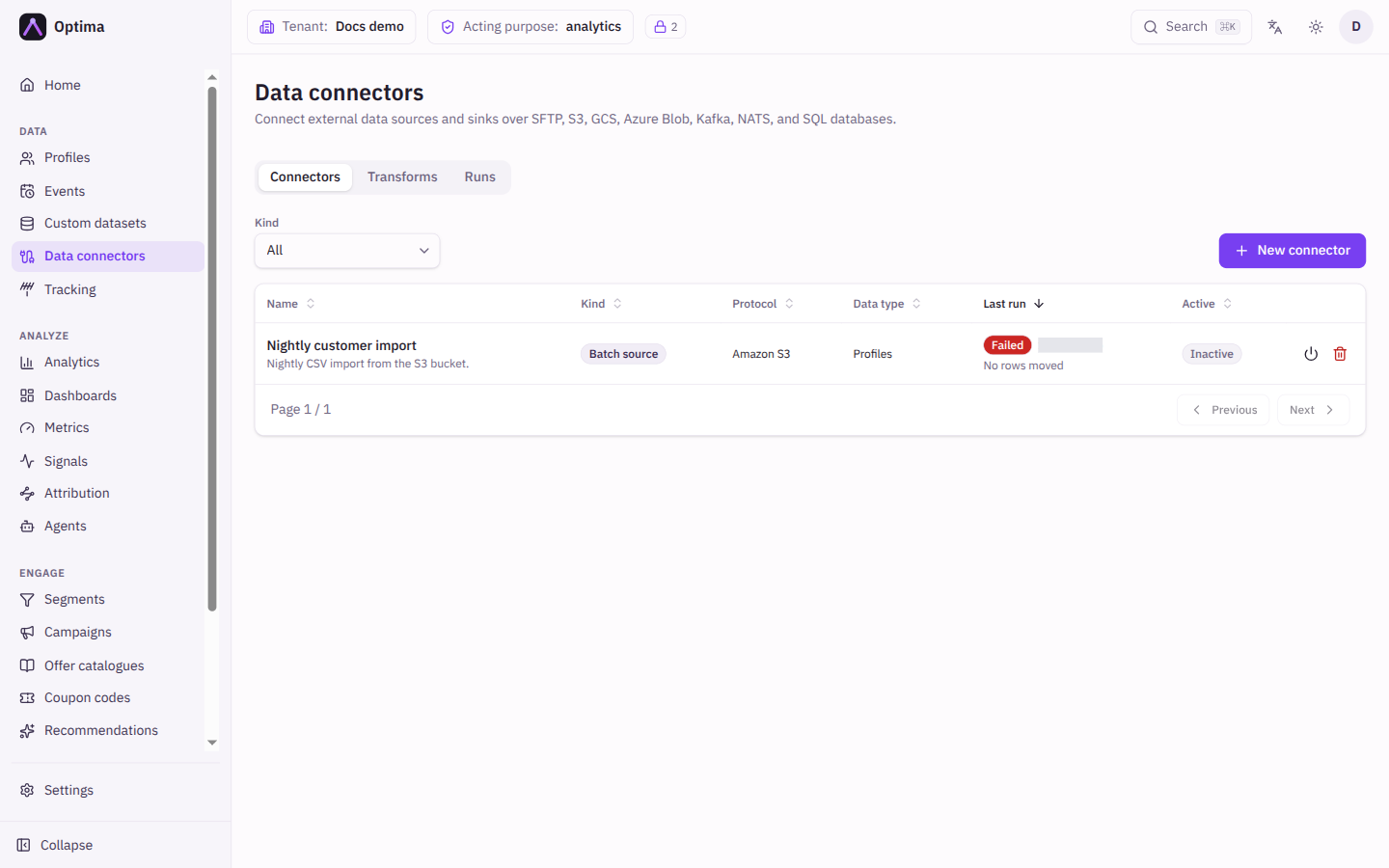
The screen has three tabs: Connectors, Transforms and Runs. The Transforms tab only appears when your licence includes warehouse queries.
Connector list
The list can be filtered by Kind and sorted by clicking a column heading. It shows 50 connectors per page, with Previous and Next.
| Column | Shows |
|---|---|
| Name | The connector name (select it to open the connector detail) and its description. |
| Kind | Batch source, Batch sink, Stream source or Stream sink. |
| Protocol | SFTP, Amazon S3, Google Cloud Storage, Azure Blob Storage, Kafka, NATS, File upload or SQL database. A Host key not verified warning appears on an SFTP connector that skips server verification. |
| Data type | Profiles, Events, Consents, Profile links, Custom dataset or External signal values. |
| Last run | The outcome of the latest run and how long ago it started, plus rows moved and rows failed. Shows Never run for an active connector that has not run yet and Not started for an inactive one. |
| Active | Whether the connector currently runs: Active, Inactive, or Completed for a one-time job that has finished. |
The four kinds mean:
| Kind | Direction | How it runs |
|---|---|---|
| Batch source | Into Optima | Reads CSV files, or a SQL query result, on a schedule or on demand. |
| Batch sink | Out of Optima | Writes a CSV file, or rows into a SQL table, on a schedule or on demand. |
| Stream source | Into Optima | Listens continuously to a Kafka topic or a NATS subject. |
| Stream sink | Out of Optima | Publishes changes to a Kafka topic or a NATS subject as they happen. |
New connector dialog
New connector opens a dialog. Which fields appear depends on the kind, protocol and data type you pick.
| Field | Meaning | Valid values | Default |
|---|---|---|---|
| Name | Display name. Required. | Text | Empty |
| Description | Free text. | Text | Empty |
| Kind | Direction and mode. | Batch source, Batch sink, Stream source, Stream sink | Batch source |
| Protocol | The kind of system to connect to. Batch kinds offer SFTP, Amazon S3, Google Cloud Storage, Azure Blob Storage and SQL database; Batch source also offers File upload. Stream kinds offer Kafka and NATS. SQL database needs warehouse queries in your licence. | See left | SFTP |
| Data type | What the connector moves. | Profiles, Events, Consents, Profile links, Custom dataset, External signal values | Profiles |
| Dataset name | The custom dataset to read into or write from. Required when the data type is Custom dataset. | An existing dataset | Empty |
| Entity type | The kind of profile imported rows belong to, or on a stream sink the only entity type exported. Shown for Profiles, Events and Consents data on sources and stream sinks. | An entity type from your schema | customer for sources, All entity types for stream sinks |
| Event type | The one event type every imported row is stored as. Shown for event sources. | An event type from your schema | None |
| Timezone | Zone used for file timestamps that carry no offset. Shown for batch sources. | An IANA name such as Europe/Bratislava | Empty (UTC) |
| Reject rows matching multiple profiles | Fail a row whose identifiers belong to different profiles instead of updating the first match. Shown for profile sources. | On or off | Off |
| Debezium change events (CDC) | See change data capture. Shown for stream sources. | On or off | Off |
| CSV delimiter | Column separator for file connectors. | Comma, Semicolon, Tab, Pipe | Comma |
| CSV quote character | Quote character for file connectors. | Double quote, Single quote | Double quote |
| Collection purposes, Lawful basis override | See collection purposes and clearance. Shown for profile and event sources. | ||
| Private network | Route the connection through a private network. Not shown for File upload. | An existing network | Default route (public internet) |
| Connection | The address of the system. The fields depend on the protocol, see below. | ||
| Privacy clearance | What an export may send. Shown for batch and stream sinks. See collection purposes and clearance. | ||
| Credentials | Sign-in details for the system. Write-only: once saved they cannot be viewed again, only replaced. |
For a profile, event or consent source, Entity type picks which entity the incoming rows are created under.
Connection fields by protocol (a star marks a required field):
| Protocol | Connection fields | Credentials |
|---|---|---|
| SFTP | Host *, Port, Path *, Skip host key verification (insecure) | Username *, Password, Private key, Host key |
| Amazon S3 | Endpoint *, Region *, Bucket * | Access key id and Secret access key *, Session token |
| Google Cloud Storage | Bucket *, Endpoint | Access key id and Secret access key * |
| Azure Blob Storage | Account name *, Container * | Account key * |
| Kafka | Brokers *, Topic *, Group id, Encrypt with TLS (with Advanced TLS for a server name) | Username, Password, SASL mechanism (Plain, SCRAM-SHA-256, SCRAM-SHA-512), and under Advanced TLS a CA certificate and a client certificate and key |
| NATS | Url, Subject *, Queue group, Jetstream | Nkey seed, Token, Username, Password |
| File upload | None. Files are attached on the Uploads tab. | None |
| SQL database | Database engine * first, then the engine's own fields, Query (sources) or Target table (sinks), Transport security, Query timeout (seconds) | Username and password, or the engine's own key or token |
For a SQL database connector these extra fields apply:
| Field | Meaning | Valid values | Default |
|---|---|---|---|
| Incremental import | Source only. Each run reads only rows past the cursor committed by the previous successful run. Use {cursor} and {now} in the Query to build the window. | On or off | Off |
| Initial cursor | Where the first incremental run starts. | An RFC 3339 timestamp such as 2026-01-01T00:00:00Z; empty starts from the beginning | Empty |
| Write mode | Sink only. How rows reach the Target table. | Replace the table each run, Merge on key columns | Replace the table each run |
| Key columns | Sink only. The columns that identify a row for a merge. Required for merge: a merge without keys appends and duplicates on every run. | Comma-separated column names | Empty |
Replace swaps in a freshly staged table. Merge updates the rows that match the key columns and inserts the rest. The Target table takes one to three unquoted name parts, such as analytics.customer_profiles.
The SQL engines are PostgreSQL, MySQL, SQL Server, Oracle, Amazon Redshift, Snowflake, Google BigQuery and Databricks. Switching engine clears the fields the new engine does not use.
Two safety notes apply across protocols. Skipped host or certificate checks are accepted only for testing, and the console flags them with a warning. Plain-text SQL (Transport security set to Disabled (private network only)) is allowed only for a connector that uses a private network. Credentials are never shown again after saving; to change them open the connector, select Edit, then Replace credentials. Replacing is complete, not partial: the fields you enter fully replace the stored credentials and blank fields are dropped, so an omitted optional value such as an S3 session token is lost. To remove credentials altogether, leave the fields empty and tick Clear stored credentials; the connector then connects without credentials.
Quick start
At the top of the dialog Quick start: Debezium CDC fills in a stream source for change events in one step.
Transforms tab
Lists scheduled SQL transforms. See SQL transforms.
Runs tab
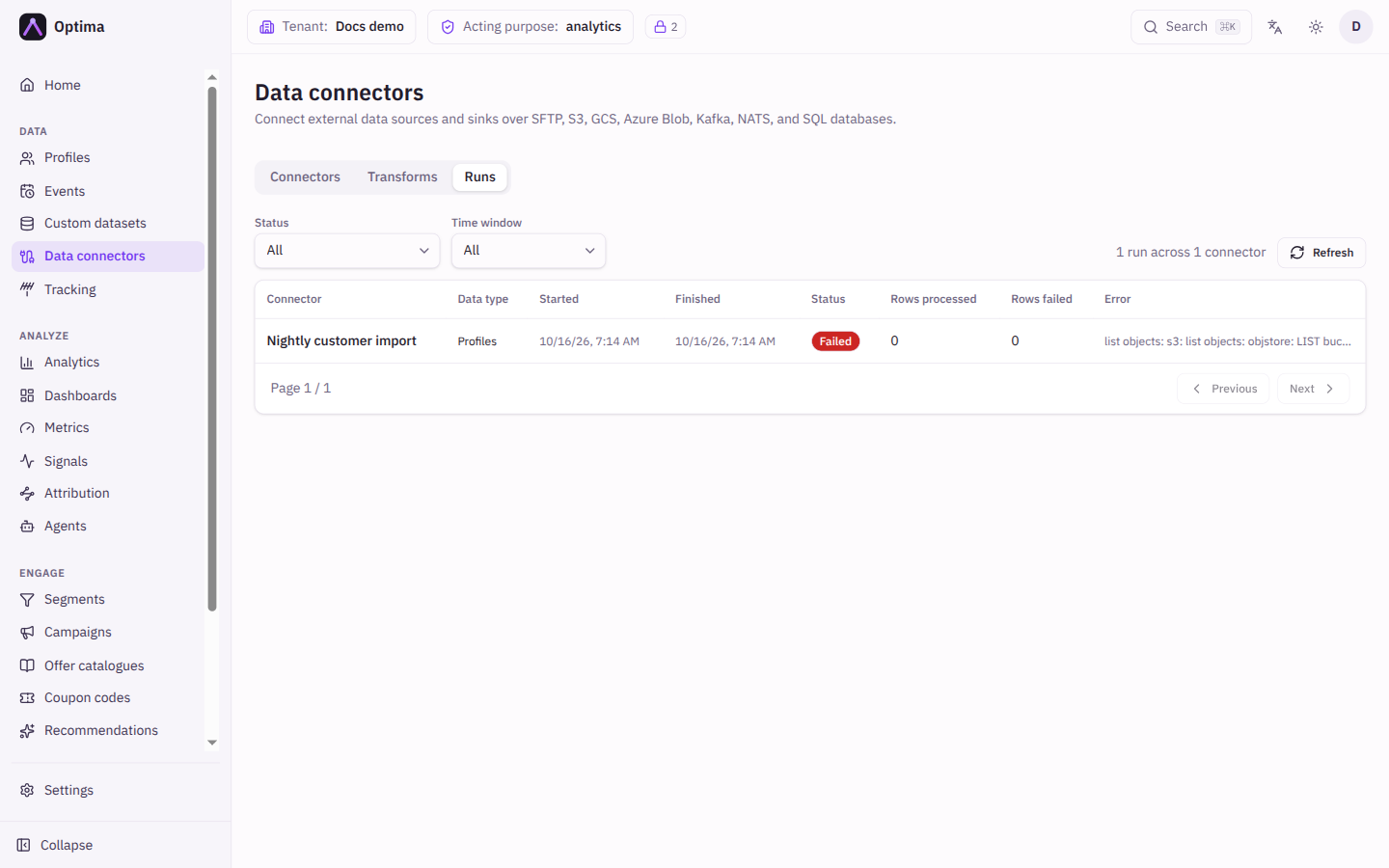
One history of runs across every connector.
| Field | Meaning | Valid values | Default |
|---|---|---|---|
| Status | Show only runs with this outcome. | All, Running, Success, Partial, Failed | All |
| Time window | How far back to look. | Last 24 hours, Last 7 days, Last 30 days, All | All |
The table shows Connector, Data type, Started, Finished, Status, Rows processed, Rows failed and Error, with a summary line such as "12 runs across 3 connectors". Run outcomes are explained under dead letters and retries.
Actions
- New connector: opens the dialog above. After saving, the console opens the new connector's detail page.
- Activate and Deactivate (the power icon on a row): start or stop a connector. A deactivated connector keeps its configuration but does not run.
- Delete (the bin icon): removes the connector after confirmation.
- Select a name to configure the connector.
Examples
Nightly customer export to SFTP. New connector, Kind Batch sink, Protocol SFTP, Data type Profiles. Fill Host, Path and the credentials, set the Privacy clearance, and save. On the detail page choose a daily time under Schedule and set the Path pattern to /exports/{date}/profiles.csv.
Order lines from a Kafka topic. New connector, Kind Stream source, Protocol Kafka, Data type Events, choose the Event type purchase. Enter the Brokers and Topic. Then use the Script tab to shape each message.
Common problems
- No connectors appear in the navigation. Your plan or role does not include them. See the licence note above.
- SQL database is missing from the Protocol list. Your licence does not include warehouse queries.
- A connector shows "Host key not verified". SFTP server verification is switched off. Paste the server's host key under the credentials and turn Skip host key verification (insecure) off.
- Saving is refused with a message about credentials. Changing the destination of a connector needs its credentials entered again, so a stored secret is never sent to a new place. Enter them under Replace credentials.
- Last run says "Partial". Some rows failed and the rest were imported. Open the run for the reason.