Connector detail
Configure one connector, with its filter, field mappings, schedule, transform script, uploads and run history.
The detail page of a single connector. The tabs shown depend on the connector's kind and protocol: batch connectors have mappings and a schedule, stream connectors have a transform script and a stream log, and a file upload connector also has an uploads tab. Open it by selecting a connector's name on Data connectors.
Who uses it
Integration specialists configure it; IT architects and others with the integration_viewer role can read every tab but not save. Changing anything needs integration_editor, or another role your administrator has given access to this area — see Licences and roles. The screen is part of the Connect licence feature.
Fields
Page header
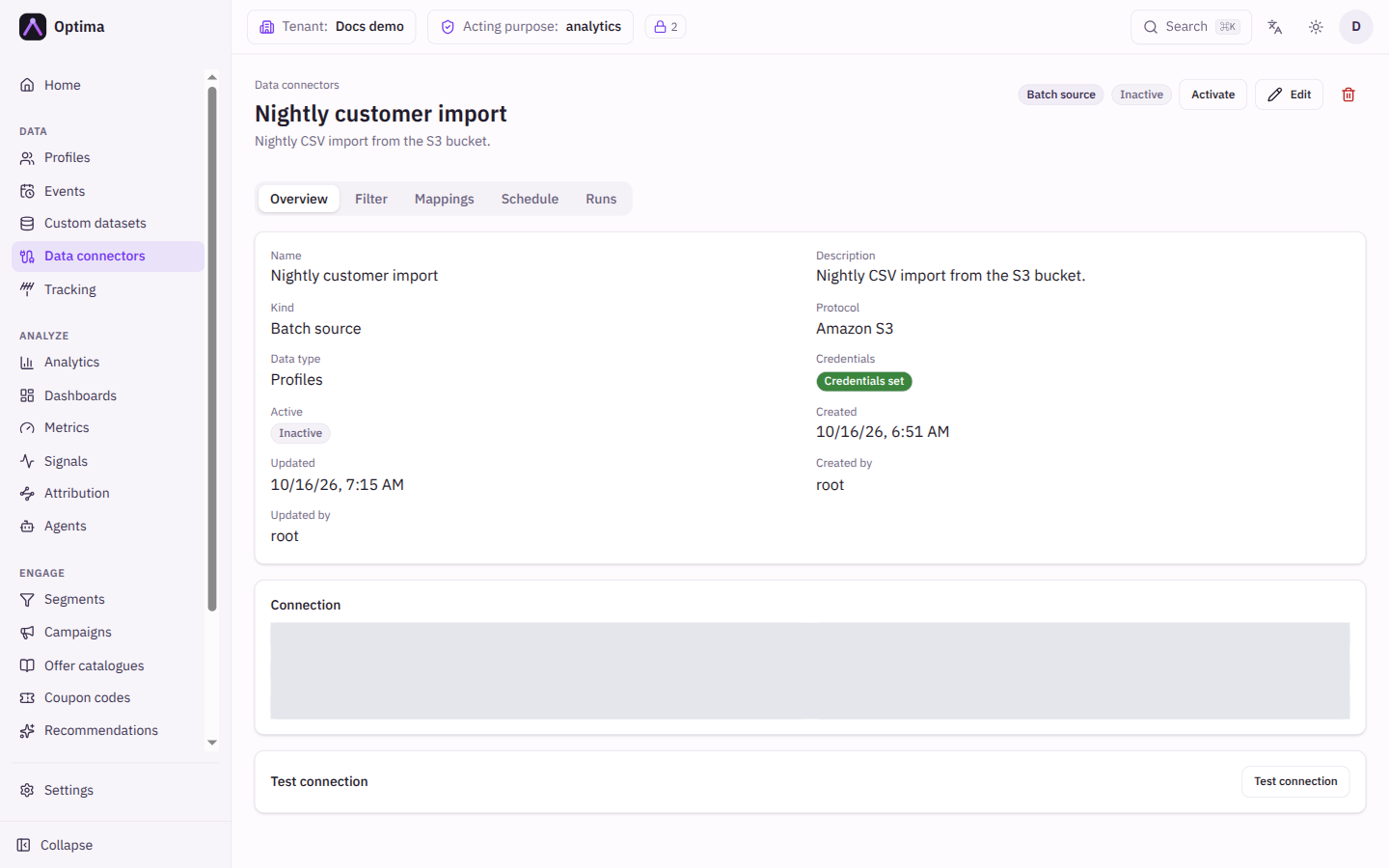
The header shows the connector name and description, its kind, and its state: Active, Inactive, or Completed for a one-time job that has finished. An SFTP connector that skips server verification also shows Host key not verified.
| Control | What it does |
|---|---|
| Activate / Deactivate | Starts or stops the connector. |
| Edit | Opens the same dialog as New connector, including Replace credentials. |
| Bin icon | Deletes the connector after confirmation. |
A dot on a tab means it holds unsaved edits.
A connector that no longer exists (deleted, or a stale link) shows a not-found message with Back to connectors.
Tabs
| Tab | Shown for | Purpose |
|---|---|---|
| Overview | All | Settings summary and Test connection. |
| Filter | All | Which rows are imported or exported. |
| Mappings | Batch kinds | Map columns to fields. See field mappings. |
| Uploads | Batch source with the File upload protocol | Attach CSV files. |
| Schedule | Batch kinds | When the connector runs and how files are named. |
| Script | Stream kinds | Reshape each message. |
| Runs | All | History of runs. |
| Stream log | Stream kinds | Sampled messages and errors. |
Overview
Shows Name, Description, Kind, Protocol, Data type, Dataset name, Privacy clearance (sinks), Credentials (Credentials set or No credentials set), Active, Created, Updated, Created by and Updated by. A second card lists the Connection settings. Credentials are never displayed.
Test connection checks that Optima can reach the system. A batch source lists a few files, and a SQL source runs the query with a small limit and shows the result columns. The result is a green or red message; Show details reveals more.
Filter
On sources, Import filter: rows that do not match are skipped. On stream sinks, Export filter: only matching changes are forwarded. A batch sink's export filter is described below under Schedule.
Each rule has a field, an operator and a value. Operators are =, !=, <, <=, >, >=, contains, begins_with, ends_with, exists and not_exists; the last two take no value. Add rule adds one. Rules combine so that every rule must match.
Filters depend on the data type. Event sinks pick Event types (empty = all) and Attribute filters (when exactly one event type is chosen), with Also export event updates & deletes. Profile sinks have a Profile filter using the same grammar as the Profiles screen. Profile link sinks pick Parent entity types and Child entity types. External signal connectors choose an Entity type and the Signals they handle. A profile stream sink also has Export enrichment and Exported fields (allow-list).
Schedule
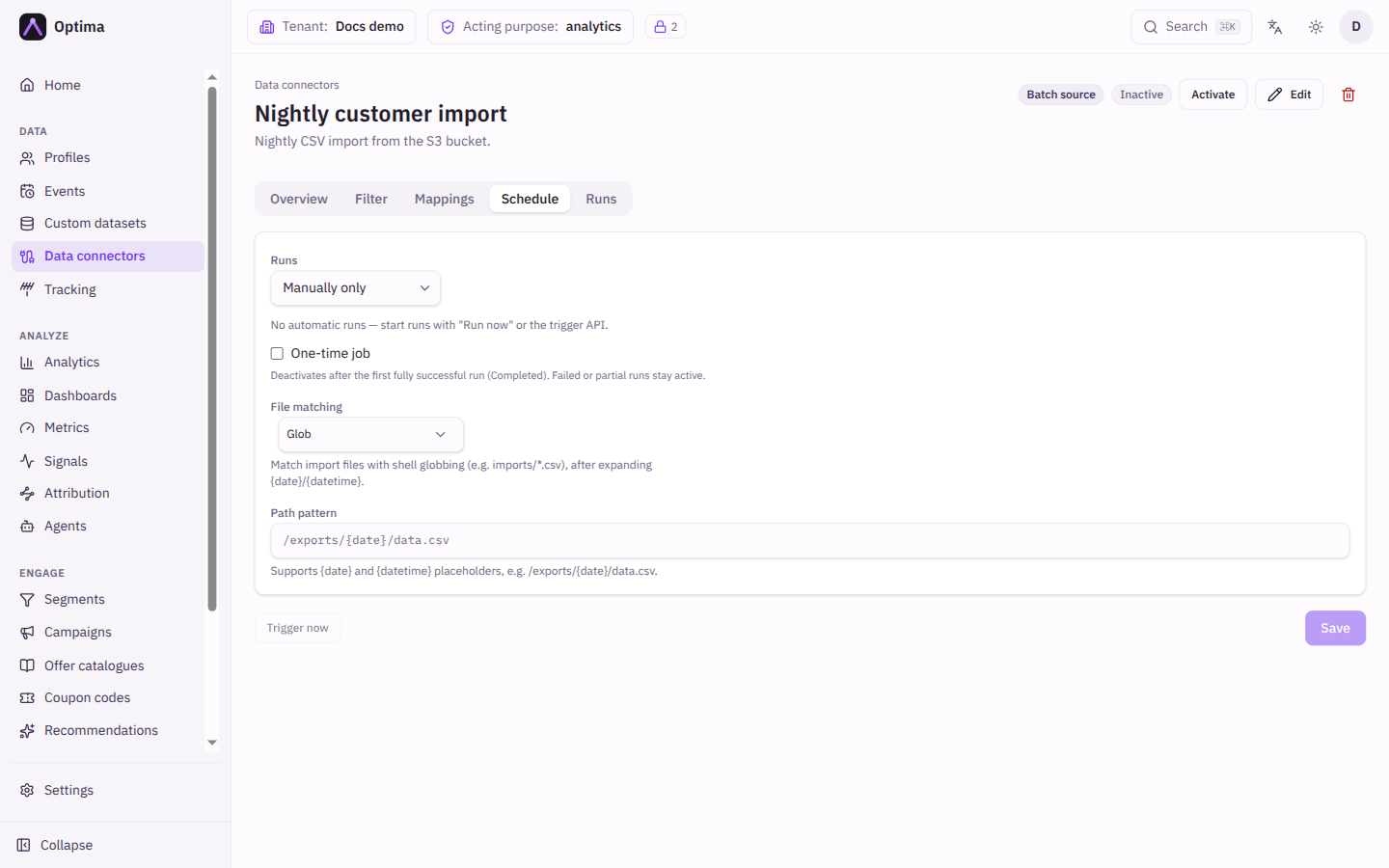
| Field | Meaning | Valid values | Default |
|---|---|---|---|
| Run frequency | When the connector runs by itself. | No schedule (shown as Manually only), Every hour, Every day, Every week, Every month, Custom (cron) | Manually only |
| Cron expression | Used with Custom. Five fields: minute, hour, day of month, month, day of week. Supports *, lists, ranges and steps such as */15; see Schedules. | Standard five-field cron | Empty |
| Time zone | The clock the schedule follows. | A time zone | Same as your profile |
| One-time job | Deactivates after the first fully successful run and shows Completed. A failed or partial run stays active to retry. | On or off | Off |
| File matching | How import files are found. Import connectors only. | Glob, Regular expression | Glob |
| Path pattern | Where files are read from or written to. {date} and {datetime} expand to the run date and time; {part} is the file number when an export is split. Not used by SQL connectors. | Text | Empty |
Under the form the page shows Next run and Last run. Trigger now starts a run immediately, Save stores the schedule. The path pattern is required for non-SQL connectors. On an inactive connector Trigger now is disabled; activate the connector first.
A batch sink also has its export settings on the Filter tab, saved together with the schedule: Entity type, Profile filter, Event types, Since, Row limit, Incremental export (only rows newer than the previous successful run), Skip empty exports, Fail if file exists, Max rows per file (needs {part} in the path pattern), and Preview export size, which estimates the row count without running. Save the Schedule tab first, because the filter is stored with it.
Uploads
For a connector with the File upload protocol. Upload CSV attaches a file; each file shows its File, Size, Uploaded time and Status (Pending or Imported). Each file is imported once, on the next run. Trigger now runs the import.
Script
A stream connector can reshape each message with a small script. The script must define def transform(payload):. It receives the decoded message and returns:
- a dictionary, which becomes the record (imports) or the message to forward (exports);
None, which drops the message without an error;- a string, which flags a validation error and skips the message.
Only the core language is available (no json, time, math or http), each call must finish within 5 seconds, and attribute values are stored as strings. Recognised keys for imports depend on the data type: identifiers and attributes for profiles, plus event_type, event_timestamp, event_source and event_key for events, consent_purpose, consent_granted and consent_expires_at for consents, profile_link_parent_id, profile_link_child_id and profile_link_relation_type for links, and dataset_record_key for dataset records. Signals use signal_name, signal_value, signal_computed_at, signal_valid_until and signal_model_version. Other keys are ignored. The How transform scripts work panel on the tab shows the exact keys and an example for the connector's data type.
def transform(payload):
    return {
        "identifiers": [{"key": "email", "value": payload["email"]}],
        "event_type": "purchase",
        "event_timestamp": payload["ts"],
        "attributes": {"amount": payload["amount"]},
    }
Controls: Insert template (a starter function), Test the transform with a Sample payload (JSON) and Run test (nothing is saved), AI assistant (describe what you want and it writes a candidate script that you insert yourself), Save and delete. A saved script takes effect when the connector next starts listening.
Runs
A table of this connector's runs: Started, Finished, Status (Running, Success, Partial, Failed), Rows processed, Rows failed, Skipped, Files and Error. For a stream connector each row is one continuous listening session with live counts; it ends when the connector stops, its settings change, or an error occurs. Refresh reloads and Trigger now starts a batch run. Select a row for Run detail, which shows the summary, the files and the error; Debug with AI asks for an explanation of a failure, and Copy copies the error text. Batch files are imported once, so re-running skips files already imported.
Stream log
Samples of stream messages, shown before and after the transform, and recent errors. Filter with All, Samples and Errors, choose a Time window (Last hour, Last 24 hours, Last 7 days, All) and Entries shown. Entries are truncated at 4 KB and kept for a few days. Entries appear only while an active connector is consuming or publishing.
Actions
- Test connection, Trigger now, Activate and Deactivate act immediately.
- Save on a tab stores only that tab's changes.
- Edit changes the connector's name, protocol, data type and connection; Replace credentials swaps its stored secrets.
Examples
Import a CSV every night. Connector with Batch source, SFTP, Profiles. On Mappings map columns to identifier.email and attributes. On Schedule choose Every day, Path pattern /upload/*.csv, Save, then Trigger now to try it.
Find out why a file failed. Open Runs, select the failed row, read the Error and, if it is unclear, select Debug with AI.
Common problems
- A tab is missing. Tabs follow the kind and protocol: no Mappings on a stream connector, no Script on a batch connector.
- The export filter cannot be saved. Save the Schedule tab with a path pattern first; the filter is stored with it.
- "path_pattern is required" or "is not used by sql connectors". Every connector except SQL needs a path pattern; a SQL connector runs its query and refuses a path pattern and the regex match mode.
- The export filter says the entity type does not exist. Choose an entity type that is defined in your workspace.
- A new connector is refused for a missing connection field or SFTP credentials. Amazon S3 needs endpoint, region and bucket; Google Cloud Storage needs a bucket; Azure Blob needs account name and container; a new SFTP connector needs a username and a host key (or the skip option).
- The script does nothing. It must define
def transform(payload):. The tab warns when it does not. - Trigger now is greyed out. The connector is inactive. Activate it first.
- A one-time job shows Completed and does not run again. That is intended, whether the run came from the schedule or from an upload. Activate it again and run it manually if you need a repeat.