Team
Invite people to your environment, set their roles and remove them when they leave.
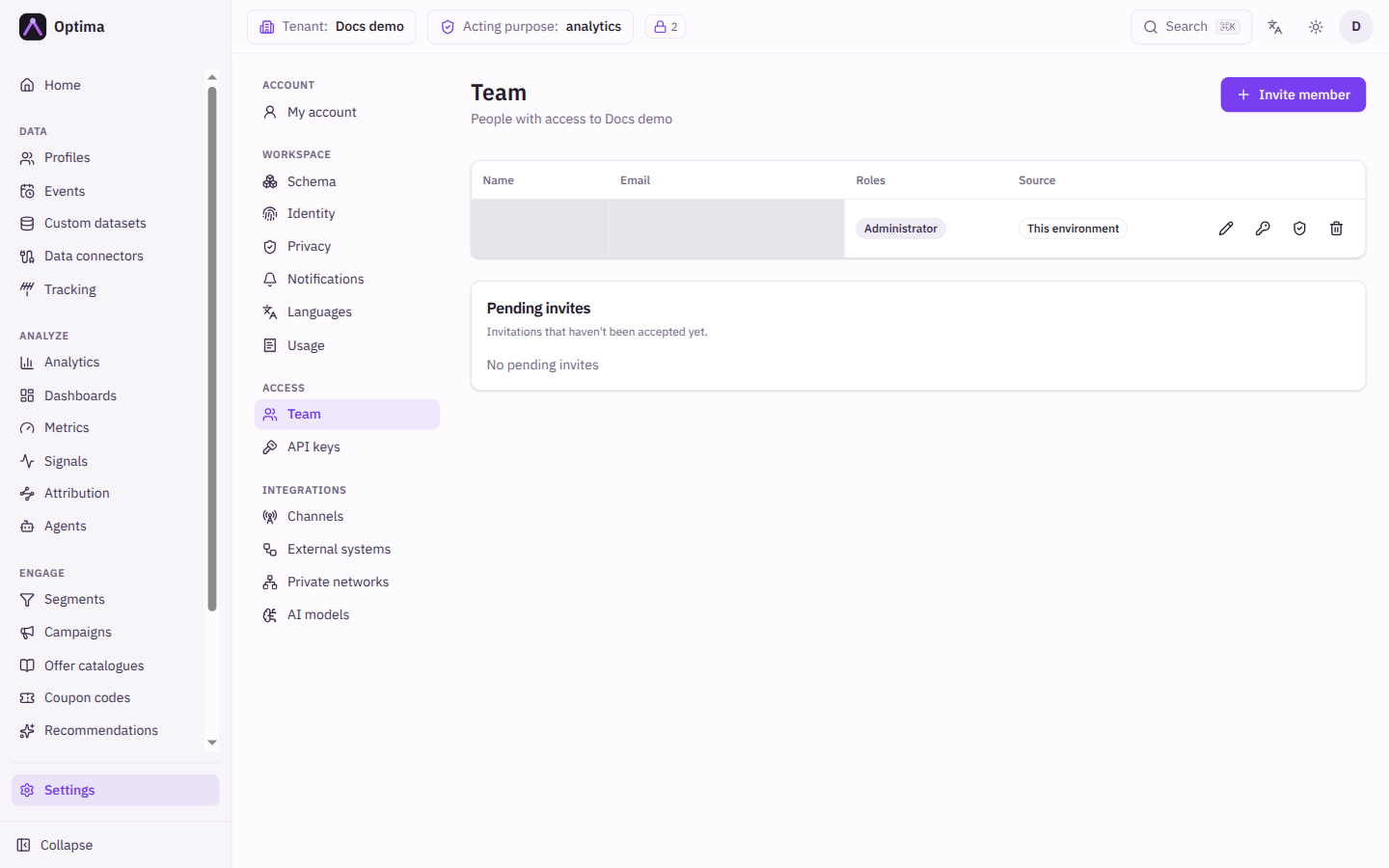
The Team screen lists the people who can sign in to the current environment and what each may do there. You invite new members by email, change their roles, set the purposes they may act under and how much sensitive data they see, and remove them. Open it under Settings → Access → Team.
Who uses it
Tenant administrators. Managing the team needs the team_manager role (or admin, which includes it), or another role your administrator has given access to this area — see Licences and roles. Without it the screen says "You don't manage the team of" the environment and tells you to ask an administrator. Account administrators see a wider view that covers every environment of the account. Team is part of the core licence.
Fields
Members
| Column | Meaning |
|---|---|
| Name and Email | The person. A status badge shows Active, Disabled or Locked. |
| Roles | The roles they hold in this environment. |
| Source | Account-wide when the roles come from an account administrator, This environment when they were given here. |
Invite a member
Invite member opens the dialog. "They'll receive an email with a link to join this environment."
| Field | Meaning | Valid values | Default |
|---|---|---|---|
| Who to invite. | An email address | Empty | |
| Roles | What they get when they accept. At least one is needed. You may grant only roles you hold yourself; team_manager cannot grant admin. | Roles you may grant | None |
Pending invites
Invitations that have not been accepted yet, with Email, Roles and Expires.
Actions
- Edit roles changes a member's roles ("Roles for" their address). At least one role is required.
- Purpose grants sets which consent purposes the person may act under.
- PII level sets how much sensitive data they see. Both need the
privacy_officeroradminrole, notteam_manager, and are disabled with an explanation until the person has signed in and created an account. - Remove from team asks for confirmation: "They lose access to this environment. Their user account is not deleted."
- Revoke invite cancels a pending invitation so it can no longer be accepted.
Account administrator view
An account administrator sees the people of every environment of the account in one table. Each person has their environments, an Account admin control, and cells that open Edit roles for this environment and Remove from this environment. Grant access adds the person to another environment (Choose environment…). Granting Account admin lets the person "manage every environment of this account, invite and remove members, define custom roles, and create new environments"; revoking it leaves any roles they hold in individual environments. Editing roles in an environment where a person's access comes from their account-wide role replaces those roles with explicit ones, and later changes to the account role no longer reach that environment; the dialog asks you to confirm.
Examples
Onboard a campaign editor. Invite member, enter their email, choose campaign_editor and content_editor, Send invite. They appear under Pending invites until they accept.
Offboard. Select Remove from team on their row. Their account stays, but this environment is closed to them.
Common problems
- The invite email never arrives. Check the address, then use Revoke invite and invite again.
- Cannot remove the last role. Use Remove from team instead.
- Cannot remove the last administrator. The environment (or account) must keep one administrator, so the removal is refused with a conflict message. Make someone else an administrator first.
- Removal fails with an error. The person's sign-in sessions could not be ended, so nothing was changed. Try again in a moment.
- A person's roles in an environment cannot be removed. Access comes from their account-wide role; change or remove the account role.
- Purpose grants and PII level are greyed out. The person has not created an account yet.