API keys
Create, rotate and manage the service credentials that scripts, integrations and AI apps use to reach Optima.
An API key is a credential for a program rather than a person: an import script, a website back end or an AI assistant uses it to call Optima with exactly the roles you give it. This screen lists the keys of the current environment and lets you create, change, rotate and delete them. Open it under Settings → Access → API keys. It has two tabs: Keys and Connected AI apps, covered in Connected AI apps.
Who uses it
Tenant administrators and the integration specialists they trust. Managing keys needs the api_key_manager role (or admin, which includes it), or another role your administrator has given access to this area — see Licences and roles. Without admin you can grant a key only roles you hold yourself, never admin, and you cannot change keys that carry extra grants. A role that can only read shows the screen as View only. Account administrators see the keys of every environment of the account and choose where a new key is created. API keys are part of the core licence.
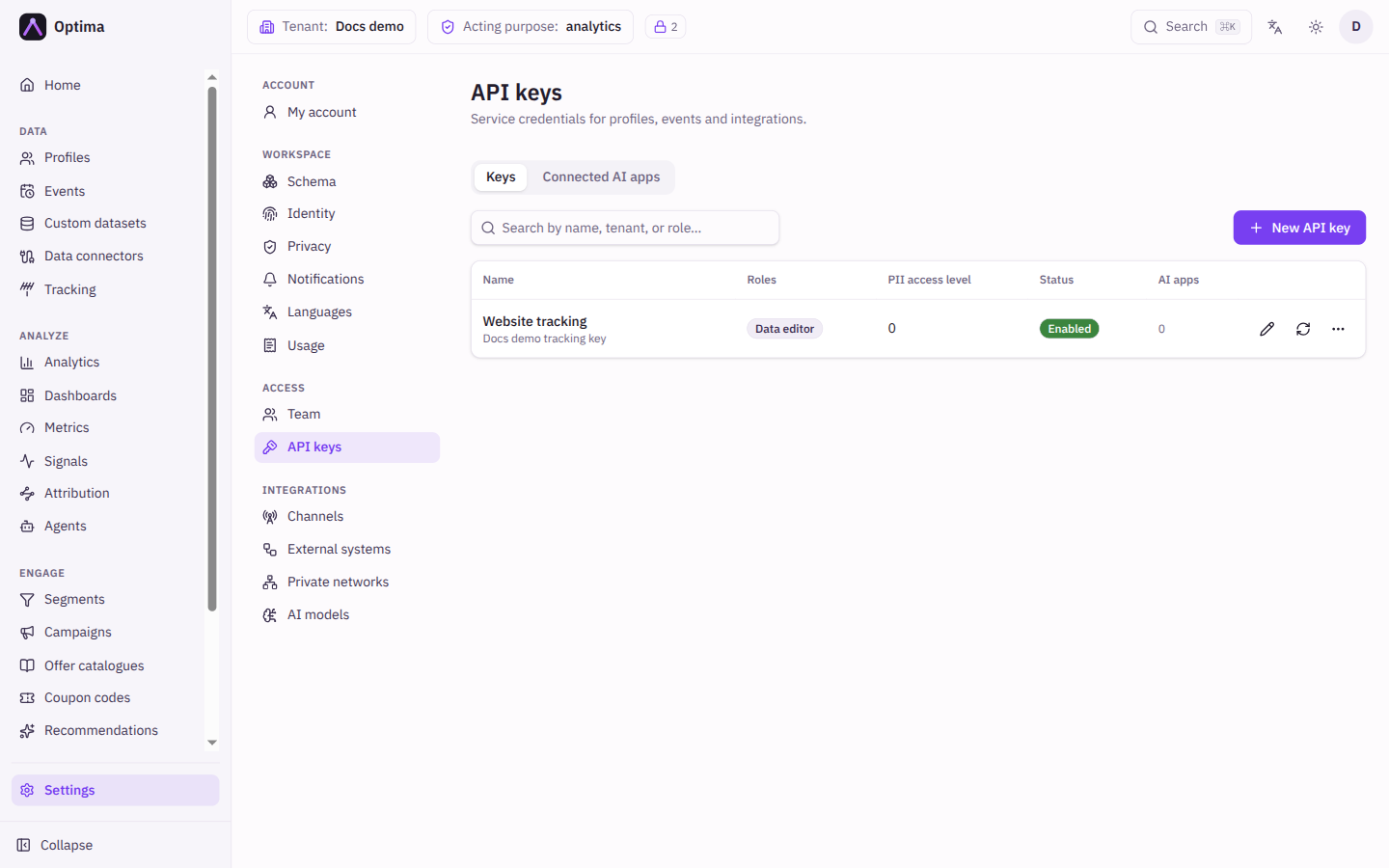
Fields
The list has a search box (Search by name, tenant, or role…) and these columns.
| Column | Meaning |
|---|---|
| Name | The key's name. A note shows when a previous key is still valid after a rotation: "Previous key valid until" a time. |
| Tenant | The environment the key belongs to (shown to account administrators). |
| Roles | The roles the key holds. |
| PII access level | How much sensitive data the key may see. |
| Status | Enabled or Disabled. |
| AI apps | The number of AI apps connected with the key; select it to see them. |
New API key opens the dialog.
| Field | Meaning | Valid values | Default |
|---|---|---|---|
| Application name | A name that tells you what the key is for. It must be unique in the environment; case is ignored, so CRM-Import and crm-import count as the same name. | Text | Empty |
| Description | A note for colleagues. | Text | Empty |
| Create into tenant | Account administrators only: which environment of the account the key belongs to. | An active environment | The environment you are working in |
Roles are not chosen in this dialog. After creating the key, open its menu and choose Roles before using it.
Actions
- New API key creates the key and shows it once in a dialog: "Copy this key now — it is shown only once and cannot be retrieved later." Store it in your secret manager at once.
- Edit (pencil) changes the name and description.
- Rotate key issues a new key. The dialog says how long the previous key keeps working so clients can switch (24 hours unless your platform operator changed it); tick Revoke the previous key immediately if the old key may have leaked, and every client still using it fails at once. Unless you are an administrator of the environment, you can rotate a key or change its roles only if you hold at least the key's PII level and purposes; otherwise the action is refused. While a grace period runs, Revoke previous key now on the row ends it.
- The More actions menu has Enable or Disable. Disable is an immediate, reversible cut-off with no confirmation: the key, and any previous key still inside its grace window, fails on every request until you choose Enable again. Connected AI apps using it then show Key rejected. The menu also has Roles (Key roles, a checkbox per role), Extra grants (administrators only: individual routes and methods on top of the roles, for when no role is specific enough), Purpose grants (the consent purposes the key may act under) and Set PII level. Purpose grants and the PII level cannot exceed your own clearance.
- Delete removes the key after confirmation; anything using it stops working.
Give each key only the roles it needs, and use one key per integration. To cut off a key that may be compromised, Disable it (reversible), rotate it with Revoke the previous key immediately, or delete it.
Examples
A key for a nightly import. New API key named crm-import. Open Roles and tick data_editor. Open Purpose grants and tick the purposes the import collects data under. Copy the key into the import job's configuration.
A read-only key for a dashboard. Name it bi-readonly, give it data_viewer and analytics_viewer, and set a low PII level so personal identifiers are withheld.
Common problems
- I lost the key. It cannot be shown again. Rotate the key to get a new one, and update the client.
- A rotated key still works. The previous key is valid for the grace period. Use Revoke previous key now.
- Requests fail with a permission error. The key lacks a role or purpose grant. Check Roles and Purpose grants.
- The data looks redacted. The key's PII level is below the sensitivity of those attributes.
- "cannot grant role X: you do not hold it". Without
adminyou can grant only roles you hold. Ask an administrator. - A disabled key's requests fail. That is what Disable does; choose Enable to restore it.
- I cannot create keys. Your roles lack
api_key_manager. - "An application named … already exists in this tenant". Names are unique per environment, ignoring case. Pick another name, or rename the existing key first.