Connected AI apps
See the AI assistants connected to Optima with your API keys, and revoke a connection.
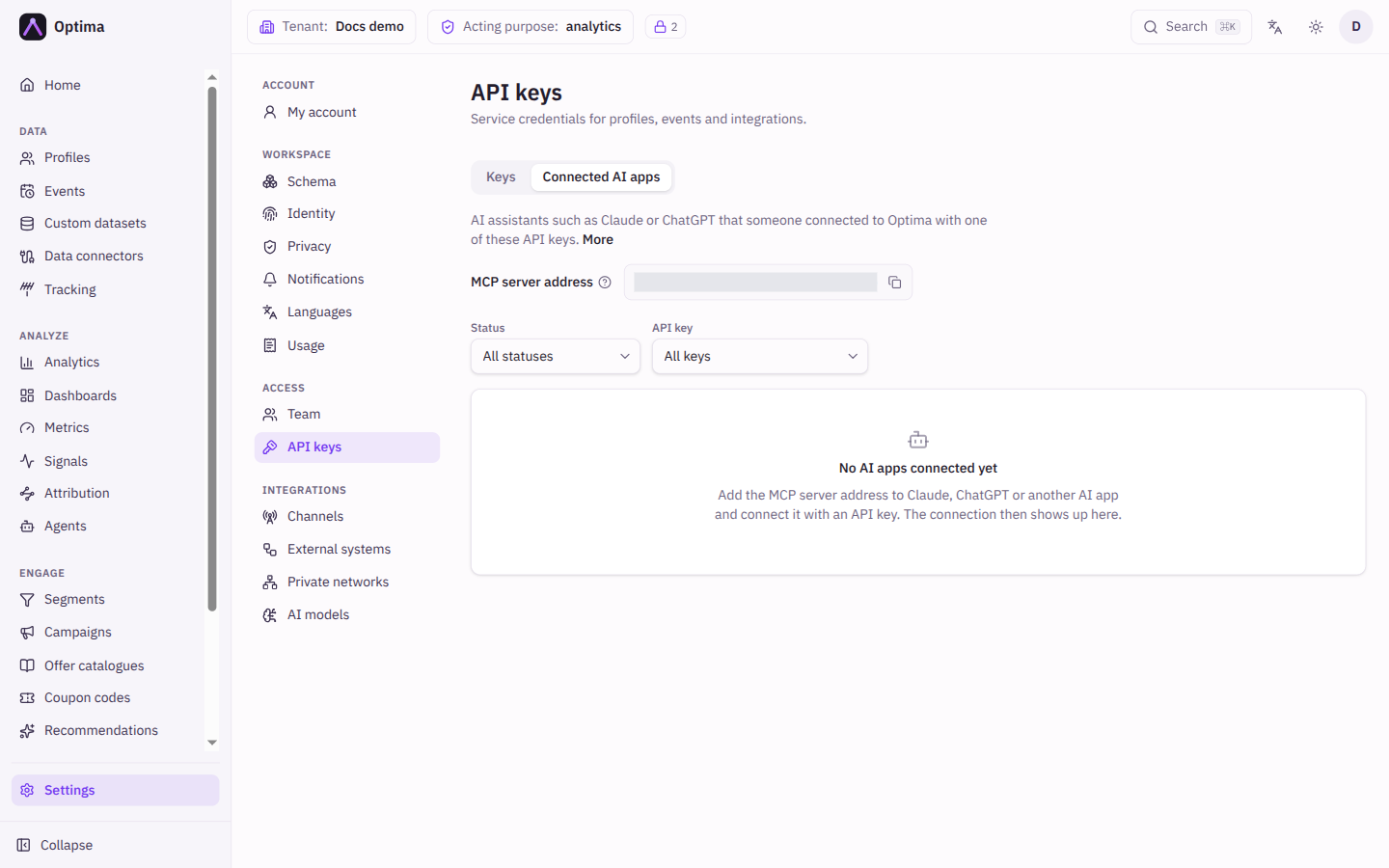
Connected AI apps are assistants such as Claude or ChatGPT that someone connected to Optima using one of your API keys. Once connected, an assistant can look at your data model, query profiles and events, run reports, and draft new segments, campaigns and journeys for a person to review. It acts with exactly the roles, purposes and PII level of its key, and every read it makes is recorded in the privacy audit log under that key. This tab lists the connections and lets you end one. Open it under Settings → Access → API keys, on the Connected AI apps tab.
Who uses it
Tenant administrators and integration specialists. Seeing the list needs the api_key_manager or auditor role, and revoking a connection needs api_key_manager, or another role your administrator has given access to this area — see Licences and roles. Someone who cannot read connections does not see the tab. Connected AI apps are part of the core licence.
Fields
At the top, MCP server address is the address you paste into the AI app. "Paste this address into the AI app's custom connector settings. The app then opens a page on this server, where you paste the API key it should use." If the address is not shown, ask your Optima operator for it. Two filters, Status and API key, narrow the table.
| Column | Meaning |
|---|---|
| Client | The AI app, for example Claude or ChatGPT. |
| Redirect host | The address the app returns to after connecting. |
| API key | The key the connection uses; select it to open that key. |
| Status | Active; Pending (the person never finished connecting); Key rejected (the key was disabled, rotated or deleted, so the connection stopped working); Expired (the app went unused for too long and has to reconnect); Revoked, with who revoked it. |
| Connected | When it was connected. |
| Last used | When it last made a request, or Never. |
| Last IP | The address of the last request. |
Actions
- Revoke ends one connection after confirmation: "The AI client will need to reconnect." It is offered for active and pending connections only.
- Revoking is narrower than it looks. Whoever holds the API key can connect again. The revoke confirmation says it: "The AI client will need to reconnect. Disabling, rotating or deleting the key cuts off all access." To cut off all access, disable (reversible), rotate or delete the key on the API keys tab.
Setting up an assistant
- Create a dedicated key for the assistant under API keys, never an integration key. Give it only the roles the assistant needs. A read-only analyst setup uses
data_viewer,analytics_viewerandcampaign_viewer; addingaudience_editorandcampaign_editorlets it draft segments and campaigns. Set Purpose grants and the lowest PII level that answers your questions. - In the AI app, add a custom connector and paste the MCP server address.
- The app opens a page on your Optima server. Check that its address is your server before you paste the key, and that the page names the right app. Paste the key and continue.
- The connection appears here as Active.
Assistants that can send a key directly (for example Claude Code or Cursor) connect with the key as a bearer token. Those do not create a row here; to govern them, rotate or delete the key.
With write roles an assistant can also ingest events (which cannot be undone through the assistant), set profile attributes, record consent, and save reports, metrics (which can send alert emails) and segments (which changes every campaign using the segment), so grant write roles only when needed. An assistant cannot send, activate, approve, delete, erase or export, whatever its key's roles: those actions are not available to it.
Examples
An analyst assistant. Create the key claude-analyst with the three viewer roles and a low PII level, add the server address to Claude, paste the key when prompted. Ask it for last month's campaign results; each read shows in the Privacy audit log as made by claude-analyst.
Offboard an assistant. Filter by the key, Revoke each connection, then rotate the key if it may have been shared.
Common problems
- The status is Key rejected. The key was disabled, rotated or deleted. Enable it, or create or rotate a key, and reconnect.
- The status is Expired. The app went unused too long. Reconnect it.
- A revoked app is back. It reconnected with the same key. Disable, rotate or delete the key.
- The assistant cannot see some data. The key's roles, purpose grants or PII level exclude it. The assistant is told which attributes were withheld.
- No MCP server address is shown. It is not set up for your instance. Ask your Optima operator.