Connect an AI assistant
Give an AI assistant such as Claude or ChatGPT safe, audited access to Optima with a dedicated API key and the connector address.
This guide connects an AI assistant to your environment. The assistant can look at your data model, query profiles and events, run reports, and draft segments, campaigns and journeys for a person to review. It acts with exactly the roles, purposes and sensitive data level of the key you give it, and every read it makes is recorded in the privacy audit log.
Before you start
- You need
api_key_managerto create the key and to revoke connections, or another role your administrator has given access to this area — see Licences and roles. Theauditorrole can see the connections list. Connected AI apps are part of the core licence. - The assistant needs the MCP server address. It is shown at the top of the Connected AI apps tab. If it is not shown, your Optima operator has not set it up for your instance: ask them.
- A chat assistant that supports custom connectors, such as Claude or ChatGPT.
An assistant cannot send, activate, approve, delete, erase or export, whatever its key's roles. Those actions are not available to it.
Step 1: Create a dedicated key
Never reuse an integration key. A key of its own can be limited and cut off without affecting anything else.
- Open Settings → Access → API keys and select New API key.
- Name it after the assistant and the job, for example
claude-analyst, and select Create. Copy the key now. It is shown only once. - From the key's More actions menu choose Roles and tick only what the assistant needs.
- A read-only analyst setup uses
data_viewer,analytics_viewerandcampaign_viewer. - Add
audience_editorandcampaign_editorif you also want it to draft segments and campaigns.
- A read-only analyst setup uses
- Choose Purpose grants and tick the purposes it may read data under.
- Choose Set PII level and set the lowest level that answers your questions.
See API keys.
Step 2: Add the connector in the assistant
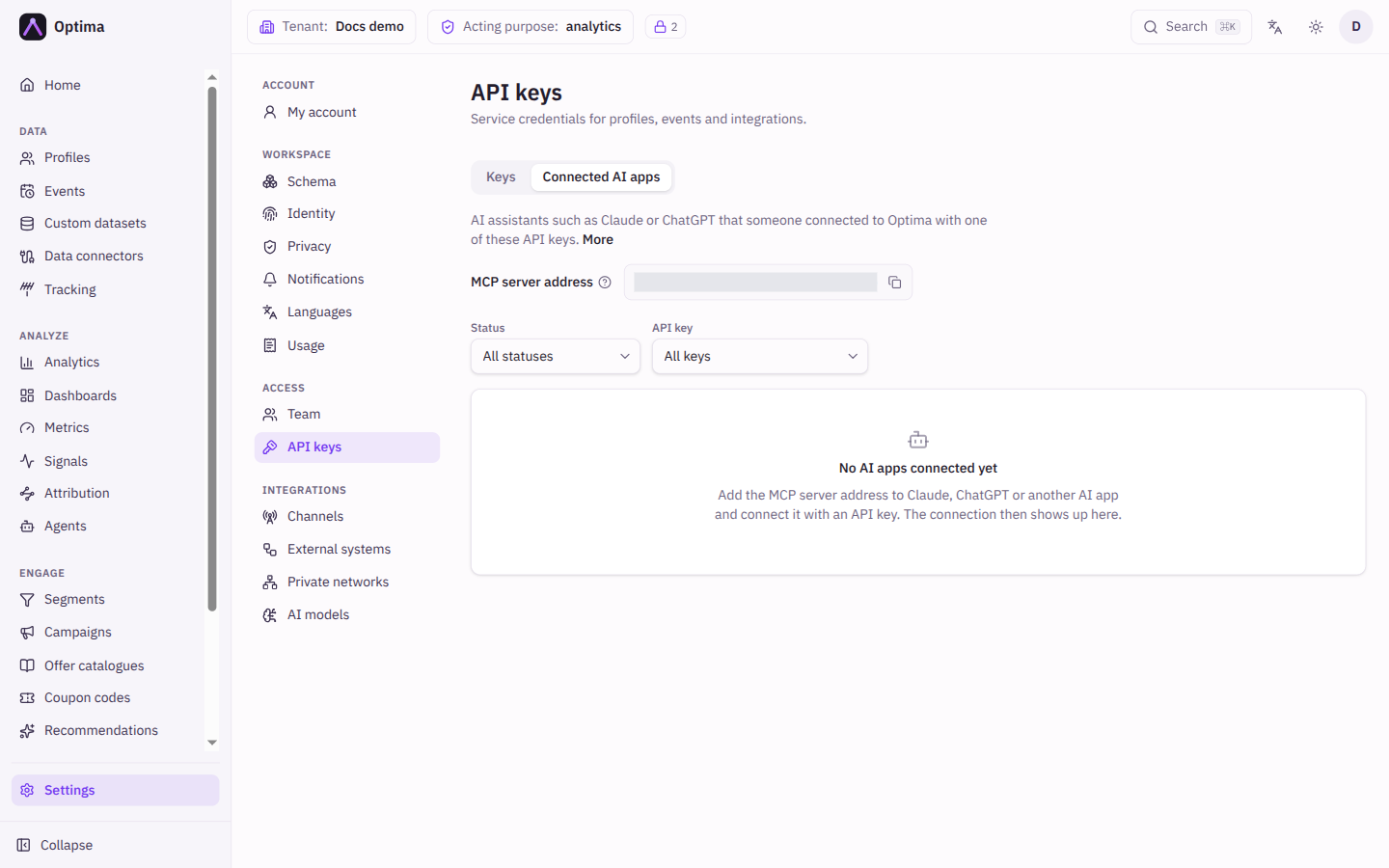
- Open the Connected AI apps tab on the API keys screen and copy the MCP server address.
- In the assistant, add a custom connector and paste the address.
- The assistant opens a page on your Optima server. Check that the page address is your server before you paste anything, and that it names the right app.
- Paste the API key from step 1 and continue.
Assistants that can send a key directly, for example Claude Code or Cursor, connect with the key as a bearer token. They do not create a row on this tab. To govern them, rotate or delete the key.
Step 3: Try it
Ask a question that the key's roles cover, such as "How did last month's campaigns perform?" or "Draft a segment of customers who bought in the last 30 days." Anything it drafts is for a person to review in the console before it is used.
Check that it worked
- On the Connected AI apps tab the connection appears with the status Active, the Client, the API key and a Last used time.
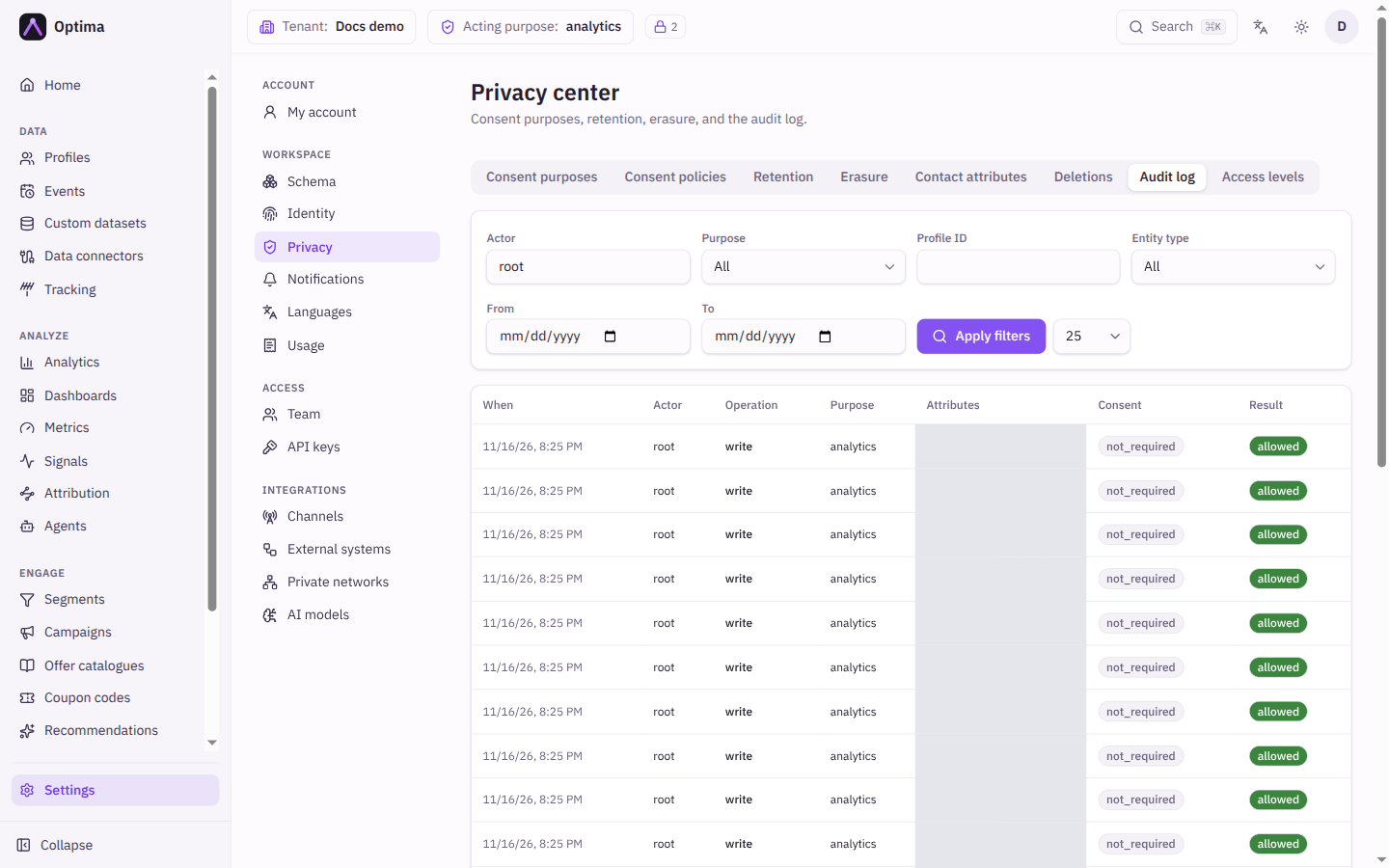
- Open Settings → Workspace → Privacy and the Audit log tab. Reads the assistant made appear with the key as the Actor, and an entry made through a connected app says "via AI connection" with a short id.
- Ask the assistant about something its roles do not cover. It is told which data was withheld and says so.
Take access away
- Revoke a single connection on the Connected AI apps tab. The assistant has to reconnect.
- Revoking is narrower than it looks: whoever holds the API key can connect again. To cut off all access, rotate or delete the key on the Keys tab.
- A status of Key rejected means the key was rotated or deleted. Expired means the app went unused too long and has to reconnect.
Common problems
- No server address is shown. It is not set up for your instance. Ask your Optima operator.
- The assistant cannot see some data. The key's roles, purpose grants or sensitive data level exclude it.
- A revoked app is back. It reconnected with the same key. Rotate or delete the key.
- The status stays Pending. The person never finished the connection in the assistant.
Next steps
- AI assistants (MCP) covers every client, the tools, permissions and troubleshooting.
- Review what assistants have read in the Privacy audit log.
- Set up your team covers roles, purposes and keys for people and integrations.
- Connected AI apps describes every status.