Personalize with recommendations
Build a recommendation catalogue from a product dataset, test the ranking for a real profile and put recommended items into an email.
This guide gives every customer an email with products picked for them. You keep your products in a custom dataset, pin a ranking strategy to it as a recommendation catalogue, check the ranking for a real profile, and insert the items into a message template.
Before you start
- Recommendations belong to the Decision package, which needs the Campaign package. Without it Recommendations is not in the navigation.
- You need
campaign_adminto create and preview catalogues,data_editorto add dataset records, andcontent_editorfor templates, or another role your administrator has given access to these areas — see Licences and roles. - Your site or shop already records the interactions that count as interest, such as
product_view,add_to_cartandpurchaseevents, each carrying the product's key in an attribute such asproduct_id. See Events.
Step 1: Define the product dataset
- Open Settings → Workspace → Schema and the Custom datasets tab, and select New dataset.
- Enter the Dataset name, for example
product_catalog, and add the attributes your messages need, with their types:title,image_url,url,priceandavailability. - Save.
See Schema.
Step 2: Fill it with products
Choose the way that fits the size of your catalogue.
- By hand. Open Custom datasets in the Data group, choose the dataset, select Actions → Add record, enter a Record key (the product's key, for example
SKU-1001) and the attributes, and save. - From a file. Create a data connector with the data type Custom dataset and import a CSV, as in Import customers from a CSV file.
The Record key is what interaction events must carry. If your purchase events say product_id is SKU-1001, the record key must be SKU-1001. See Custom datasets.
Step 3: Create the catalogue
- Open Recommendations in the Engage group. On the Catalogues tab select New catalogue.
- Enter a Name, for example
products, and choose the Datasetproduct_catalog. Messages address the catalogue by this name, so avoid renaming it later. - Under Field roles choose Title (required), and the fields for Image, URL, Price and Availability.
- Under Interaction events add a row for each event that counts as interest:
product_viewas View,add_to_cartas Cart,purchaseas Purchase, each with the Item attributeproduct_id. Without them, trending and recently-viewed have nothing to rank on. - Under Exclude add a rule so items you cannot sell never appear: availability is
out_of_stock. - Save.
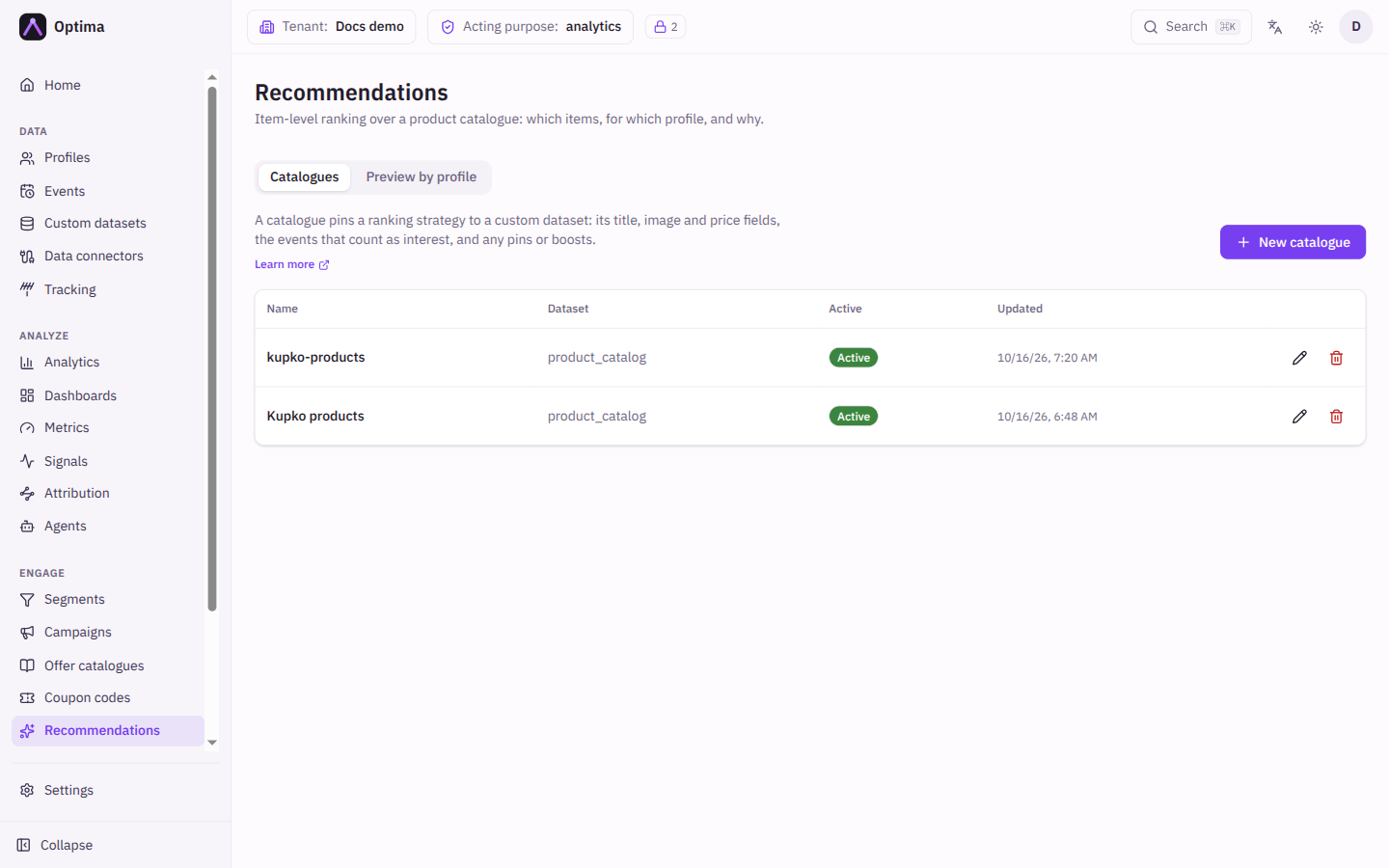
Pins, boosts and the Affinity setting are optional. See Recommendations for all of them.
Step 4: Check the ranking for a real profile
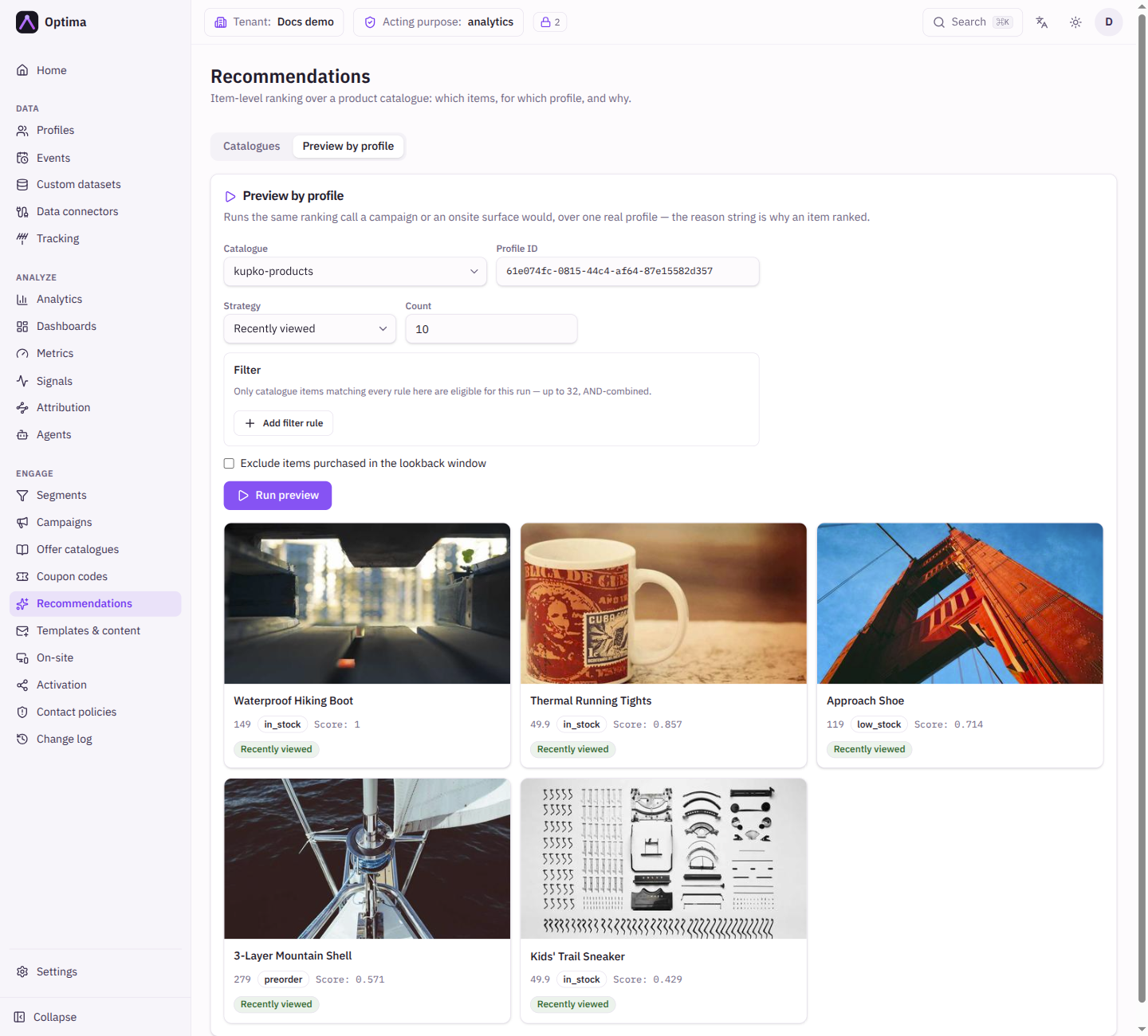
- Open the Preview by profile tab.
- Choose the Catalogue, enter a Profile ID of a customer who has browsed, and set the Strategy to Trending or Recently viewed. Set Count to
3. - Select Run preview. Each item shows its Score and a Reason such as Trending or Recently viewed.
An empty result is a normal answer: the profile may have no interactions yet, or your rules remove every item. Try another profile or Trending, which works for everybody. Turn on Exclude items purchased in the lookback window so the preview matches a message: messages always leave out what the customer already bought, but the preview does so only when this is on.
Step 5: Put the items into a template
- Open Templates & content and a template for the Email channel, or create one.
- In the HTML body select the Personalization button and open Item recommendations. Choose the Catalogue, Strategy and Count, and copy the block it builds. It lays out each item's title, image and price as defined by the catalogue. Paste it where the products should appear.
- Or write it yourself. The count is a plain number from 1 up to your Optima instance's maximum, 50 by default (the provider of your Optima instance sets it). The dialog offers 1 to 20.
{{range items "products" "trending" 3}}
{{.title}}: {{.price}}
{{end}}
Each item carries the catalogue's fields, named as the dataset names them, and three extra ones: item_key, score and reason. When there is nothing to recommend, the loop prints nothing, so wrap the block in a condition if the surrounding text would look odd without it. See Template helpers.
- Save the template.
Step 6: Preview the finished message
The editor's Render preview cannot show recommended items, because they are chosen for a real profile when the message is built. Use a proof instead.
- Use the template in a campaign, as in Your first campaign.
- Open the campaign's Test tab. Under What one person would get, enter the Profile ID of a customer who has browsed.
- Under Send a proof, enter the same profile and your own address in Deliver to, and send it. The proof is never sent to the customer.
See Pre-flight.
Check that it worked
- The proof email shows the products the preview ranked for that profile, in the same order (with Exclude items purchased in the lookback window on in the preview).
- Items the customer already bought are not in it.
- A customer with no history gets the trending items if you used Trending, and nothing from Recently viewed.
Common problems
- The preview is empty. The profile has no interactions, the Exclude or Filter rules remove every item, or no interaction events are set on the catalogue.
- Items disappear after a forced rename. Optima refuses a rename or delete while something uses the catalogue, unless you choose to go ahead. Messages still ask for the old catalogue name. Update the
itemstags. - Items do not match events. The Item attribute on the event must carry the same value as the record key in the dataset.
- Run preview is disabled. It needs the
campaign_adminrole.
Next steps
- Show recommended items on your website: Recommended items.
- Rank offers instead of products: Offer catalogues.
Run an A/B test
Compare two messages with a winner test on a journey split, measure against a control group and read the credit in Attribution.
Collect sign-ups with double opt-in
Create a newsletter sign-up form with a hosted page, require the visitor to confirm by email, and check that consent is recorded.