Run an A/B test
Compare two messages with a winner test on a journey split, measure against a control group and read the credit in Attribution.
This guide compares two versions of a message. A split node tries both on a slice of your audience, waits until the evidence is in, then sends everyone who was held back down the version that converted better. A control group of people who are not contacted tells you what the campaign caused, and Attribution shows which touches earned the credit.
Before you start
- You need
campaign_editorto change the campaign and journey, and an approver to activate it. Setting the global control group needscontact_policy_editor. Reading Attribution needsanalytics_viewer. Or use another role your administrator has given access to these areas — see Licences and roles. - Journeys and Attribution belong to the Campaign package. Control groups need the control groups feature.
- Two message templates for the two versions, for example
subject-shortandsubject-long. See Send a welcome journey for how to write them. - An audience big enough to show a difference. A winner test needs a few conversions for each arm, and lift needs at least 100 people in each group.
- A conversion event, for example
purchase.
Step 1: Build the journey
- Create a Journey-based campaign and open a new journey, as in Send a welcome journey. Choose the Trigger, for example Schedule with the segment you want to test on, or Immediate to enrol a segment once.
- Add a Split node with two arms,
shortandlong, weights50and50. - Add a Send node on each arm, with the template for that version.
- Add a Goal node. Configure it to wait for the Event
purchasewith a Timeout of7d. Connect both Send nodes to the Goal node. Both arms must lead to it. - Add an Exit node and connect both Goal exits, on_met and on_timeout, to it.
- Do not save yet.
Step 2: Turn the split into a winner test
- Select the Split node and Configure.
- Set Winning means to your Goal node. The arm that converts that goal best wins.
- Set Optimization to Winner test — test a slice, then commit to the winner.
- Set Test share (%) to
20. Only that share of the audience runs the arms now; the rest wait at the split. - Set Minimum conversions to win to a number you trust, for example
30. An arm below it cannot win. Entering0uses the default of 3. - Set Decide after to
7days. The window is measured from the first profile to reach the split. If the goal waits longer than this, the dialog warns you that later conversions do not count toward the verdict. - Select Save in the dialog, then Save the journey.
There is one test per saved version of the journey. Editing and saving the journey starts a new test. Every setting is described on Split node.
Step 3: Add a control group and a goal
A control group is a slice of the audience that is deliberately left out, so you can compare them with the people who received the campaign.
- On the campaign page, in the Measurement block, select Edit.
- Under Control group choose Its own holdout and set Holdout size (%) to
10. Or choose The global holdout if your team already keeps one under Control groups. See Control groups. - Set the Goal to the event
purchaseand Counts within (days) to7. The goal is only used when a control group is set, because the control group receives nothing. - Save.
Choose the holdout before launch. Re-drawing it later makes earlier lift numbers incomparable.
Step 4: Preview, approve and launch
- Use Test on the canvas to check who would enter and what each send would deliver. See Pre-flight.
- Request approval on the campaign page, and have an approver approve it, or Activate if you hold approval rights.
- Confirm the journey is Active.
Step 5: Follow the test
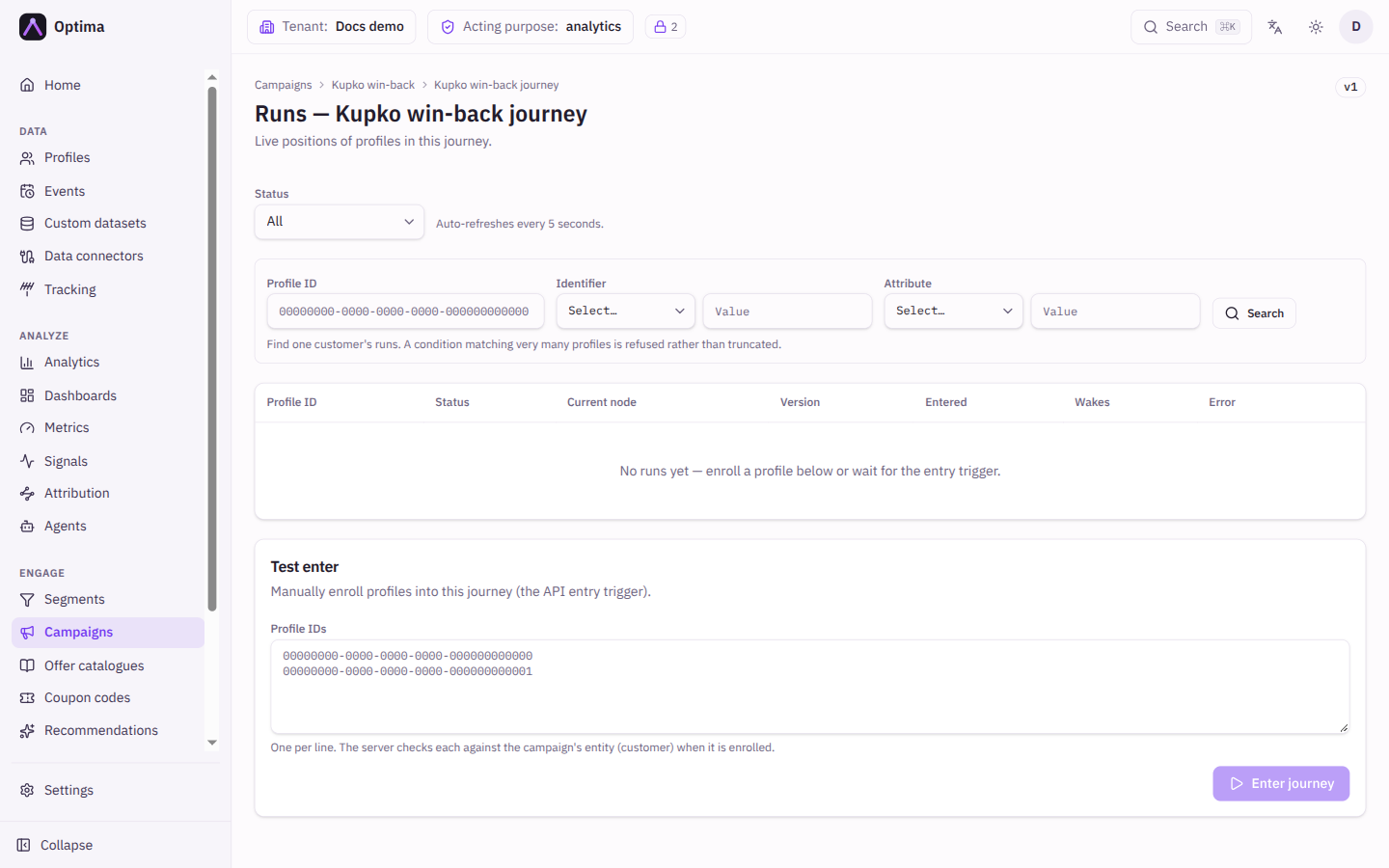
- Open the journey's Runs. While the test collects, a Winner tests card shows the status collecting, the deadline and the evidence so far. Split distribution counts the runs per arm.
- When the window closes the status becomes decided and shows the winner, and every held profile flows down it. If no arm reached the minimum, the status is inconclusive and held profiles use the configured shares.
- Decide now concludes the test early on the conversions so far, after you confirm. Every held profile then flows at once and the test cannot be rerun on that version.
Step 6: Read the results
- On the campaign page open the Measurement tab. Incremental lift compares the contacted people with the control group over 30, 90 or 180 days. It says Not enough data yet until each group has 100 people.
- Open Attribution in the Analyze group. Set Conversion event to
purchase, choose a Period and Attribution window, and filter Campaign to your campaign. Compare the models. Where they agree on the credit, the answer is robust.
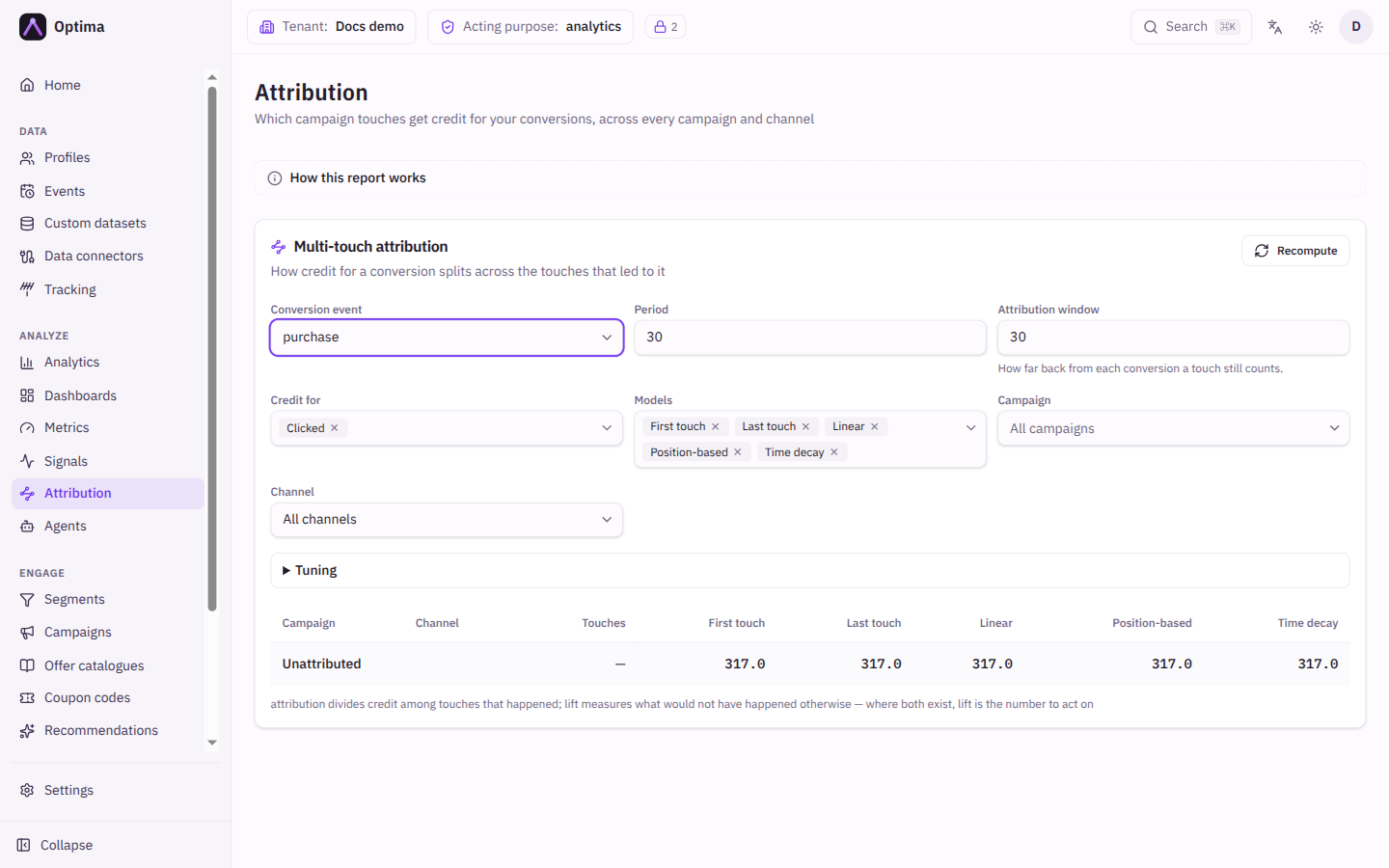
Lift and attribution answer different questions. Lift tells you whether the campaign caused extra purchases. Attribution divides credit among the touches that happened, and cannot tell you whether the purchase would have happened anyway. See Attribution.
Common problems
- The editor says to pick the goal an optimizing split measures by. Choose a Goal node under Winning means. If none exists, add one and connect both arms to it first.
- Save says the split shares must add up to 100%. Use Make it 100%.
- The test ended inconclusive. No arm reached Minimum conversions to win. Lower the minimum, widen the audience, or lengthen Decide after, then save the journey to start a new test.
- Held profiles are waiting. That is the winner test. They wait for the window to close, or for Decide now.
- Lift says Nothing to compare against. No control group is set on the campaign.
Next steps
- Keep the winning version as the new default, and test the next change.
- Use Auto-optimize instead of a winner test when you want traffic to keep shifting toward the better arm without ever committing.
- Journeys lists every node you can combine with a split.
Send a welcome journey
Write a welcome email, build a journey that sends it when someone signs up and follows up after a wait and a split, test it and launch it.
Personalize with recommendations
Build a recommendation catalogue from a product dataset, test the ranking for a real profile and put recommended items into an email.